Gate Cover
Drive a driveway gate, garage door, barrier or wicket with relay pulses, and read its position from contact sensors.
The Gate Cover template controls a gate that has its own drive controller — a sliding or swing driveway gate, a garage door, a barrier, an electric strike on a wicket. boneIO does not power the motor; it gives the drive's control input a short pulse from a relay, the same way a push-button or a remote would. Contact sensors (limit switches, reed contacts) tell it where the gate really is.
In Home Assistant the gate is a cover entity with Open, Close and Stop; on the controller it has a tile on the Templates page.
Choosing the control mode
Look at how your gate drive is wired — its manual will say which inputs it has.
| Control Mode | For drives with | What boneIO does |
|---|---|---|
| Cyclic (single button) | One "step" input: each press does open → stop → close → stop. The most common for driveway and garage gates. | Pulses one relay. It keeps track of what the next pulse will do: pressing Close while the gate is opening first stops it, and the next pulse closes. |
| Separate buttons | Separate open, close and (optionally) stop inputs. | Pulses the open, close or stop relay. |
| Open only (electric lock) | An electric strike or a gate that closes by itself. | Each Open pulses the relay. Close and Stop are ignored. |
Setting one up
- Wire the relay output(s) to the drive's control input(s), and the contact sensors to controller inputs configured as binary sensors
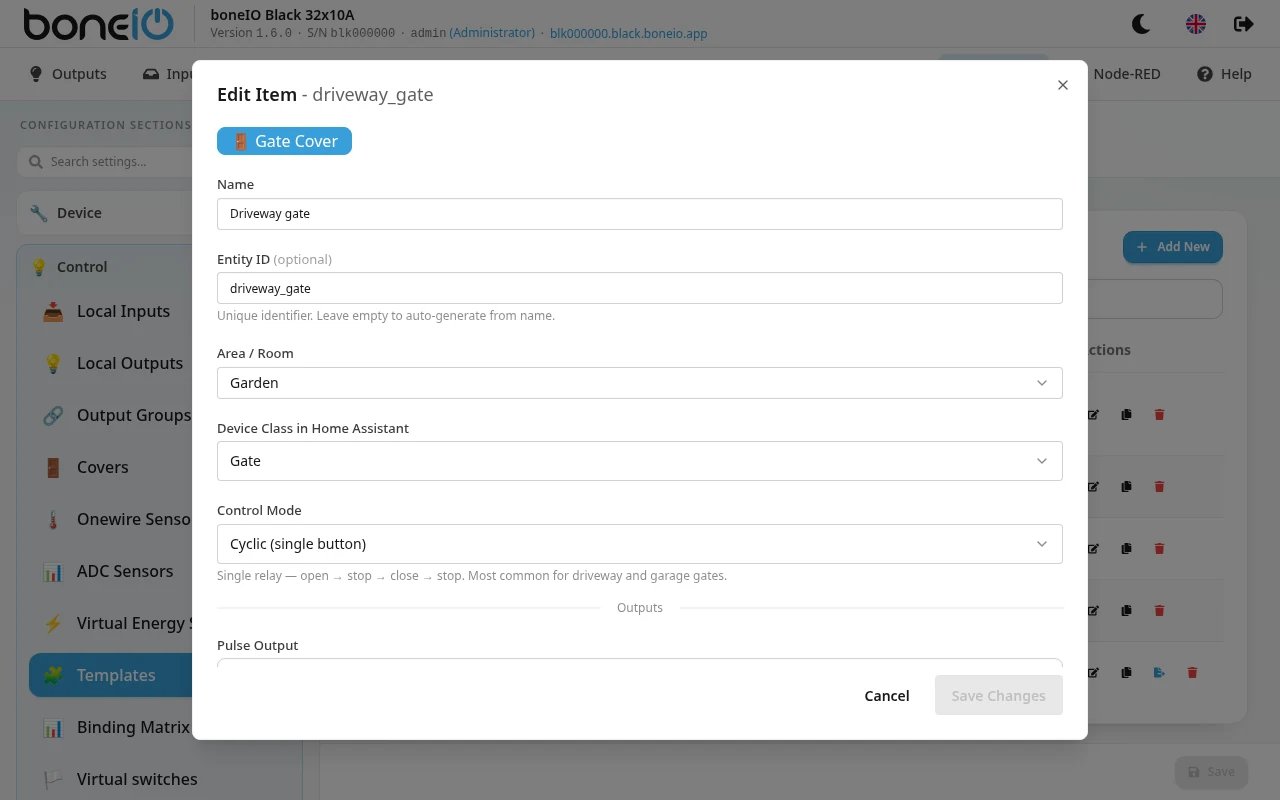
- Open Settings → Control → Templates, click Add New and choose Gate Cover
- Fill in Name, Entity ID (optional — made from the name) and Area / Room
- Choose the Device Class in Home Assistant: Gate, Garage Door, Barrier or Door / Wicket. It only changes the icon and wording in Home Assistant
- Choose the Control Mode
- Under Outputs pick the relays:
- Pulse Output for Cyclic and Open only,
- Open Output, Close Output and optionally Stop Output for Separate buttons
- Set the Pulse Duration — how long the relay stays on per press. 500ms by default; use what your drive's manual asks for
- Under Contact Sensors pick the Closed Sensor and, if you have one, the Open Sensor (or None)
- Save
Use a relay output that is not driven by anything else — no button action, no schedule, no group. The template turns it on for the pulse and off again; anything else switching the same relay moves the gate.
Open only without a pulse duration
In Open only mode the Pulse Duration can be left empty. The relay then stays on until the Open Sensor reports that the door opened, and switches off at that moment — useful for a strike that must be held until the door is pushed.
Leave the pulse duration empty only when an Open Sensor is set. Without one nothing switches the relay off.
What the controller knows about the position
The state shown on the tile and in Home Assistant depends on the sensors you gave it:
| Sensors | States | How |
|---|---|---|
| Closed Sensor and Open Sensor | Closed, Opening, Open, Closing | Closed sensor active → Closed. It releases → Opening. Open sensor active → Open. It releases → Closing. |
| Closed Sensor only | Closed, Open | Closed sensor active → Closed, released → Open. It cannot tell a moving gate from one standing half-open. |
| None | Closed, Open | Guessed from the last command. After a restart the gate is assumed Closed. |
A sensor counts as active when its contact is closed — the closed sensor when the gate is fully closed, the open sensor when it is fully open. A sensor always overrides what the controller guessed from a command.
With sensors, a restart reads their current state without sending anything — a controller restart never pulses the gate.
Without any sensor, the state is only a guess. If someone opens the gate with its own remote, the tile and Home Assistant still say Closed. Fit at least a closed sensor if automations depend on the gate's state.
Using it
On the Templates page the gate's tile shows Open, Closed, Opening or Closing and has the buttons Open, Stop and Close (in Open only mode: Open and Stop). The button that undoes the current state is highlighted. See Templates page.