OLED Display
Which screens the controller's display shows, in what order, and when it goes to sleep.
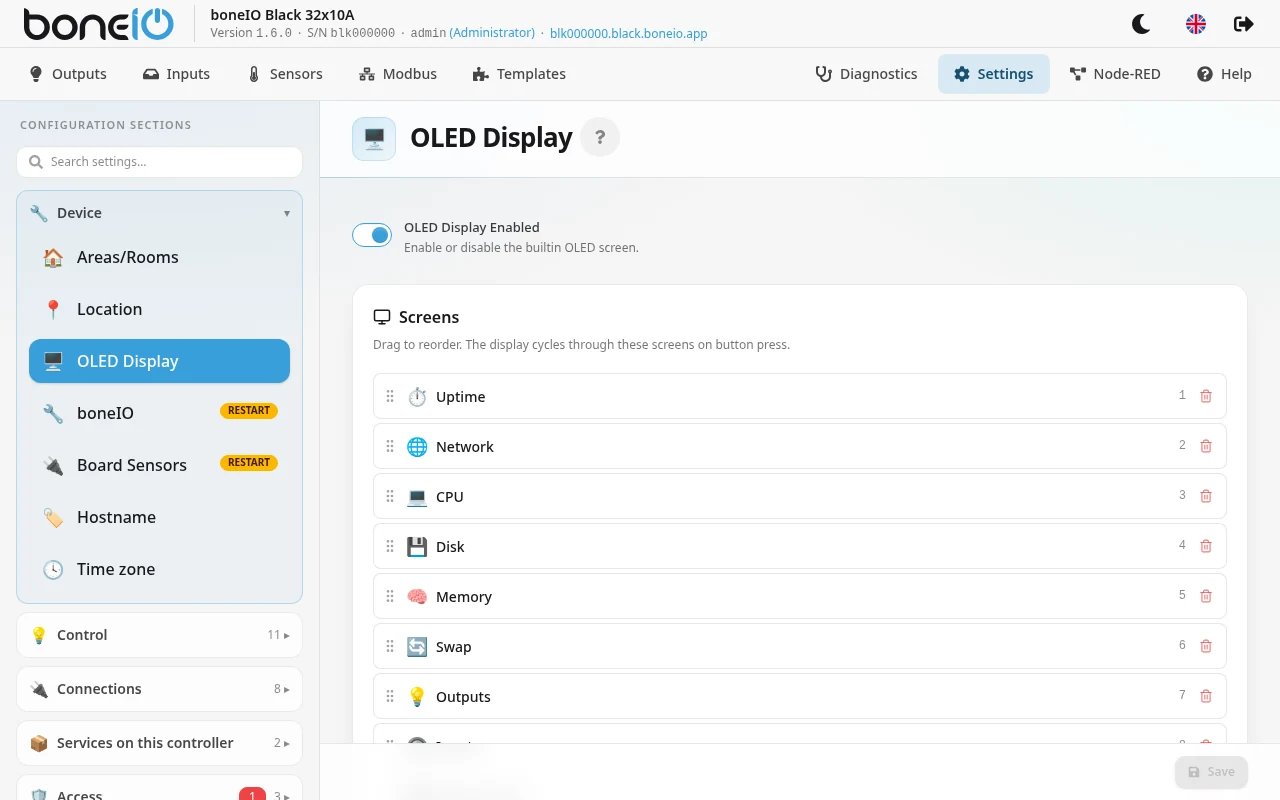
The small display on the front of the controller shows the controller's status: its IP address, the state of the outputs and inputs, a QR code that opens the panel, and more. You choose which screens it shows, and in what order, in Settings → Device → OLED Display.
Using the button
- Press the button next to the display to go to the next screen. After the last screen it starts again from the first.
- If the display has gone dark (screensaver), the first press only wakes it up.
- Hold the button for 2 seconds to shut the controller down: the display asks Shutdown system?. Release, then hold again for 3 seconds to confirm. A single press, or 30 seconds without doing anything, cancels.
Notices
Twice the display puts a notice ahead of the screens you chose, because something needs your attention at the cabinet.
Setup required
A controller with no administrator account yet shows Setup required, Onboarding needed., Open in a browser: and the panel's address. Open that address and go through the First-time setup.
- The display does not go dark while the notice is up.
- The button still steps through the configured screens. After a minute without a press the notice comes back.
- The address is checked every few seconds, so it appears once the router hands one out. Until then the last line reads
http://<device-ip>:8090— a placeholder, not the address. A controller already registered with boneIO Cloud shows its cloud address. - The notice goes away by itself within a few seconds of the account being created — by the wizard or by restoring a backup.
Updating — do not power off
After a boneIO update the controller may run system migrations before the panel starts. On a controller several releases behind this can take minutes.
Meanwhile the display shows Updating, Do not power off. and how far it has got (for example 40% 1.6.32: …). The panel does not answer yet.
Do not unplug the controller while this is shown. The notice goes away by itself when the migrations are done, and the panel starts.
With OLED Display Enabled off, the display shows a single line instead: Updating system 40%.
Choosing the screens
- Open Settings → Device → OLED Display
- Make sure OLED Display Enabled is on.
- Under Screens:
- drag a screen up or down to change the order,
- remove a screen with the bin icon,
- add a screen from the buttons under Add screen:. Only screens not already on the list are offered.
- Click Save. The change applies straight away, no restart needed.
What each screen shows
| Screen in the panel | YAML | What it shows |
|---|---|---|
| Uptime | uptime | boneIO logo, the hostname, the software version and how long the controller has been running. If the controller has a temperature sensor, also its temperature and whether MQTT is connected (CONN / DOWN). |
| Network | network | The controller's IP address, network mask and MAC address. |
| Power (INA) | ina | Voltage, current and power from the power monitor in the controller (INA219 or INA226). It has nothing to show unless the power monitor is set up in Settings → Device → Board Sensors. |
| CPU | cpu | Processor load. |
| Disk | disk | Total, used and free storage. |
| Memory | memory | Total, used and free RAM. |
| Swap | swap | Total, used and free swap. |
| Outputs | outputs | The state of every output, one screen for each group of outputs. |
| Inputs | inputs | The state of the inputs, over as many screens as needed. |
| Extra Sensors | extra_sensors | Up to three sensors of your choice (see below). |
| Web QR Code | web | A QR code. Scan it with your phone to open the panel. |
A factory-fresh controller shows: Uptime, Network, CPU, Disk, Memory, Swap, Outputs, Inputs and Web QR Code, in that order.
Extra sensors
The Extra Sensors screen can show up to three readings from Modbus devices or 1-Wire temperature sensors.
- Add the Extra Sensors screen to the list. The Extra Screen Sensors card appears below.
- Click Add Sensor.
- Choose the Sensor Type:
modbus: pick the device in Modbus ID and then the reading in Sensor ID,dallas: pick the 1-Wire sensor in Sensor ID.
- Click Save.
After the third sensor the panel shows Maximum 3 extra sensors allowed.
Screensaver
Under Screensaver, the Screensaver Timeout slider sets how long the display stays on after the last button press, from 10 seconds to 10 minutes. Move it all the way to the left (Off) and the display never goes dark.