Schedules
Let the controller do things on its own — at a set time or with the sun.
A schedule runs actions by itself, with nobody pressing anything: close the covers 15 minutes after sunset, turn off the garden lights at 23:30 on weekdays. It runs on the controller, so it works even when Home Assistant or the internet is down.
You find them in Settings → Control → Schedules.
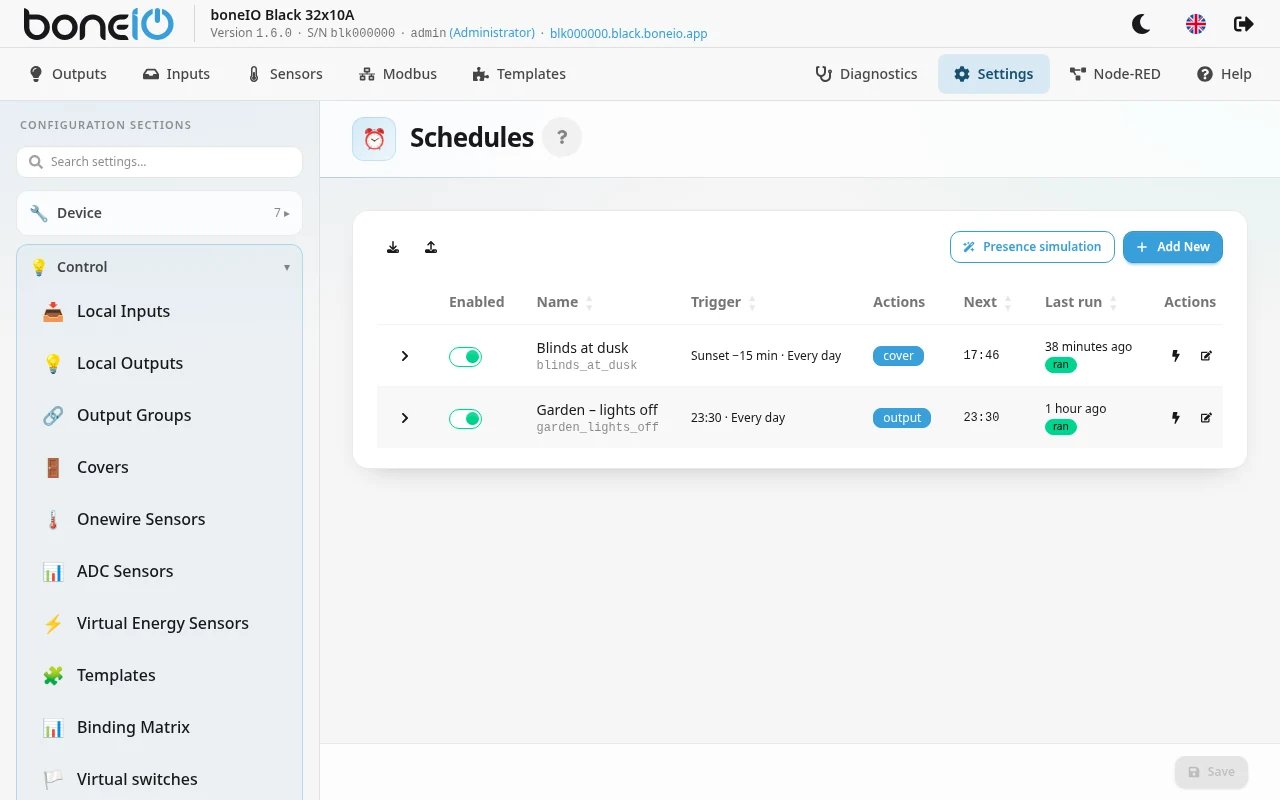
Adding a schedule
The editor reads like one sentence: When … Only if … Do …
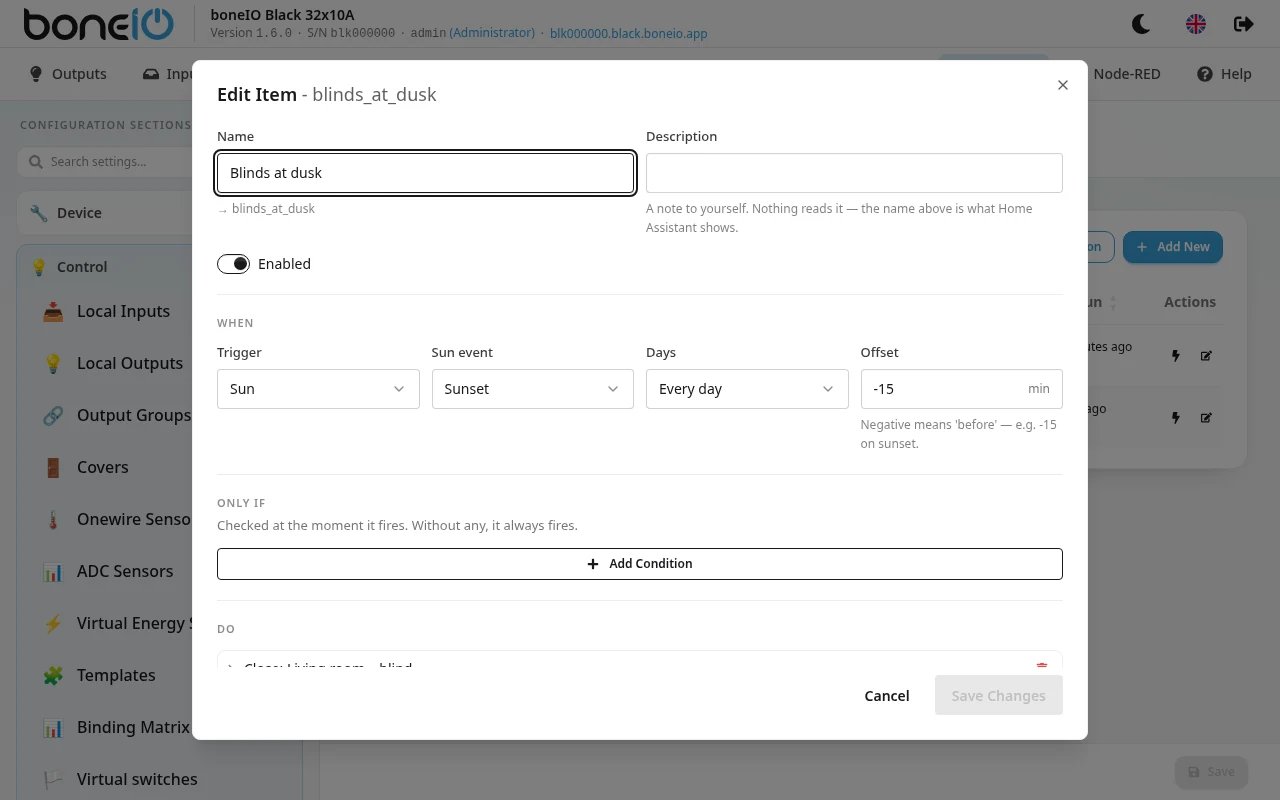
Name
Give the schedule a readable name, e.g. Covers at dusk. The identifier is made from it automatically
(covers_at_dusk) — that is what the logs show.
When
Pick the Trigger:
- Clock time — a fixed hour, e.g.
23:30 - Sun — a moment the sun defines: Sunrise, Sunset, Civil dusk, Civil dawn, the golden or blue hour and a few more. The hour moves with the seasons by itself. Requires the Location to be set; until then the option is greyed out.
With a sun trigger you can also set an Offset in minutes — negative means before: -15 with Sunset is fifteen minutes before sunset.
Under Days choose Every day, Weekdays, Weekend or one day of the week. For, say, Monday and Wednesday, make two schedules.
Only if (optional)
Conditions checked at the moment the schedule fires — for example only when it is dark, only between October and April, or only when the virtual switch "Away" is on. Without conditions the schedule always fires.
Do
The actions to run — exactly the same as for a button: switch an output, open or close a cover, set a virtual switch…
More options
- Random spread — delays each firing by a random time up to this value, different every day. Used by the presence simulation, so the lights do not come on at the exact same minute every evening.
- Missed firing — what happens if the controller was off at that moment: Skip it (default) or Catch up (within 15 min). A controller that was off all day will not close the covers at breakfast.
Save the section when you are done.
Checking that it works
A schedule is the one thing you cannot test by pressing a button, so the table tells you what it does:
- Next — when it will fire next. A dash means it is switched off, the clock has not been set yet, or the sun never reaches that point in the coming year.
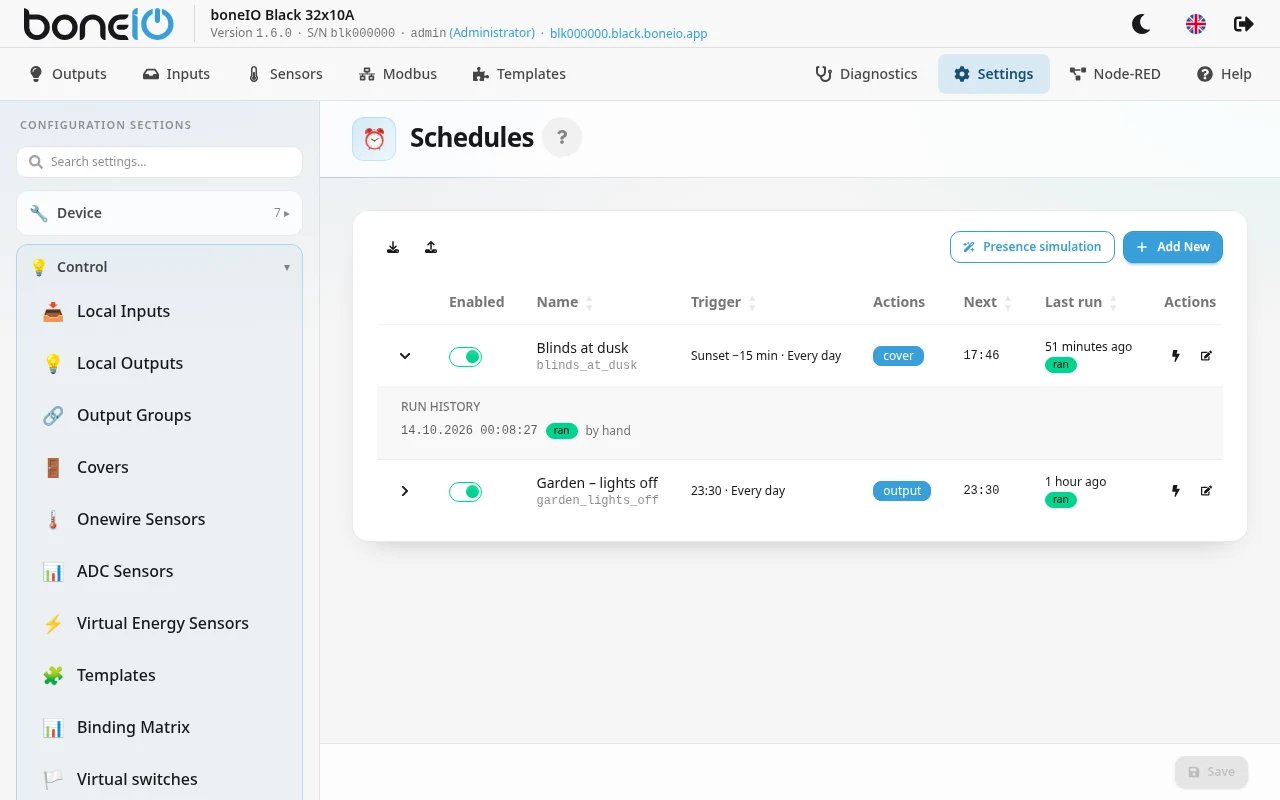
- Last run — what happened last time: ran, condition blocked it or failed. Click the arrow at the start of the row to see the Run history of the last 20 runs, including whether a run came on schedule, was caught up or started by hand.
- Run now (the ⚡ button) — fires the schedule immediately, conditions included, without affecting its next regular firing. Save your changes first.
- The switch in each row turns a schedule off and on without deleting it (also only after saving your changes).
In Home Assistant
Each schedule appears in Home Assistant as a switch (turn the schedule off for a holiday, for example) plus three diagnostic sensors: next firing, last firing and last outcome.
If you switch a schedule off in Home Assistant and later change enabled: in the configuration file by hand, the file wins.
Good to know
- After a power cut the controller waits for the correct time from the network before it arms any schedule — it has no battery clock. Without internet, set your own time server: see Location → The clock must be right.
- Daylight saving time: a schedule set for a time that does not exist on the night the clocks go forward (e.g. 02:30) fires at 03:00; on the night the clocks go back it fires once, not twice.
- "On at dusk, off at dawn" is two schedules — a schedule is a moment, not a time span.