MQTT and Loxone
Connecting boneIO to an MQTT broker and Home Assistant, encrypting that connection with TLS, and talking to a Loxone Miniserver over Lox UDP.
This is where you decide how the controller talks to the rest of your system: over MQTT (Home Assistant, other boneIO controllers) and, if you use Loxone, over Lox UDP. Each has its own entry under Settings → Connections: MQTT and Loxone (UDP). They save separately, so a mistake on one never stops you saving the other.
Both entries carry the restart badge. After Save, the panel shows App restart required. Click Restart Now, or nothing changes. While the application restarts, Home Assistant sees the controller as unavailable for a moment.
One exception: on the MQTT page, a change to only Host, Port, Username or Password needs no restart. boneIO reconnects to the broker as soon as you click Save.
MQTT
Open Settings → Connections → MQTT.
A controller fresh from the factory connects to the MQTT broker running on itself (localhost). Home Assistant then connects to that broker too.
If you already have a broker, for example the Mosquitto add-on in Home Assistant, enter its address here instead.
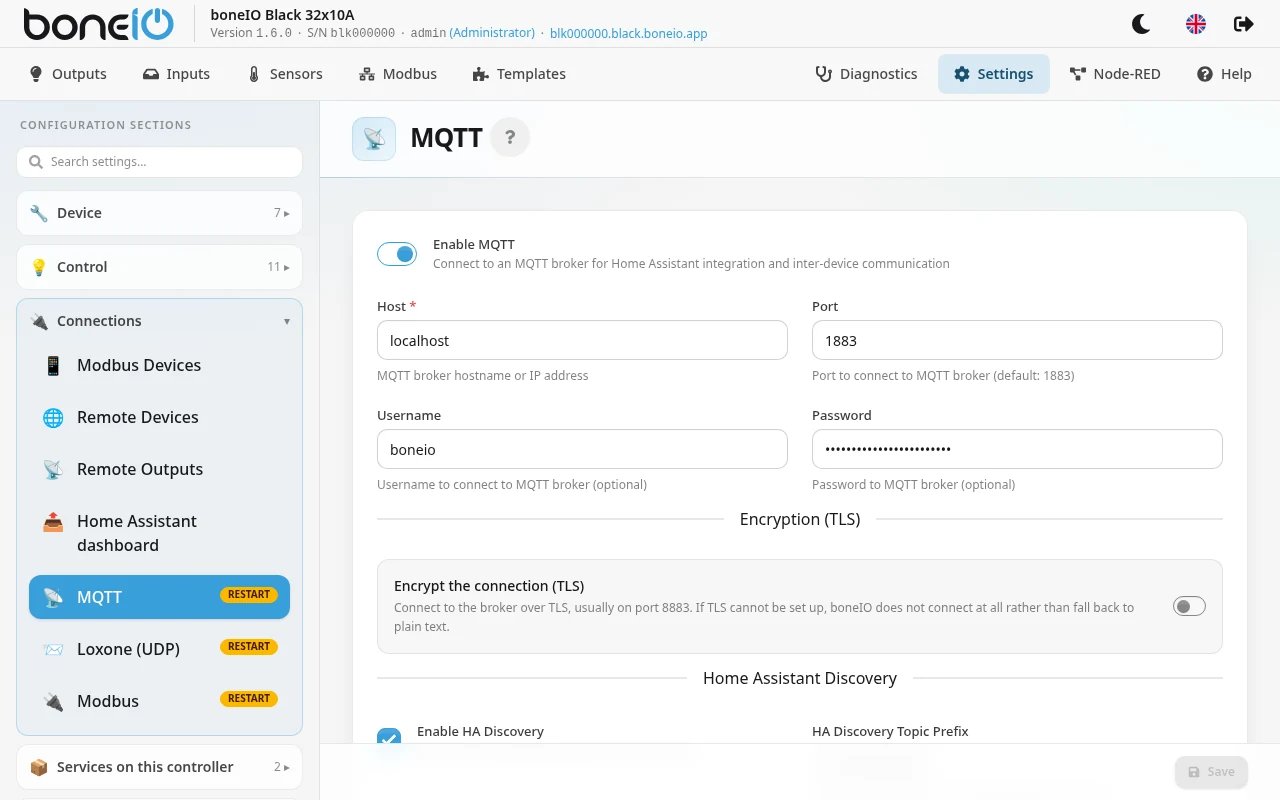
| Field | What it does |
|---|---|
| Enable MQTT | Turns the MQTT connection on or off. Without it there is no Home Assistant integration and no communication with other boneIO controllers over MQTT. |
| Host | Address or hostname of the MQTT broker. localhost means the broker on this controller. |
| Port | Broker port, 1883 by default, 8883 for TLS. |
| Username | The account boneIO signs in to the broker with. |
| Password | The password for that account. The panel never shows the stored password; leave the field as it is to keep it. |
Where the password is kept
The MQTT password is not written into the configuration itself. It lives in a separate file, secrets.yaml, and the configuration only refers to it
(password: !secret mqtt_password). That way the configuration files you look at, edit or paste when asking for help do not contain the password.
- A controller set up with 1.6 gets a random MQTT password of its own at first start, different on every device.
- A controller updated from an older version has its password moved to
secrets.yamlon its own, the first time 1.6 starts. - A new password typed on this page and saved also goes to
secrets.yaml. - A factory reset keeps the device's MQTT password.
secrets.yaml is deliberately not shown in the panel's YAML editor. To read it you need SSH.
A downloaded configuration backup does include secrets.yaml, so keep backup files as private as the password itself.
If the broker is the one on this controller, change the boneio account's password in Settings → Services on this controller → MQTT broker (local)
and leave Also update boneIO's own configuration switched on. The controller then stores the new password itself and reconnects;
there is nothing to type here. See Home Assistant Connection.
Encryption (TLS)
Plain MQTT sends the username and password in the clear. On your own home network that is often acceptable; on a shared network, across a VPN or to a broker on the internet it is not. Under Encryption (TLS) boneIO connects to the broker encrypted.
- Switch on Encrypt the connection (TLS). If the port was the default 1883, it changes to 8883 by itself. A port you set yourself stays.
- Under Check the broker's certificate against, choose:
- Trusted public authorities, for a broker with a certificate from a public authority such as Let's Encrypt.
- My own CA, for a broker whose certificate you made yourself, a company CA, or another boneIO controller's broker.
Upload that CA's certificate (
ca.crt) and click Upload. Never upload the CA's key. - Don't check (testing only) encrypts but does not check who answers.
- If the broker asks for a client certificate, switch on The broker asks for a client certificate, choose the certificate and its private key, and click Upload the certificate and key. Most brokers need only the username and password.
- Click Save, then Restart Now when the panel asks.
Uploaded files are stored at once; the settings take effect when you save the page. Under the switch the page tells you how the current connection is going: Connected to the broker over TLS., Connected, but still without TLS. Save this page to switch., or, when something is wrong, TLS is on but cannot be used with the reason.
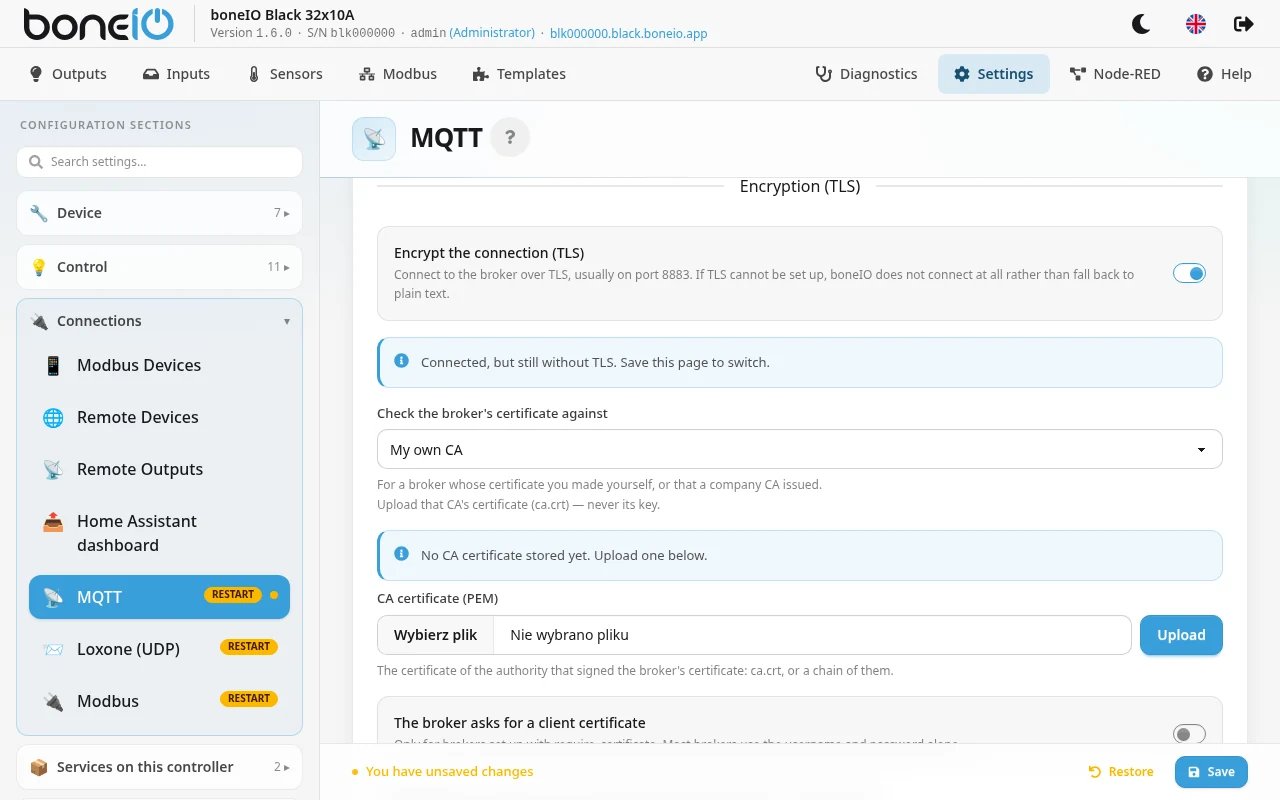
If TLS is on and cannot be set up, boneIO does not connect at all. It never falls back to plain text, because the password would travel in the clear. A wrong port, a missing CA or a key that does not match the certificate means the controller stops reporting to Home Assistant until you fix it.
Don't check (testing only) really is for testing: anyone able to intercept the connection can pose as the broker and read the password.
The certificates are not part of a configuration backup. After restoring a backup on another controller, upload them again.
Do you not have certificates yet? How to make certificates with openssl on the same page shows the commands to copy and run on your own computer.
To encrypt the connections to the broker on this controller (Home Assistant connecting to boneIO), see Encrypting Home Assistant's connection.
Home Assistant Discovery
| Field | What it does |
|---|---|
| Enable HA Discovery | The controller registers its outputs, inputs, covers and sensors in Home Assistant automatically. On by default. |
| HA Discovery Topic Prefix | The topic Home Assistant listens on for new devices, homeassistant by default. Change it only if you changed it in Home Assistant. |
Under Remove devices from Home Assistant there are two buttons. They act immediately, without Save, and only when HA Discovery is on:
- Remove & re-send HA Discovery: removes all entries this controller created in Home Assistant and sends them again straight away. Use it when Home Assistant shows old names or entities you have already deleted.
- Remove all HA devices: removes all devices and entities this controller registered in Home Assistant. They come back at the next application restart.
Both ask for confirmation first.
boneIO Autodiscovery
| Field | What it does |
|---|---|
| Send boneIO Autodiscovery | Publishes this controller's outputs, covers, inputs and sensors so that other boneIO controllers can find and control it. On by default. |
| Receive boneIO Autodiscovery | Finds other boneIO controllers on the same broker. They then appear in Remote Devices. On by default. |
Update Settings
Update Channel decides which versions Home Assistant's update entity for boneIO offers: Stable (recommended) or Development (pre-release), which also includes pre-release versions.
MQTT topics
The controller publishes under boneio/<serial number>, for example boneio/blk8c7df0. The serial number is shown next to S/N in the panel.
The topic cannot be changed. The only way to give the controller a different serial number is Serial Number Override in boneIO.
Loxone (UDP)
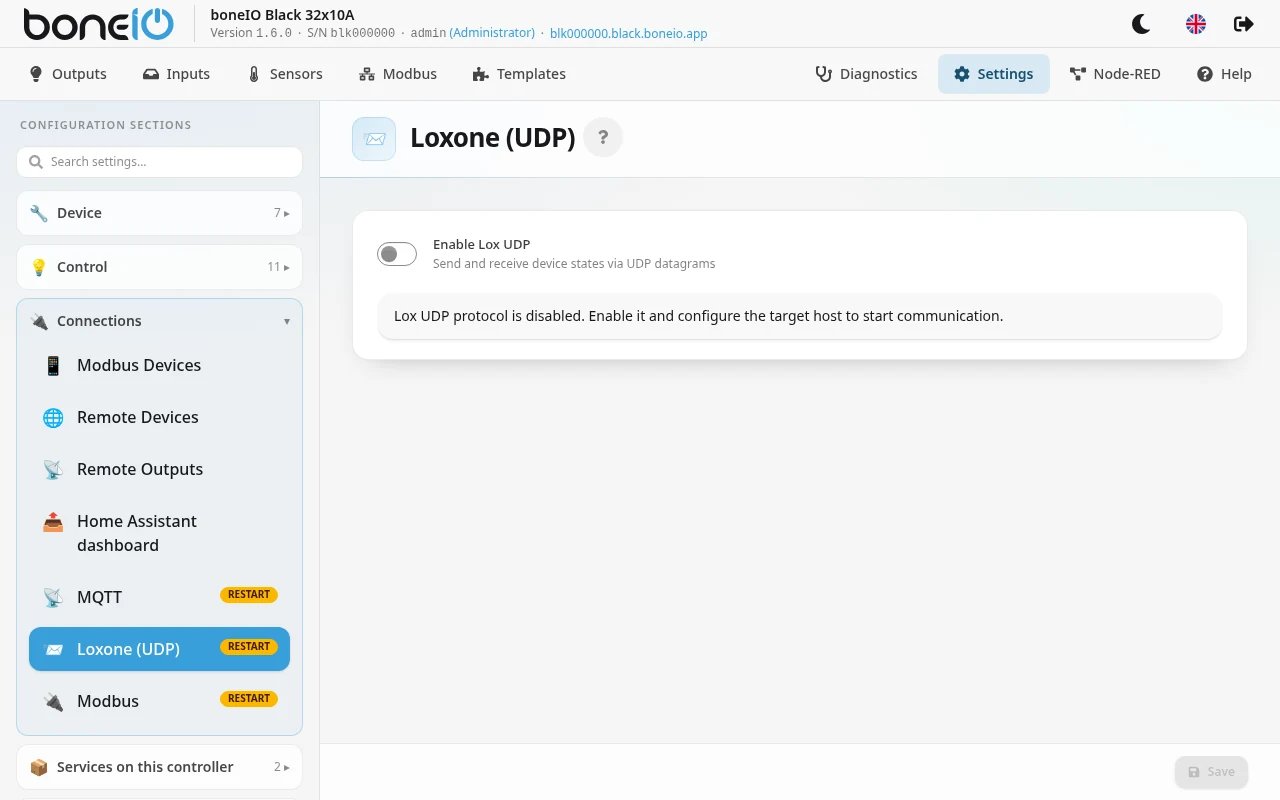
Lox UDP sends the state of outputs and inputs to a Loxone Miniserver and receives commands from it, as UDP messages. It is off by default.
Lox UDP support is experimental. It is compatible with Loxone devices, but test it on your installation before you rely on it.
- Open Settings → Connections → Loxone (UDP) and switch on Enable Lox UDP.
- Enter the Miniserver's address in Host (an IP address such as
192.168.1.100or a hostname such asminiserver.local). This field is required. - Leave Send Port (4444) and Listen Port (4445) as they are, unless your Loxone project uses other ports.
- Click Save and Restart Now.
Under Lox Config Integration:
- Download Lox Config Template downloads an XML file to import into Loxone Config. It contains Virtual Outputs (to control boneIO) and Virtual Inputs (to receive its states).
- View UDP Commands lists all available UDP commands.