Home Assistant Connection
Learn how to connect your boneIO Black device to Home Assistant.
The boneIO Black controller communicates with Home Assistant via the MQTT protocol. There are two configuration methods: using a local broker or a remote one (located on HA itself).
Additionally, to make managing the controller from Home Assistant easier, we have prepared a special Add-on for you, which gives you instant access to your boneIO.
Option 1: MQTT Broker on boneIO Black (default)
This is the easiest way - the controller has a built-in Mosquitto MQTT broker that is already configured and running.
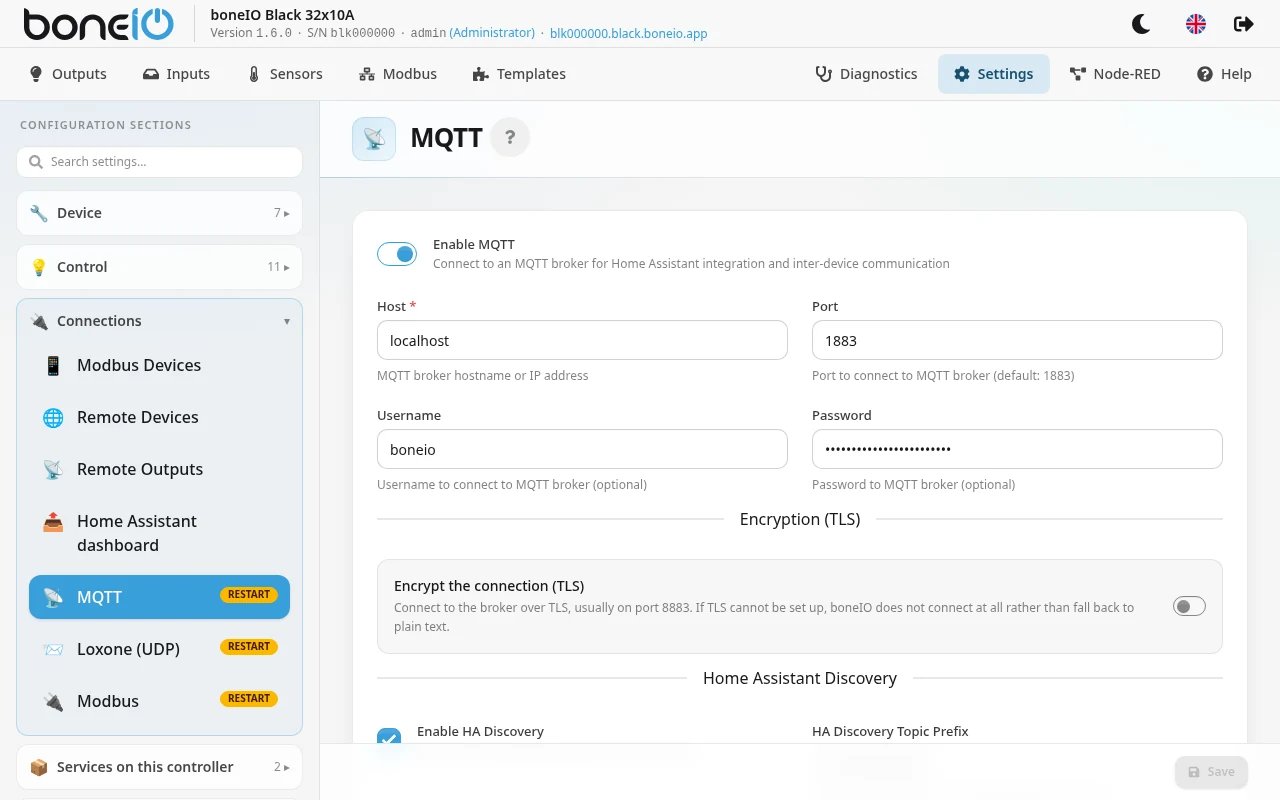
Default configuration
By default, the controller is connected to the local MQTT broker:
- Host:
localhost - Port:
1883 - Username:
boneio - Topics:
boneio/<serial number>— set automatically
The broker has three accounts: boneio (the one the controller itself uses), homeassistant and mqtt (for your integrations).
On a controller installed with version 1.6 or later each account has its own random password, different on every device — there is no shared default password any more.
That means before you connect Home Assistant you set a password you know for the homeassistant account.
Set the MQTT password first. Go to Settings → Services on this controller → MQTT broker (local),
in the homeassistant card type the new password twice (at least 8 characters) and click Change Password.
This is the password you will type into Home Assistant below.
If you change the password of the boneio user, leave Also update boneIO's own configuration switched on —
the controller then saves the new password in its own configuration and reconnects on its own.
Without it, the controller keeps using the old password and goes offline.
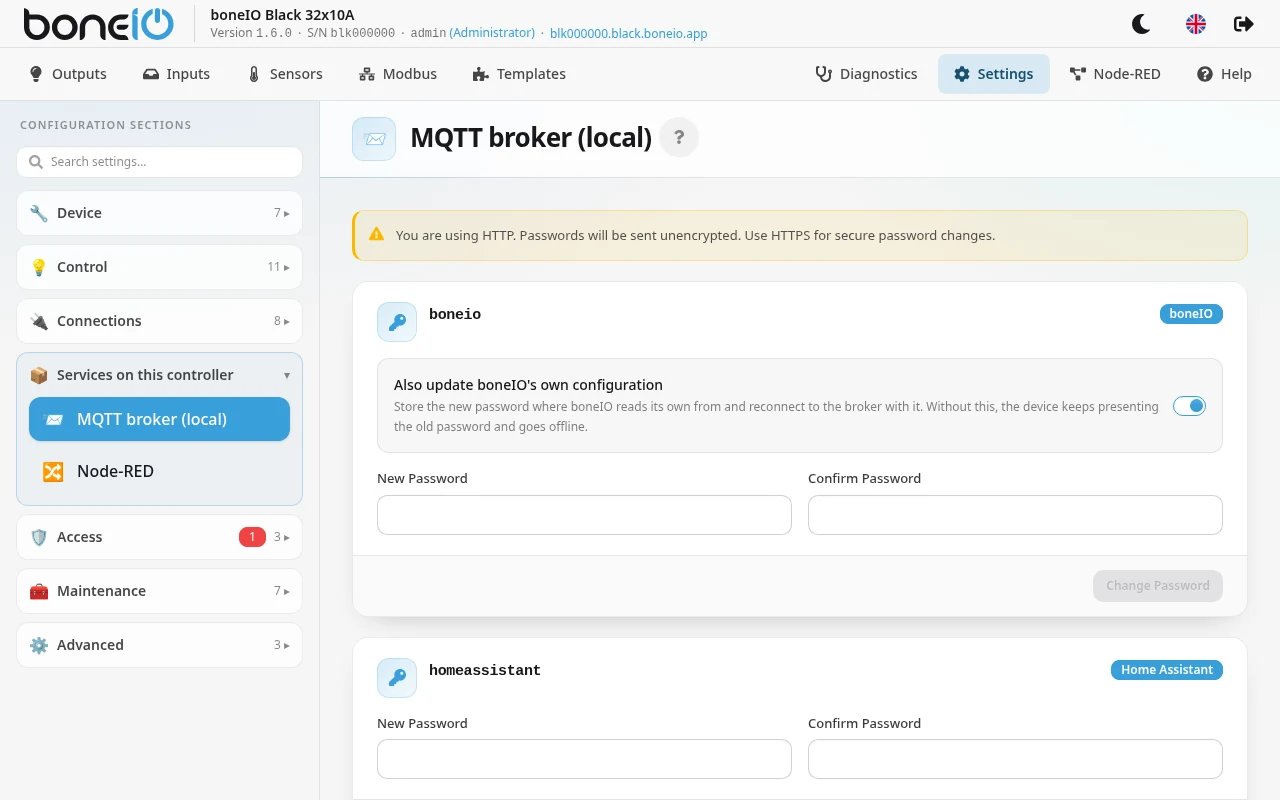
Connecting Home Assistant to the broker on boneIO
-
No Mosquitto add-on needed — with this option the broker already runs on the controller, so in Home Assistant you only add the MQTT integration.
-
Add MQTT integration in Home Assistant:
- Go to Settings → Devices & Services
- Click Add Integration → search for MQTT
- Enter the details:
- Broker: boneIO controller IP (e.g.,
192.168.1.100) - Port:
1883 - Username:
homeassistant - Password: the password you just set for
homeassistant
- Broker: boneIO controller IP (e.g.,
- Click Submit
Every step with Home Assistant screenshots is in Connecting boneIO Black in the Home Assistant guide.
-
Automatic discovery:
- The boneIO controller will automatically register all devices with Home Assistant
- Devices will appear in Settings → Devices & Services → MQTT
Encrypting Home Assistant's connection (TLS)
Optional. By default Home Assistant talks to the broker on boneIO in plain text on port 1883, password included. On your own home network that is often fine. If the network is shared, or the traffic crosses a VPN, have the broker accept encrypted connections on port 8883.
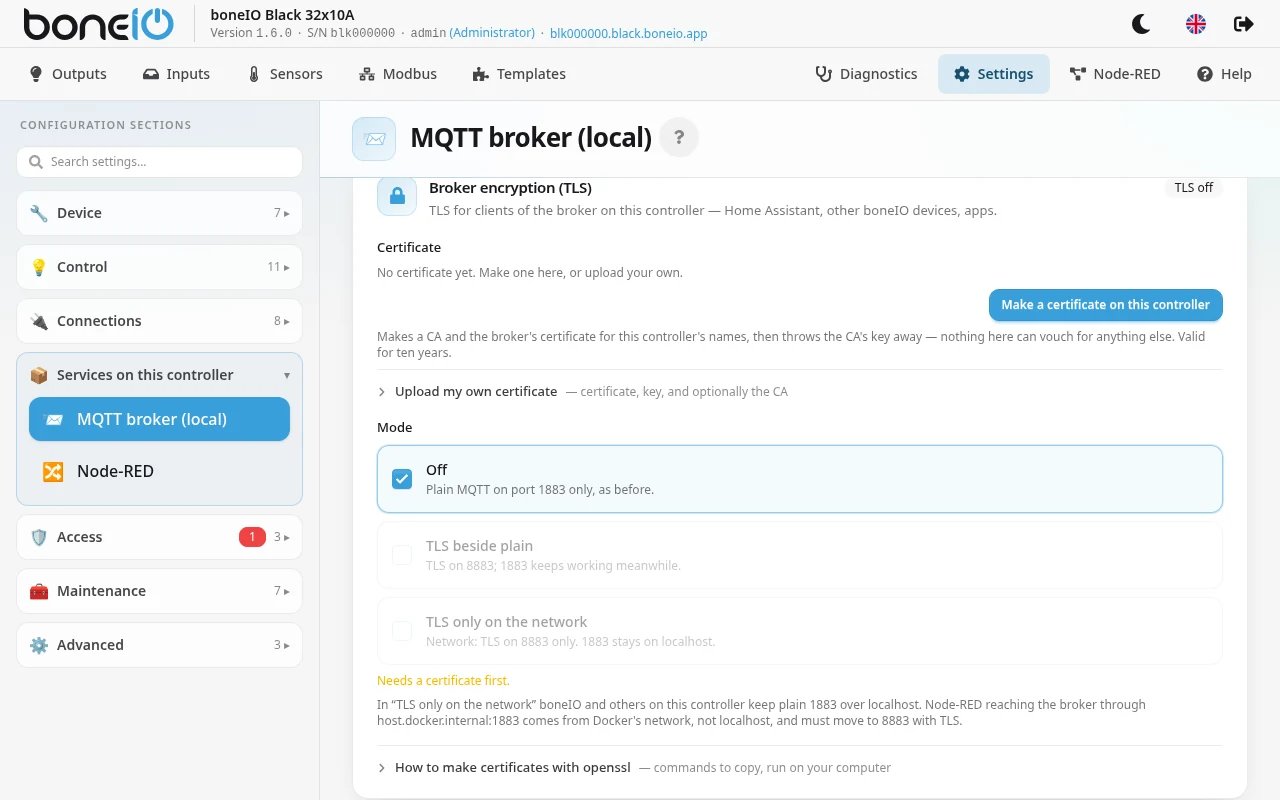
Go to Settings → Services on this controller → MQTT broker (local) and scroll to the Broker encryption (TLS) card, below the accounts.
- Get a certificate. Click Make a certificate on this controller. It is valid for ten years and covers the controller's names, listed under Valid for. Then click Download the CA (ca.crt) for clients — Home Assistant needs that file. If you would rather use your own certificate, open Upload my own certificate (the page shows the openssl commands under How to make certificates with openssl).
- Pick a mode under Mode:
- Off — plain MQTT on port 1883 only, as before.
- TLS beside plain — TLS on 8883, and 1883 keeps working. Start here.
- TLS only on the network — from the network only TLS on 8883. Plain 1883 stays only for programs on the controller itself, boneIO included.
- Move Home Assistant to TLS. In the MQTT integration, choose Reconfigure, set port 8883, open the advanced options,
enable certificate validation with a custom broker certificate and upload
ca.crt. As the broker address use the controller's name exactly as it appears under Valid for, for exampleboneio-1234.local. An IP address works only if it is on that list, and an address from DHCP can change. - Once Home Assistant and everything else connects on 8883, switch to TLS only on the network if you want plain MQTT closed to the network.
What it costs:
- Every mode change restarts the broker, which briefly disconnects everyone, Home Assistant included. If the broker does not come back with the new settings, the panel puts the previous ones back and says so.
- TLS only on the network cuts off anything still on port 1883 from another machine until you move it to 8883. The panel refuses this mode while boneIO itself connects to this broker in plain text by the controller's network address: first set boneIO's MQTT host to
localhost, or turn on TLS for its own connection. - Node-RED on the controller reaches the broker from Docker's network, not from
localhost. Before TLS only on the network, move its broker node to port 8883 with TLS andca.crt. - A new certificate means a new CA. Every client that trusts the current
ca.crtmust be given the new one, or it refuses the broker.
If the card says this controller's system helper does not manage the broker's TLS yet, go to Settings → System migrations, click Apply pending migrations and come back.
Option 2: MQTT Broker on Home Assistant
You can connect the controller to an MQTT broker located on Home Assistant or another device.
Configuring the broker in Home Assistant
-
Install Mosquitto Broker (if you don't have it yet):
- Go to Settings → Apps → Install app
- Search for Mosquitto broker
- Click Install and Start
-
Create an MQTT user:
- Go to Settings → People → Users
- Click Add User
- Fill in the details:
- Name:
boneio - Username:
boneio - Password: choose a secure password
- Name:
- Click Create
-
Add MQTT integration (if you don't have it yet):
- Go to Settings → Devices & Services
- MQTT should be automatically detected
- If not, click Add Integration → MQTT
Configuring MQTT in boneIO controller
- Go to Settings → Connections → MQTT
- Enter the broker details:
- Host: Home Assistant IP (e.g.,
192.168.1.50) - Port:
1883 - Username:
boneio - Password: password of the created user
- Host: Home Assistant IP (e.g.,
- Click Save. A change of only these four fields needs no restart: boneIO reconnects to the new broker straight away
- Devices will automatically appear in Home Assistant
If that broker accepts TLS, switch on Encrypt the connection (TLS) on the same page. See Encryption (TLS).
Installation of the boneIO Home Assistant Add-on
- Go to Settings → Apps → Install app
- Click the three dots in the top right corner
- Select Repositories
- Add this URL: https://github.com/boneio-eu/home-assistant-addons
- Click Add
- Find the desired add-on and click Install
Communication between boneIO controllers
If you have multiple boneIO Black controllers and want them to execute commands on each other (e.g., a button on one controller turns on a light on another), all controllers must be connected to the same MQTT broker.
Example configuration for multiple controllers:
- Choose one MQTT broker (e.g., on Home Assistant or on one of the controllers)
- Connect all controllers to the same broker
- Each controller publishes under its own serial number (
boneio/blk…), so there is nothing to set to keep them apart - In actions, you can use Control Remote Output and Control Remote Cover to control devices on other controllers
Connection verification
After proper configuration:
- In Home Assistant, go to Settings → Devices & Services → MQTT
- You should see the boneIO Black device with all configured outputs, covers, inputs, and sensors
- All entities will be automatically available in Home Assistant
The controller uses MQTT Discovery - all devices are automatically detected by Home Assistant without the need for manual configuration.
How the controller shows up in Home Assistant
The controller appears in Home Assistant as one device, under the name set for it in boneIO. Everything you put in an area — an output, a cover, an input, a sensor — goes to a separate device named after the controller and the room, for example boneIO Black 24x16A - Living room, and Home Assistant puts that device in the room when it first creates it.
- Entities stay in their room. They keep their room device after the controller restarts and after Home Assistant restarts.
- Moving an entity to another area moves it, nothing more. It is the same entity under the other room's device, not a new one, so no duplicates appear — not after an update either.
- Covers keep their Device Class. A cover set to
shutterorblindis shown as one, not as a plain window. - Show in Home Assistant switched off means off. That entity is not announced to Home Assistant at all, and stays hidden after restarts.
- Saving a section only touches that section. Saving inputs, outputs or covers in Settings does not remove or freeze entities that belong to other sections.
- Binary sensors keep their state. After Home Assistant restarts, a door or motion sensor shows its real state straight away instead of
unknown— see Binary Sensors.