Areas/Rooms
Rooms that group outputs, inputs and sensors in the panel and in Home Assistant.
An area is a room or a part of the house: Kitchen, Garage, First floor. Give an output, an input or a sensor an area, and the panel can list it under that room, and Home Assistant shows it as part of a device for that room instead of one long list on the controller.
Open Settings → Device → Areas/Rooms. The list shows each area with its ID and Name. Changes apply without a restart.
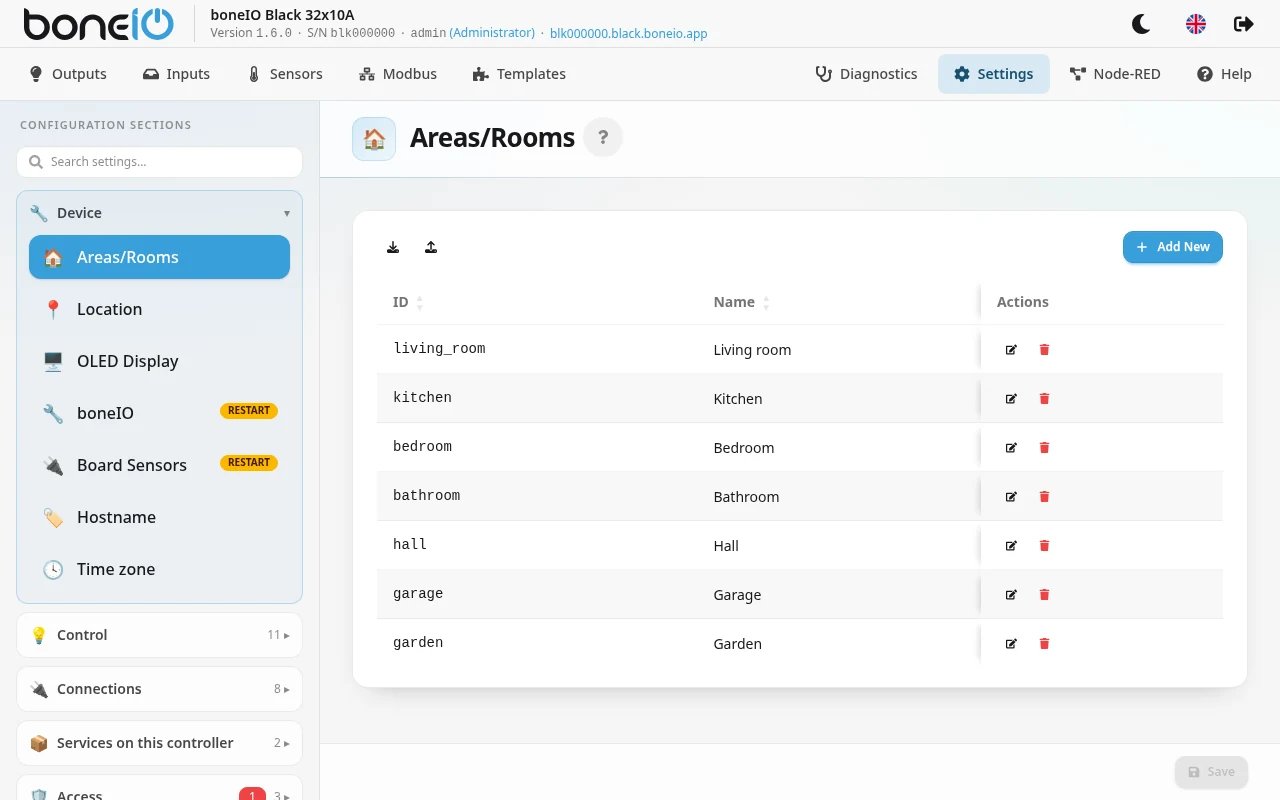
Adding an area
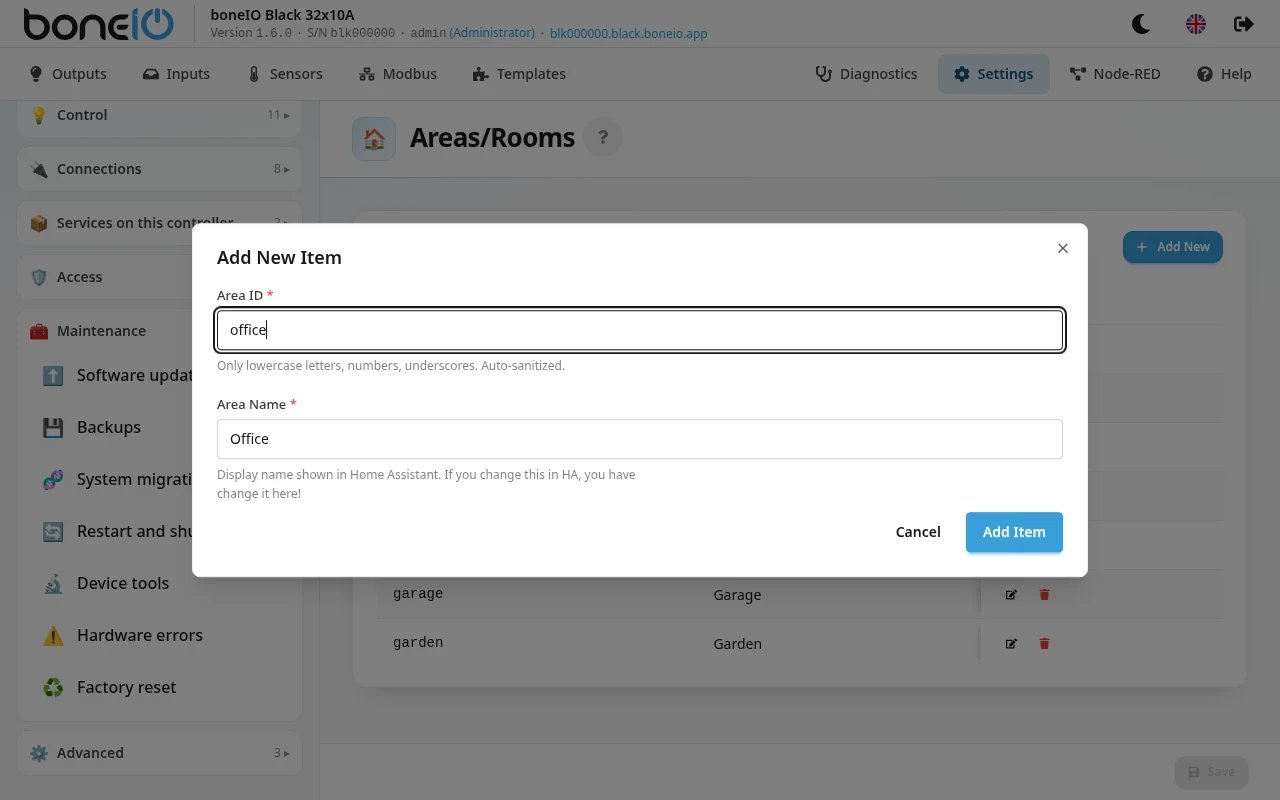
- Click Add New.
- Fill in Area ID and Area Name.
- Click Add Item, then Save at the bottom of the section.
| Field | What it does |
|---|---|
| Area ID | The technical name other items refer to, for example living_room. Required. The panel turns what you type into lower-case letters, digits and underscores as you type: spaces become _ and Polish letters lose their accents. |
| Area Name | The name shown in the panel and in Home Assistant, for example Living Room. Required. If you rename the area in Home Assistant, change the name here too. |
Keep every Area ID different. The panel does not stop you from entering the same ID twice, and two areas with one ID behave as one.
To edit an area, click the edit icon next to it, change it and click Save Changes, then Save.
Putting items in an area
The area itself does nothing until something is in it. Outputs, output groups, covers, inputs, 1-Wire and ADC sensors, Modbus devices and most other items have an Area / Room field in their own form. Pick the area there; No area (main device) leaves the item on the controller itself.
What an area does
In the panel. The Outputs, Inputs and Modbus pages have a Group by area button. With it on, items are listed under their area, and items with no area come last under No area.
In Home Assistant. Every area that has items becomes its own device, named after the controller followed by the area, for example boneIO Black - Kitchen, and linked to the main controller device. Home Assistant suggests the room of the same name for it. Items with no area stay on the main device.
Home Assistant picks up a new or renamed area the next time the controller announces its devices: after the boneIO app restarts, or when Home Assistant itself restarts.
The experimental HA Child Devices option in boneIO makes every output, output group, input, cover and ADC sensor its own device instead. The area is then given to each of those devices as its suggested room.
Order
Areas appear in Group by area in the order they are in the list. A new area goes to the end. Clicking the ID or Name column header only sorts the view; it does not change the saved order. To reorder areas, move them in the YAML editor (see below).
Removing an area
Click the bin next to the area.
- If items use it, the panel shows Warning: Area is in use with the list of those items. Delete anyway removes the area and saves at once.
- Otherwise it is removed from the list. Click Save.
The warning checks outputs, output groups, covers, inputs, 1-Wire sensors, Modbus devices and virtual energy sensors. An area used only by other items, such as an ADC sensor, a thermostat or an irrigation zone, is removed without a warning.
The items are not changed: each still refers to the removed area's ID. Once the controller announces its devices again (after a restart of the boneIO app or of Home Assistant), Home Assistant shows them on the main controller device, as if they had no area. On the Group by area view they still form a group, named by the old ID. Add an area with the same ID again and they are back where they were; otherwise give each of them a new area in its own form.
Do not change the Area ID of an area that is in use. Items refer to the ID, so changing it has the same effect as removing the area. To rename a room, change only Area Name.