Alarm Panel
A zone-based alarm built from door, window and motion sensors, with arming modes, PIN codes and a siren.
The Alarm Panel template turns the controller's inputs into a burglar alarm. Door and window contacts and motion sensors are grouped into zones; you arm the alarm in one of three modes, and when a sensor in an active zone trips, the controller switches on the siren (and anything else you give it).
It runs on the controller itself: an armed alarm keeps watching and sounds the siren without Home Assistant or the network.
This is a home-automation alarm, not a certified intrusion alarm system. It has no tamper lines, no battery backup of its own and no monitoring-station link. Use it where that is acceptable.
How it works
Zones. A zone is a group of inputs — Doors, Ground floor windows, Motion upstairs. For each zone you decide in which arm modes it is watched and whether it gets an entry delay.
Arm modes. There are three:
| Mode | Typical use |
|---|---|
| Armed Away | Nobody at home — every zone you assigned to it is watched. |
| Armed Home | You are at home — e.g. only doors and windows, motion sensors off. |
| Armed Night | At night — e.g. the ground floor only. |
Which zones are watched in which mode is entirely up to you: a zone is watched only in the modes ticked for it.
The sequence.
- You arm the alarm. It first checks that every input in the zones for that mode is closed. If anything is open — a window left ajar — it refuses to arm and stays Disarmed.
- It counts down the Arming Time (default 30 s) so you can leave. During the countdown nothing triggers it.
- It is armed. When an input in a watched zone trips:
- in a zone with Entry Delay the alarm goes to Pending and counts down the Entry Delay Time (default 30 s) — time to walk in and disarm,
- in a zone without it the alarm triggers at once.
- Triggered: all Alarm Outputs switch on for the Trigger Duration (default 5 min). After that the outputs switch off and the alarm disarms itself — it does not re-arm.
Disarming at any point stops the countdown, switches the outputs off and returns to Disarmed.
The armed mode survives a restart: an alarm that was Armed Away before a power cut comes back Armed Away. A countdown in progress (Arming, Pending) or a triggered state is not kept.
Setting one up
Configure the inputs first — door and window contacts and motion sensors must exist as binary sensors under Settings → Control → Local Inputs (or come from a remote device).
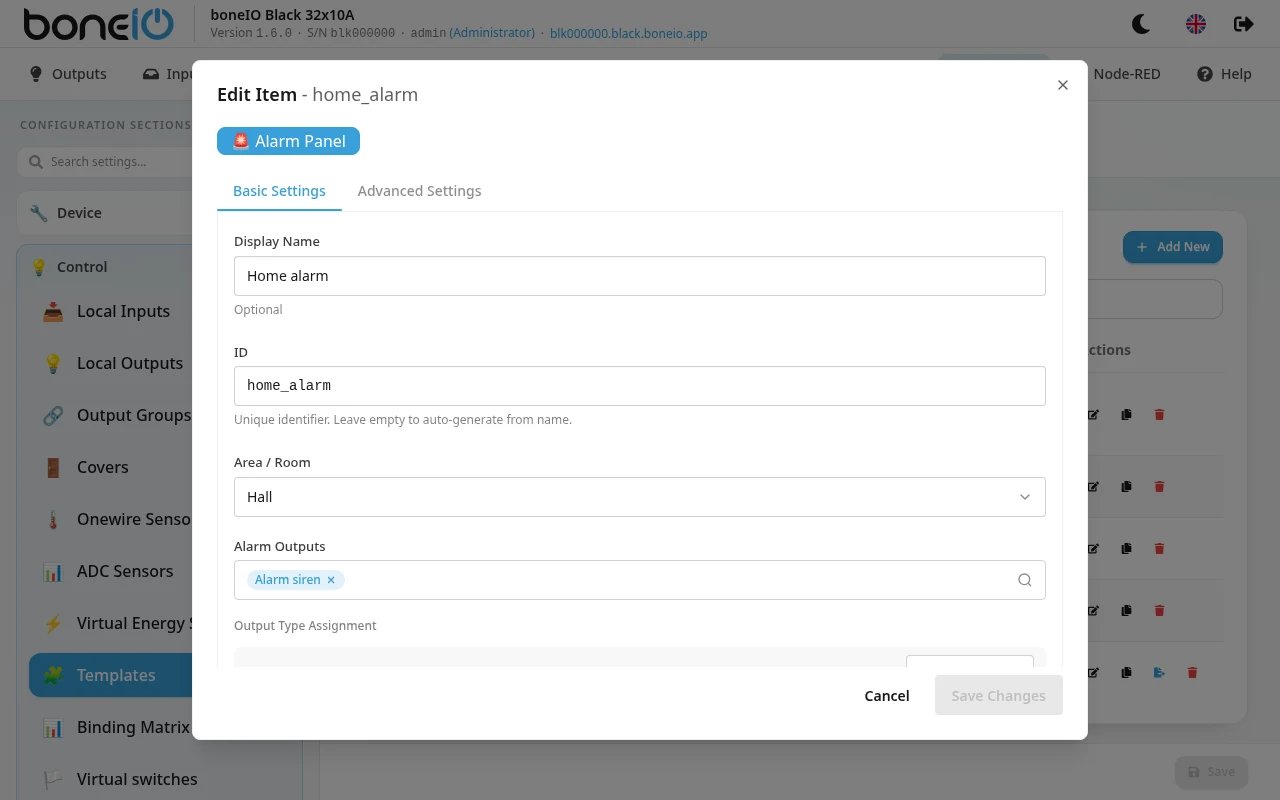
- Open Settings → Control → Templates, click Add New and choose Alarm Panel
- Under Basic Settings:
- Display Name, ID, Area / Room,
- Alarm Outputs — the siren, a strobe light, anything that should switch on when the alarm triggers. Under Output Type Assignment you can label each as Siren, Light or Custom; all of them switch on the same way,
- PIN Codes — Add PIN Code for each person, with a User Name and a PIN Code. The name appears in the log, so you can see who disarmed,
- Alarm Zones — Add Zone for each group of sensors (see below)
- Under Advanced Settings set Arming Time, Entry Delay Time, Trigger Duration, Code Required to Arm and Allow Frontend Control
- Save
Zones
For each zone:
| Field | What it does |
|---|---|
| Zone Name | E.g. Perimeter. Shown in the log and in Home Assistant when this zone triggers the alarm. |
| Active in Arm Modes | Armed Away, Armed Home, Armed Night — tick the modes in which the zone is watched. A new zone starts with Armed Away. |
| Entry Delay | Tripping this zone starts the entry countdown instead of triggering at once. Use it for the zone with the front door. |
| Monitored Inputs | The inputs in this zone. Add input... picks a local input, Add remote input... an input from a remote device. |
Each input in a zone has a button that says how it is wired — click it to switch:
- NC (Normally Closed) — door and window contacts: closed means safe, open trips the alarm. This is the default.
- NO (Normally Open) — most PIR motion sensors: open means safe, closed trips the alarm.
A remote input has a second button, Ignore / Trigger, for when its remote device cannot be reached. In 1.6 this is only checked when arming: with Trigger the alarm refuses to arm while the controller does not know that input.
Test every input after setting it up: arm, open the door or walk past the sensor, and check that the alarm reacts. If an input is set to NC but wired NO (or the other way round), the alarm either refuses to arm or never triggers from it.
Timers and codes
| Field | Default | What it does |
|---|---|---|
| Arming Time | 30s | Countdown after arming, to leave the house. |
| Entry Delay Time | 30s | Countdown after a zone with Entry Delay trips, to disarm. |
| Trigger Duration | 5min | How long the outputs stay on before the alarm disarms itself. |
| Code Required to Arm | off | With PIN codes set, a PIN is always needed to disarm. This makes it needed to arm as well. |
| Allow Frontend Control | off | Lets the alarm be armed and disarmed from the controller's Templates page. Off by default — the tile then only shows the state. Turn it on only if the panel is protected by a login. |
Without any PIN codes the alarm is armed and disarmed without one.
PIN codes are not kept in the configuration in plain text. On the next start the controller replaces each PIN in config.yaml with a hash of it; the form then shows the PIN as ••••••. A forgotten PIN cannot be read back — type a new one.
Using it
On the Templates page the alarm's tile shows its state — Disarmed, Arming..., Armed Home, Armed Away, Armed Night, Pending... or TRIGGERED! — and, when Allow Frontend Control is on, the buttons Home, Away, Night and Disarm. If a PIN is needed, the tile asks for it (Enter PIN code). See Templates page.
In Home Assistant the alarm is an alarm_control_panel entity with arm home, arm away, arm night and trigger. When PIN codes are set, Home Assistant asks for the code and the controller checks it. When arming is refused because something is open, the list of open inputs is published as the entity's blocking_inputs attribute, so an automation can tell you which window it was.