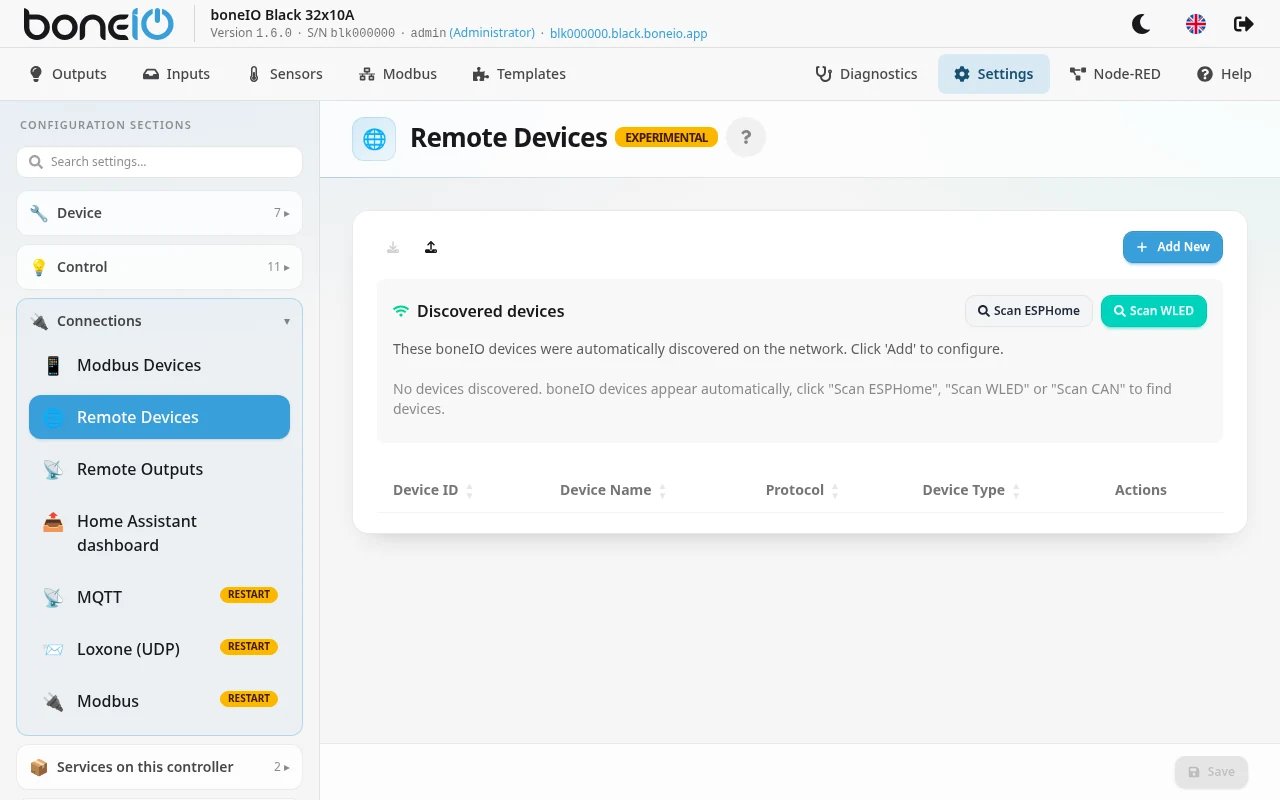
Remote Devices
Controlling other boneIO Black controllers, ESPHome devices and WLED lights from this controller.
The controller can control devices elsewhere on the network: other boneIO Black controllers (over MQTT), ESPHome devices (over the ESPHome API) and WLED LED controllers. Once a device is added here, its outputs, lights and covers can be used in this controller's actions.
Open Settings → Connections → Remote Devices. Changes apply without a restart.
Supported protocols
| Protocol | For | What you get |
|---|---|---|
| MQTT | Other boneIO Black controllers on the same MQTT broker | Their outputs and covers |
| ESPHOME_API | ESPHome devices with the native API switched on | Switches, lights (brightness, colour temperature, RGB/RGBW), covers (position, tilt), binary sensors |
| WLED | WLED LED controllers | The whole strip and its segments, with effects and palettes |
Finding devices
The Discovered devices card at the top lists devices found on the network that are not configured yet.
- boneIO Black controllers appear by themselves, if they use the same MQTT broker. The list refreshes every 30 seconds. The other controller must have Send boneIO Autodiscovery on, and this one Receive boneIO Autodiscovery, both in MQTT settings.
- Scan ESPHome and Scan WLED search the local network (mDNS) for 3 seconds.
- Scan CAN appears only when the CAN bus is on, and lists the devices that answered on the bus.
Click Add next to a device to add it. Remove from list next to a discovered boneIO clears the messages it left on the broker, so it disappears from the list.
Adding a device by hand
If a device was not found, add it yourself. Every device has:
| Field | Description |
|---|---|
| Device ID | Unique identifier, used in actions, for example salon_boneio. Required. |
| Device Name | Name shown in the panel. Required. |
| Protocol | MQTT, ESPHOME_API or WLED. Required. |
| Device Type | Only for MQTT: boneIO Black, ESPHome, WLED or Generic. For ESPHome API and WLED it is set automatically. |
boneIO Black (MQTT)
For a boneIO Black, the Device ID must be that controller's serial number, for example blk8c7df0: it is used to build the MQTT topics.
Under MQTT Settings you can list its Outputs (Add Output) and Covers (Add Cover), so they are offered in action dropdowns.
A controller added from Discovered devices gets all of this filled in.
ESPHome device
Under ESPHome API Settings:
| Field | Description |
|---|---|
| Host | Address of the device. A hostname such as device.local is better than an IP address, which can change. Required. |
| Port | API port, 6053 by default. |
| API Password | Only if the device has one. |
| Encryption Key | Only if the device has one (Base64). |
Click Discover Entities. The controller connects to the device and lists its Switches, Lights, Covers and Binary Sensors. Only the binary sensors you tick are monitored; use Select all / Deselect all. In the device list, the same Discover Entities button refreshes the entities later and shows how many were found.
WLED
Under WLED Settings:
| Field | Description |
|---|---|
| Host | Address of the WLED controller, for example wled-salon.local. Required. |
| Port | 80 by default. |
Click Discover Segments to read the device's Segments (name and number of LEDs).
After the device is saved, Refresh effects & palettes cache appears. The controller reads the list of effects and palettes from WLED by itself when it connects. Use the button if you updated WLED or changed its effects: it reads them again without removing and re-adding the device. The panel then shows how many effects and palettes it found.
The WLED strip and its segments are then set up as remote outputs.
Example: a second boneIO Black
- Make sure both controllers use the same MQTT broker.
- The second controller appears in Discovered devices.
- Click Add. It is added with all its outputs and covers.
- Its outputs can now be chosen in this controller's actions.
Example: an ESPHome device
On the ESPHome device:
api:
  encryption:
    key: "your_encryption_key"

switch:
  - platform: gpio
    pin: GPIO5
    name: "Garage Light"
    id: garage_light
On boneIO Black:
- Click Scan ESPHome. The device should appear.
- Click Add next to it.
- Enter the Encryption Key.
- Click Discover Entities.
- "Garage Light" can now be chosen in actions.
Managed by
The Managed by card lists other boneIO controllers that have added this controller as a remote device and can control it. Useful when you are working out which controller switches what in a larger installation.
Using remote devices
Remote outputs and covers can be used in input actions, binary sensor actions and schedules. In the action dropdowns they carry the remote device's name.
The controller does the controlling. To control a remote device directly from Home Assistant, add it to Home Assistant on its own (MQTT or ESPHome integration).
Troubleshooting
A boneIO Black does not appear
- Check that both controllers use the same MQTT broker.
- Check Send boneIO Autodiscovery on the other controller and Receive boneIO Autodiscovery on this one.
- Wait: the list refreshes every 30 seconds.
An ESPHome or WLED device does not appear
- Make sure it is on the same local network.
- For ESPHome, check that
api:is in its configuration. - mDNS scanning does not cross routers or VLANs. Add the device by hand, with its IP address.
ESPHome API does not connect
- Check the API password and the encryption key.
- Check that port 6053 is not blocked by a firewall.
- Look at the ESPHome device's logs.