Sensor filters
Correcting, rounding and discarding sensor readings before they reach the panel and Home Assistant.
A filter changes a sensor's reading before boneIO Black publishes it: it corrects a sensor that reads half a degree too high, rounds the value, converts it, or throws away a reading that cannot be right.
Where you set filters
Filters are part of a sensor's own form. The Add Filter button is in:
| Sensor | Where |
|---|---|
| ADC | Settings → Control → ADC Sensors, in the sensor's form, section Filters (open by default). See ADC Sensors. |
| 1-Wire (DS18B20 and others) | Settings → Control → Onewire Sensors, in the sensor's form, section Filters (click it to open). See 1-Wire Sensors. |
| Modbus CWT sensor | Settings → Connections → Modbus Devices, a device with the CWT model, tab Sensor Filters: Temperature Filters and Humidity Filters. See Modbus Devices. |
LM75, MCP9808 and INA219 accept filters too, but only in YAML: their form in Settings → Device → Board Sensors has no filter editor (see below).
Adding a filter
- Open the sensor in its section and find Filters. The badge next to it says how many filters the sensor has.
- Click Add Filter. A new row appears at the end, set to
roundwith the value2. - Pick the filter in the drop-down and type its number in Value.
- Save the sensor (Add Item or Save Changes), then Save at the bottom of the section. No restart is needed.
The bin at the end of a row removes that filter.
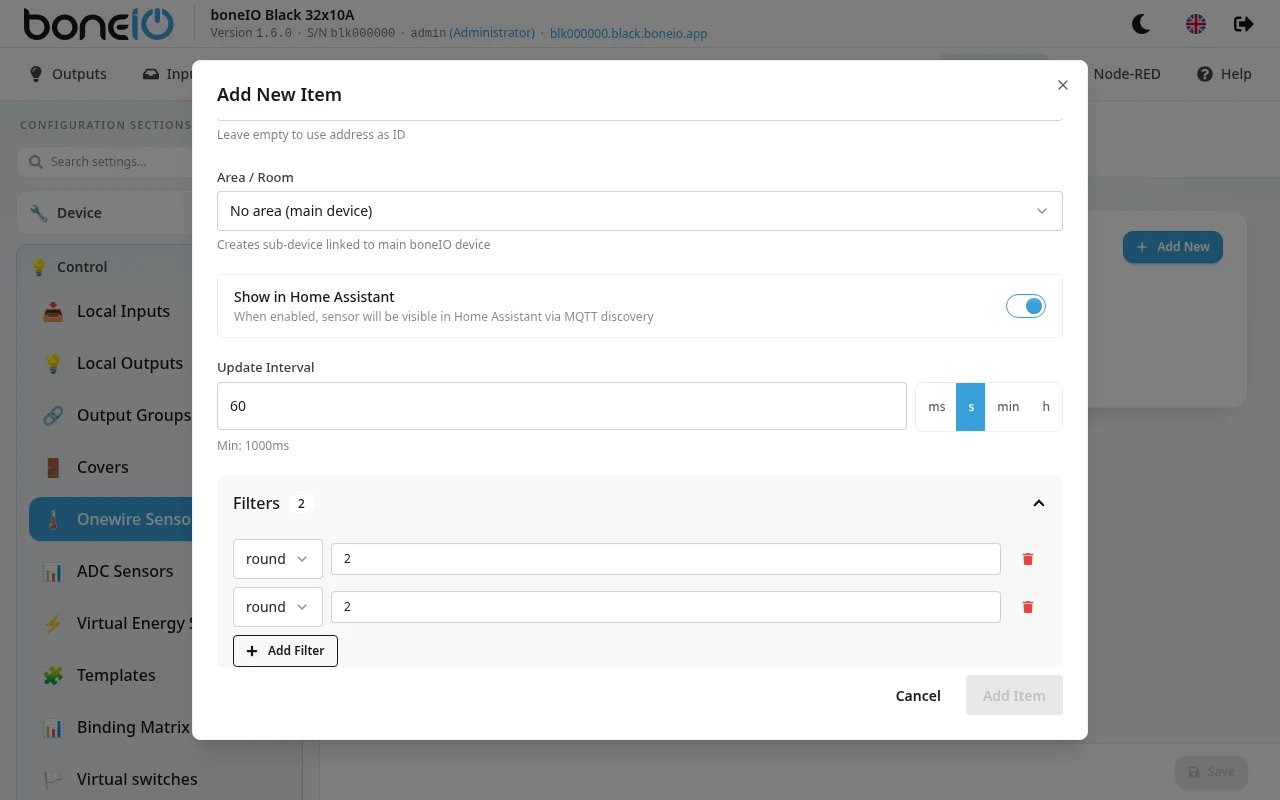
The filters
The drop-down lists the filters by name:
| Filter | What it does | Example |
|---|---|---|
| offset | Adds the value to the reading. Use a negative value to subtract. | A sensor that shows 0.5 °C too much: offset -0.5. |
| round | Rounds to that many digits after the decimal point. Use a whole number. | round 1 turns 21.437 into 21.4. |
| multiply | Multiplies the reading by the value. | On an ADC input of a controller from version 1.0, multiply 13.8 gives the voltage on the terminal. |
| filter_out | Throws away a reading exactly equal to the value. | A DS18B20 that sometimes reports 85 after a power glitch: filter_out 85. |
| filter_out_greater | Throws away a reading greater than the value. A reading equal to it is kept. | A temperature that can never exceed 100 °C: filter_out_greater 100. |
| filter_out_lower | Throws away a reading lower than the value. A reading equal to it is kept. | filter_out_lower -40. |
When an ADC, 1-Wire, LM75 or MCP9808 reading is thrown away, nothing is published for it: the panel and Home Assistant keep showing the previous value until the next good reading.
Order matters
Filters run from the top row down, each on the result of the one before. A thrown-away reading stops there.
- To show Fahrenheit, put
multiply1.8first andoffset32after it. The other way round gives a wrong value. filter_outcompares exactly, so put it afterroundwhen the reading has decimals.
There is no button to move a row. To change the order, remove the rows and add them again in the order you want.
When a sensor has no filters
Each sensor has a default set: round 2 for 1-Wire, LM75, MCP9808 and INA219, and multiply 1.8 then round 2 for ADC (which turns the input's 0–1 into volts, see ADC Sensors).
A sensor gets the default only when it has no filters at all. Once you add your own, they replace the default, so add round yourself if you still want it.
If you remove every filter, the sensor goes back to its default after the next restart of the boneIO app. Until then it reports the unfiltered value; for ADC that is a number from 0 to 1, not volts.