Diagnostics
The device log, the capture window, the support bundle, bus scans and disk usage
Diagnostics is where you find out what the device is doing and why. It was called Logs until 1.6, when the support bundle and the bus scans joined it.
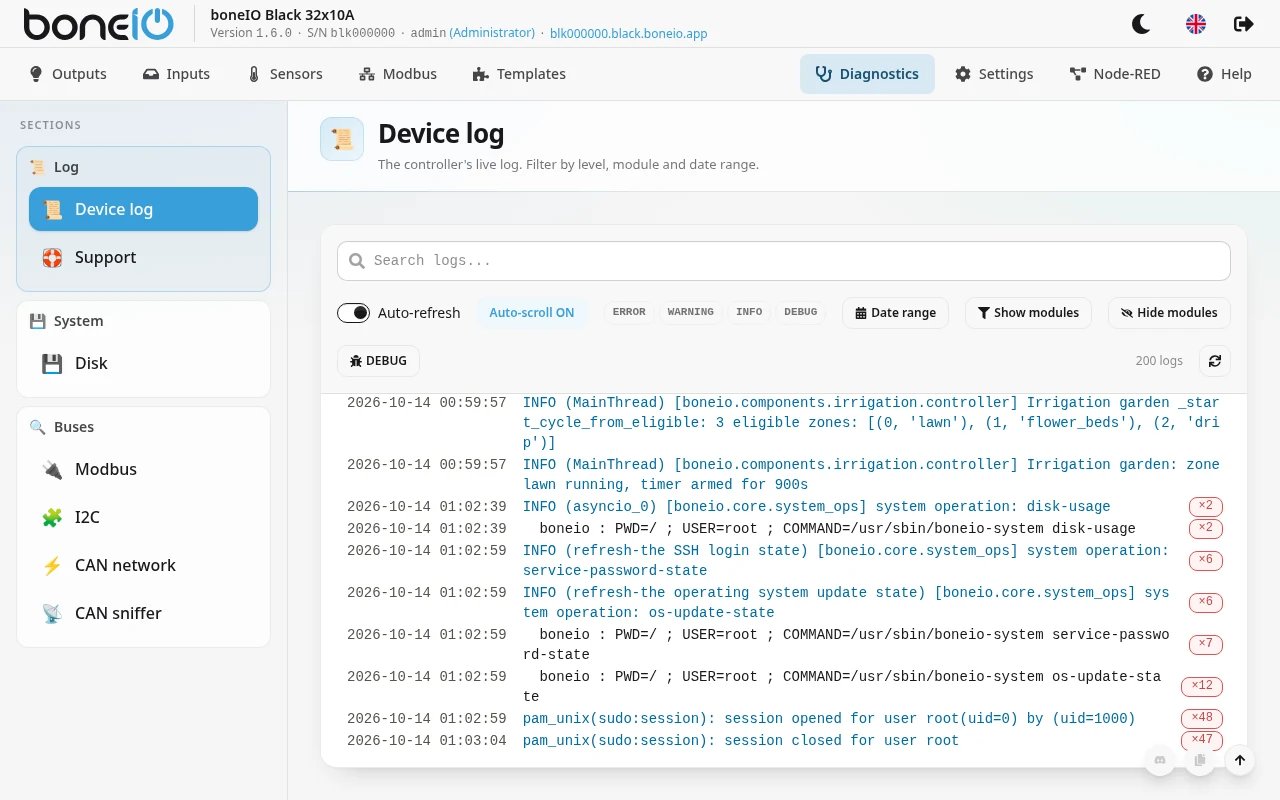
The log
Search is the full-width field at the top. Below it, the toolbar carries the level filters, module filters, a date range and auto-refresh.
Repeated lines are folded
A controller with a failing Modbus device writes the same pair of lines every
few seconds for days. Identical messages are collapsed into one row with a
count — ×97 — wherever they occur, not only when they are next to each
other. Hovering the count shows when the message was first and last seen.
A row sits at its most recent occurrence, so a message that starts repeating moves down to where you are looking rather than ticking a counter out of sight.
Device numbers and addresses are kept apart: "device 1 is failing" and "device 10 is failing" stay two rows, because they are two problems. Only thread names and elapsed times are ignored.
Levels
| Level | Meaning |
|---|---|
| ERROR | Something failed |
| WARNING | Something may be about to |
| INFO | Normal operation |
| DEBUG | Detail: while a capture window is open, or permanently for a module set to DEBUG in Logger |
Filtering by level happens on the server, so only the lines you asked for are fetched.
Module filtering and dates
Logs can be narrowed to one component — boneio.modbus.client,
boneio.webui.app — with the module list built from the logs themselves. The
date range narrows to a period, which is what you want when the fault was
yesterday.
Show modules keeps only the components you pick, Hide modules everything except them.
On a phone the filters fold behind a Filters button; its badge says how many are in effect. When you scroll up to read older lines, the log stays put — new entries are added at the bottom and the older pages you loaded are not lost. Scroll back to the very bottom and the log follows new lines again.
Selecting and sharing
Click rows to select them; Shift+click takes a range, and dragging selects several. Selected lines can be copied as text, or copied in a Discord code block ready to paste on the boneIO channel.
The capture window
Most controllers run at INFO, so a log read after the fact rarely explains a fault — the detail was never written down.
Support → Open a capture window raises the level to DEBUG for the number of minutes you choose, then puts it back on its own. Reproduce the problem while it is open.
It closes itself on purpose. An idle controller logs around twenty MQTT messages a second at DEBUG level, so a window left open fills the journal and pushes out the history you will want tomorrow.
The remaining time shows on the Support button, so a window left open is visible without opening the menu to look for it. The bug button in the log toolbar is the same control.
The support bundle
Support → Download diagnostics collects into one file what support will ask for. You can email it; nobody needs access to your controller.
Inside:
- your YAML configuration
- the device log — the capture window's, if one was open
- MQTT, Mosquitto, Docker, system and network state
Not inside: secrets.yaml and the account file are never read, and passwords
from the configuration are replaced with a placeholder everywhere they appear,
including in the log.
The file still contains your device names, MQTT topics and network addresses. Send it to someone you are asking for help, not to a public forum.
The useful order is: open a capture window, reproduce the fault, then download. A bundle collected cold usually shows that the device is running and little else.
Bus scans
In the sidebar under Buses: Modbus, I2C, and — when CAN is enabled — CAN network and CAN sniffer. They report what is actually wired to the controller. Nothing here is saved — you click and you find out — which is why they are on this page rather than in Settings.
Use them when adding an expander or a Modbus device, and when something that used to work stops answering.
Disk
Diagnostics → System → Disk shows what fills the controller's storage, and removes what is safe to remove. Look here when an update says there is not enough space.
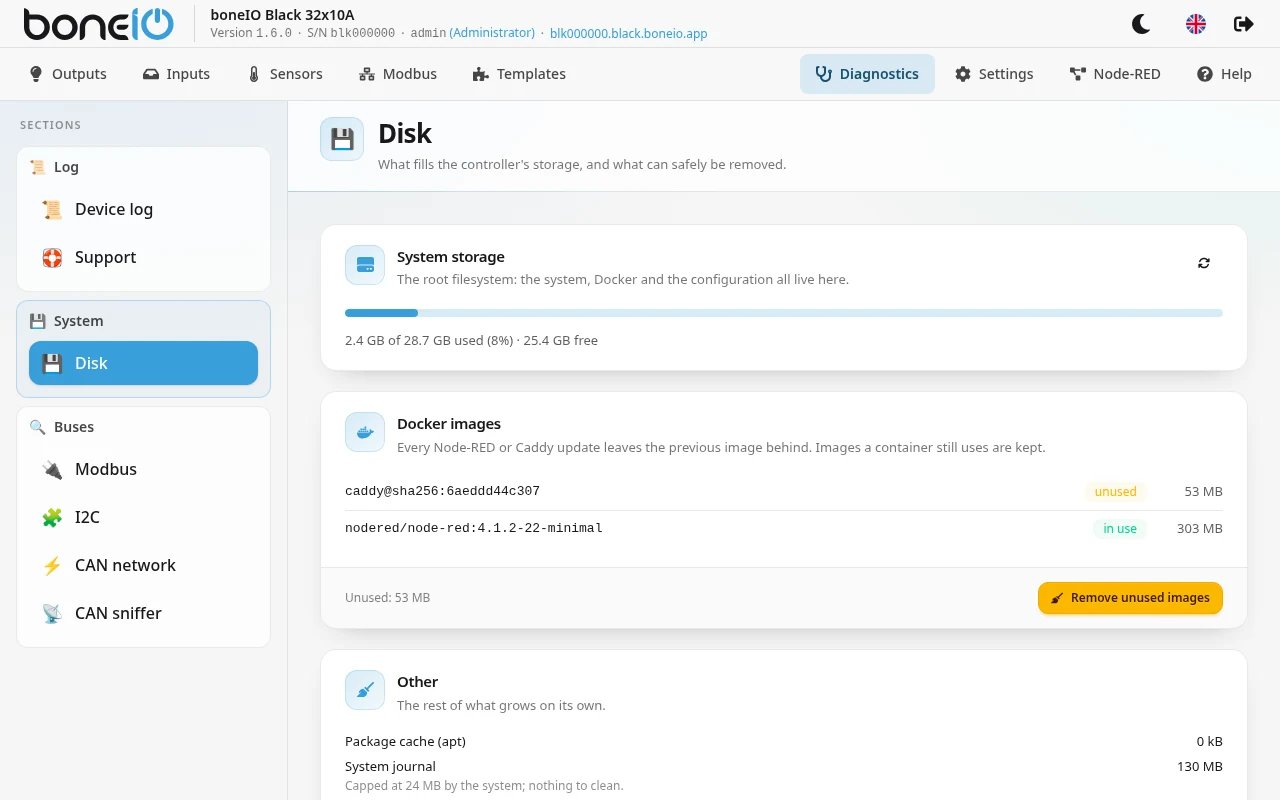
- System storage — how full the main filesystem is. The system, Docker and your configuration all live there.
- Docker images — every image on the controller, with its size and whether a container uses it. Every Node-RED update leaves the previous image behind; a minimal one takes about 350 MB.
- Other — the package cache (apt), the system journal and the Node-RED backups.
Two buttons clean up:
- Remove unused images deletes every image no container uses. Images a container uses — running or stopped — are kept, so Node-RED and the HTTPS proxy are not touched. Going back to an older Node-RED version afterwards means downloading its image again.
- Clear package cache deletes packages apt downloaded earlier. A later system update downloads again only what it needs.
Both run as soon as you click, without a confirmation, and say how much they freed. The journal is capped by the system and has nothing to clean; Node-RED backups are managed in Settings → Services on this controller → Node-RED.
Logging levels
The capture window is temporary. To change what the controller records from now
on, use Settings → Advanced → Logger, which writes to config.yaml.