Modbus
Live readings of your Modbus devices, and which of them stopped answering
Check what is on the Modbus bus
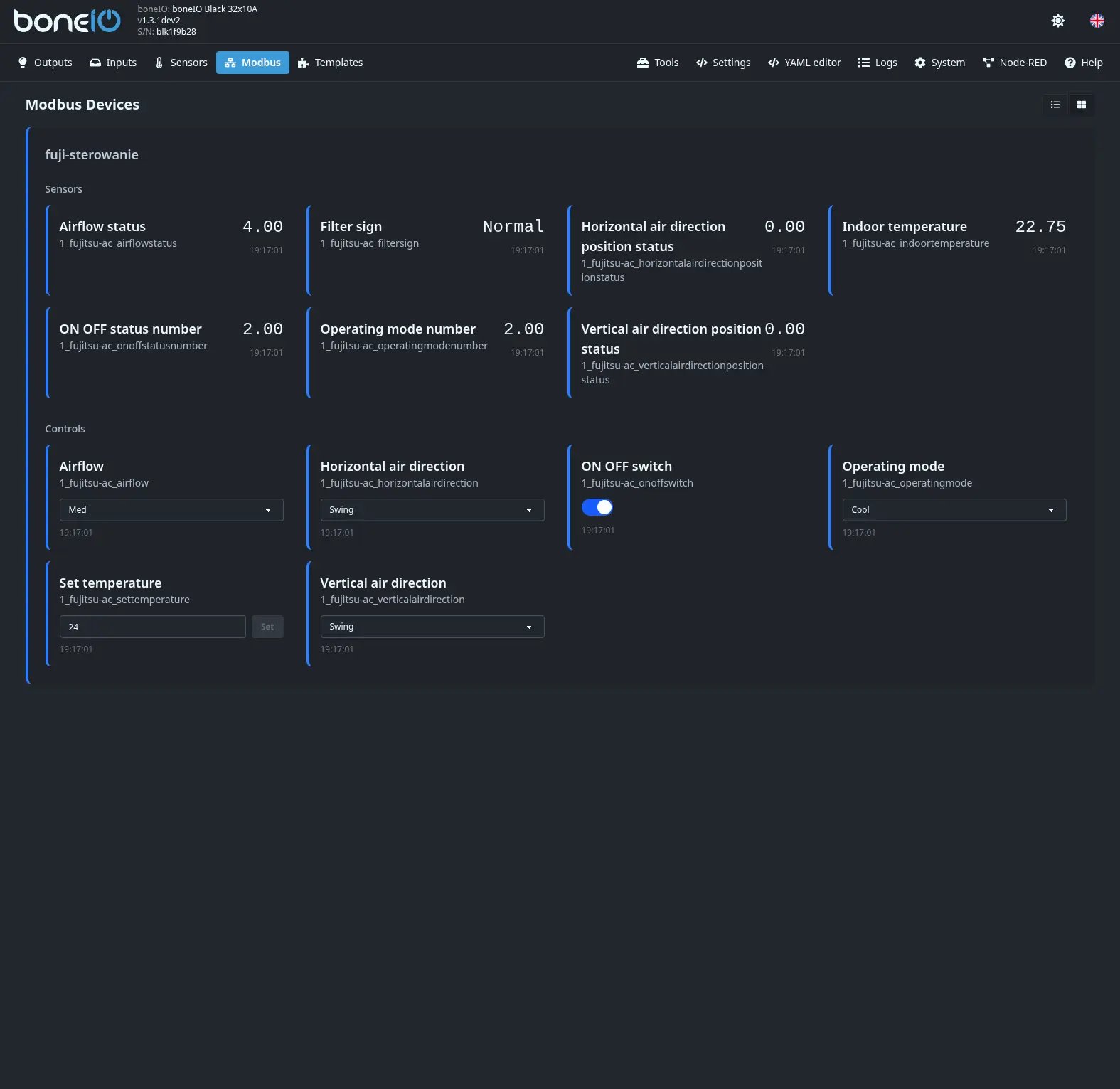
The Modbus view shows every Modbus device you added, each in its own panel: its readings under Sensors, the values you can change under Controls, each with the time it was last read. Readings with a unit are drawn as small charts, so you can see how a value moved over time.
A device that stops answering
When a device does not answer — or refuses a read — the panel shows it: a red triangle in the device's header, a red dot in the picker, and the text Device not responding or refusing reads under its name. When it answers again, the marks go away on their own.
Finding a device
With many meters and inverters the page gets long, so above the list there is a device picker:
- ‹ › step to the previous or next device; past the last one they wrap around to the first.
- The picker itself lists All devices, Failing only and then every device, each with a status dot: green — reading fine, red — failing, grey — polling is switched off. The picked device shows its area — or the fault — under its name.
- Failing only shows just the devices that do not answer right now — the first place to look when something in Home Assistant stopped updating.
- The search field (Search: name or id…) matches a device's name and an entity's label, name or id.
The device you picked is remembered for your next visit; Failing only is not, so a healthy system does not open on an empty page.
Group by area
Once you have areas, the Group by area button sorts the devices into one heading per area, as on Outputs and Inputs. The picker and its arrows then follow the same order, area by area.
Pausing a device
The switch in a device's header stops reading that device — Polling disabled — values are frozen. It is handy while you work on the wiring. Only an administrator can flip it, and it does not survive a restart: after the next start every device is read again.
On a phone
On a phone the picker opens as a sheet from the bottom of the screen. In the list view the small charts are hidden and the controls sit under each entity's name, full width, so long names wrap instead of being cut off. Hold an entity (on a computer, right-click it) to open its card with a larger chart; an administrator finds Go to Settings under ⋮ there.