Outputs
Switch outputs, covers and groups from the panel, and find their settings with a long press
See and switch your outputs
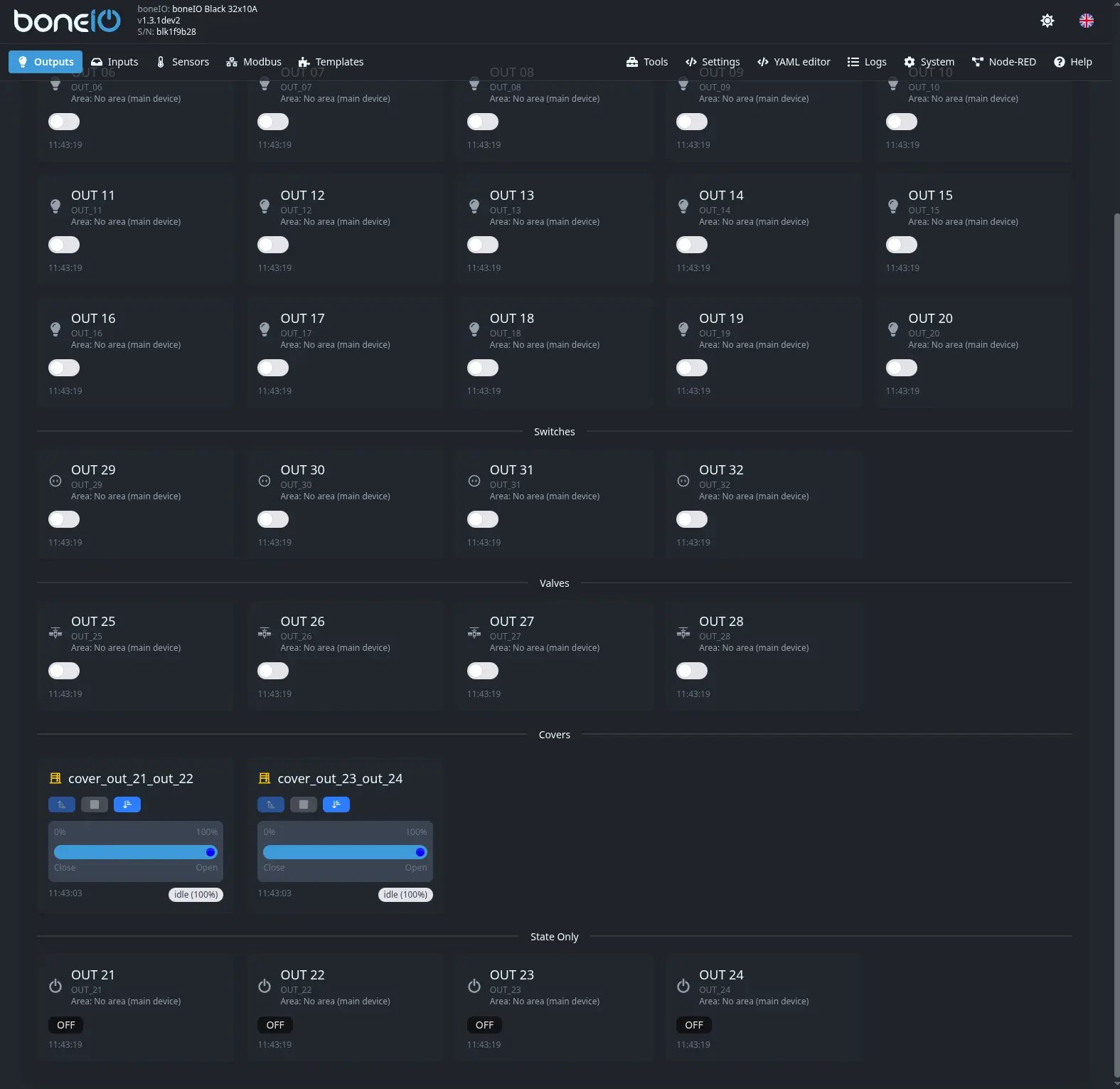
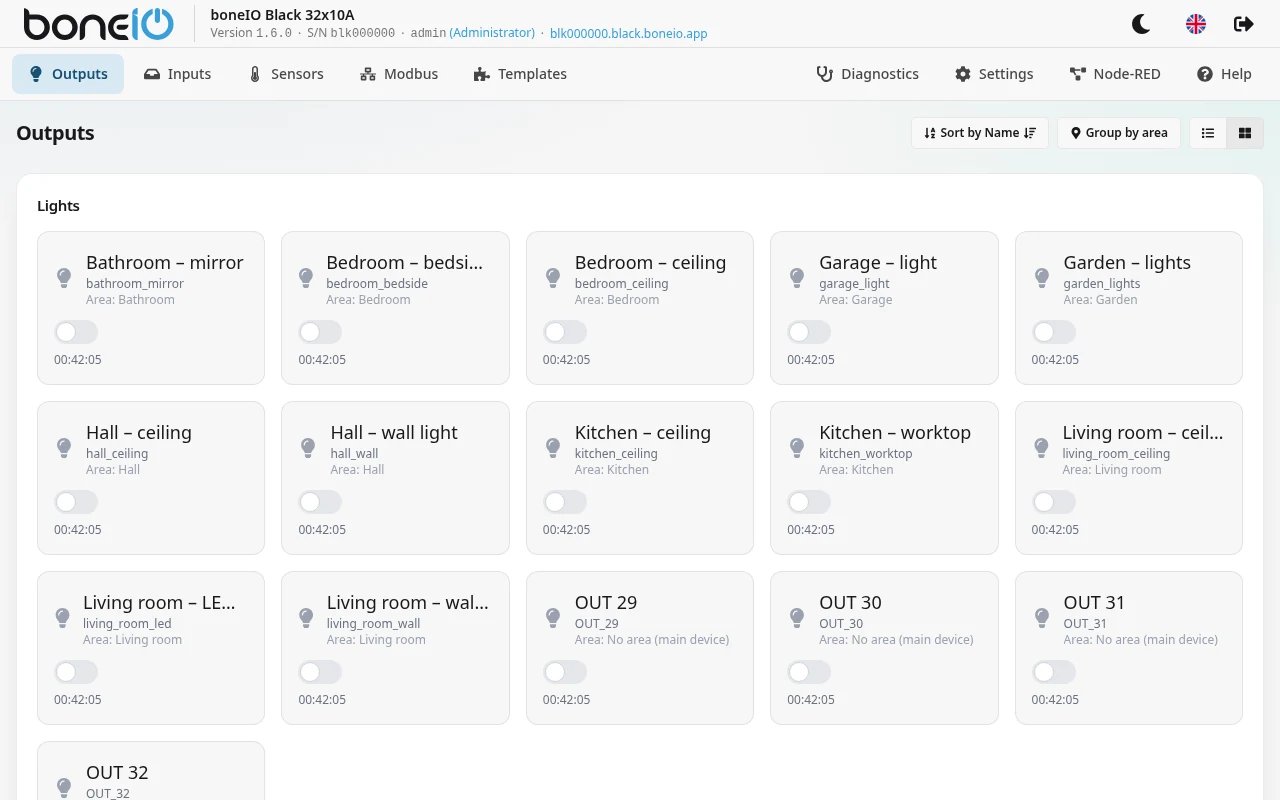
The Outputs view shows every output of the controller, what it is (light, switch, valve, cover, group, virtual switch) and whether it is on. Tap a tile to switch it — from a computer, phone or tablet, without Home Assistant.
Outputs are sorted into Lights, Switches, Virtual switches, Valves, Covers and Groups; outputs on other controllers are under Remote Outputs. Above the list you can:
- switch between tiles and a list,
- sort with Sort by Name or Sort by Recent Event,
- group the view by area (below).
Group by area
Once you have areas set up, a Group by area button appears next to sorting (on a phone, just the pin icon). Turn it on and the view shows one panel per area — the living room's lights, switches and covers together — in the order the areas are configured. Anything without an area is in No area, at the end.
The choice is remembered in this browser, separately for Outputs, Inputs and Modbus.
Long press: details and settings
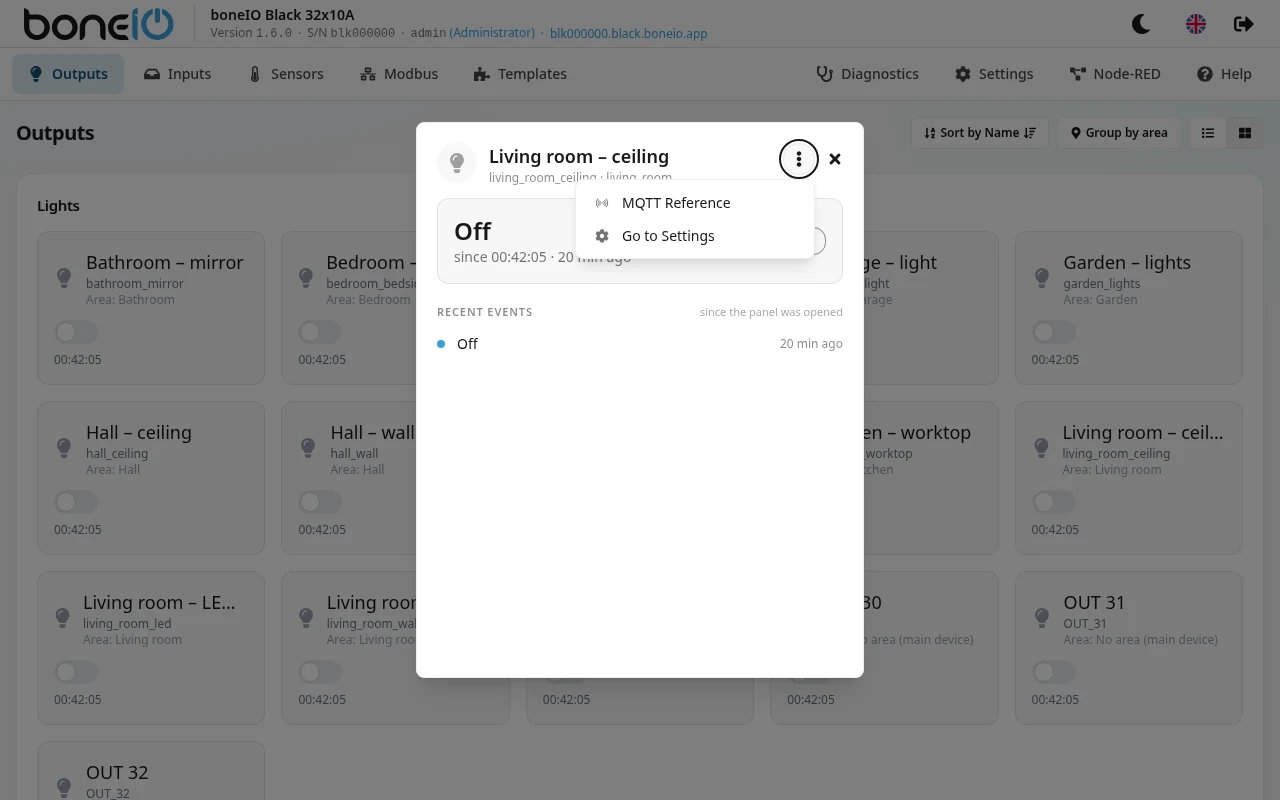
Hold a tile for half a second (on a computer, right-click it) to open its card:
- the output's controls,
- Recent events — what happened to it since the panel was opened,
- under ⋮: MQTT Reference (the topics to control it) and, for an administrator, Go to Settings, which opens this output's settings directly.
A virtual switch opens in Settings → Virtual switches, where it is configured, not in Outputs.
A read-only account gets the card without Go to Settings.