Inputs
Watch what your buttons and sensors report, and change an input in one step
Inputs and their states
The Inputs view shows every input, its type (Event entity or Binary sensor) and the last event it registered, with the time. It is the quickest way to check wiring: press a wall button and watch its tile.
Local inputs and inputs taken from other devices are listed separately, under Local Inputs and Remote Inputs. As on Outputs you can switch between tiles and a list, sort with Sort by Name or Sort by Recent Event, and — once areas exist — turn on Group by area to get one panel per area.
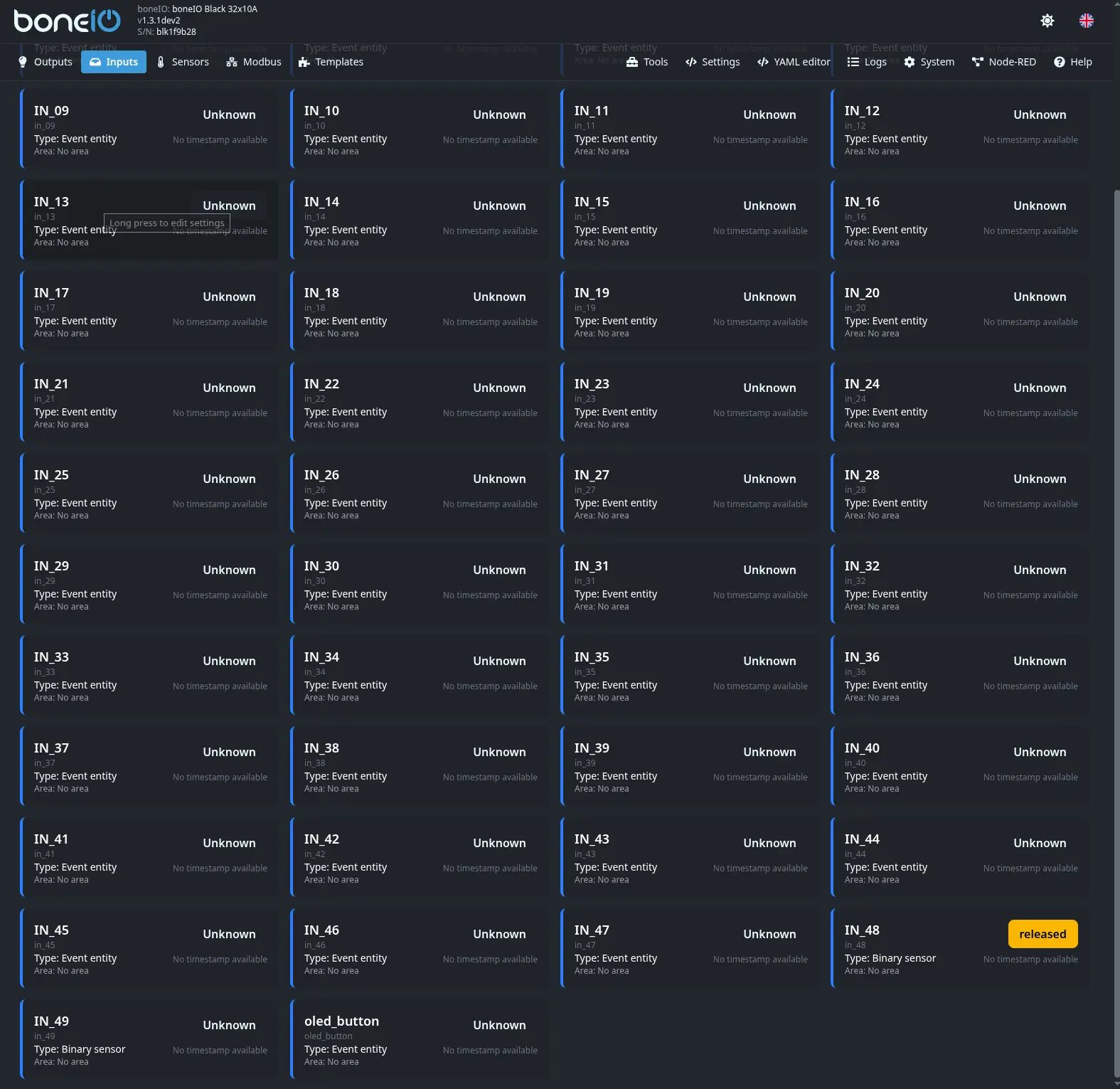
Long press: quick action and settings
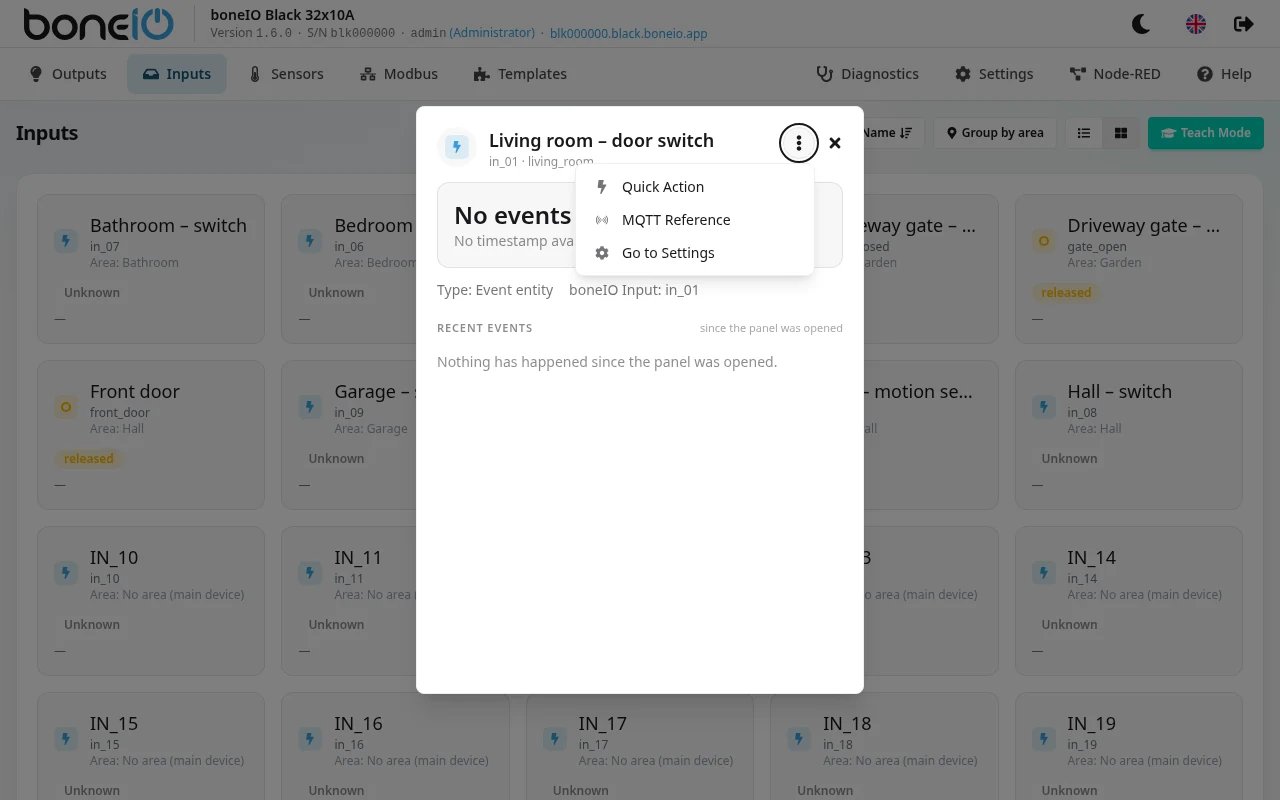
Hold an input's tile (on a computer, right-click it) to open its card with the recent events. Under ⋮ you find:
- Quick Action — pick a click type and an output or cover, and the input gets that action straight away. Administrators only.
- MQTT Reference — the topics the input publishes on.
- Go to Settings — opens this input in Settings → Local Inputs (or Remote Inputs). Administrators only.
Changing an input: one Save
In Settings → Local Inputs, the input's dialog saves straight to the controller. Add an action, press Save Changes — the button shows Saving..., the dialog stays open until the controller has the change, and then it closes. The input works the new way at once: no second save in the section bar, no restart.
Other sections, Remote Inputs among them, still collect your edits and save them with the section's own Save button.
How to set up the inputs themselves is in Configure events and Configure binary sensors.