Accounts and access
The first-run wizard, administrator and read-only accounts
From 1.6 the panel has accounts. A controller with no account answers no API request at all until one is created.
This applies whichever version you upgrade from. A controller going straight from 1.5 to 1.7 behaves the same as one going to 1.6 — the rule is about the state of the device, not about the version it came from.
First run
A controller with no account shows a wizard:
- Start
- Account — create the administrator account
- Import — optionally restore a configuration backup
- Devices — optionally wire the inputs to the outputs or covers
- Cloud — optionally register with boneIO Cloud
- Done
A controller that was configured before the update sees only Start, Account and Done, so its existing input actions are not replaced. The step-by-step guide is First-time setup.
Until you finish it, the panel and the API are closed. The OLED display and
the application log both say SETUP REQUIRED, so a device that skipped several
versions is not silently unreachable.
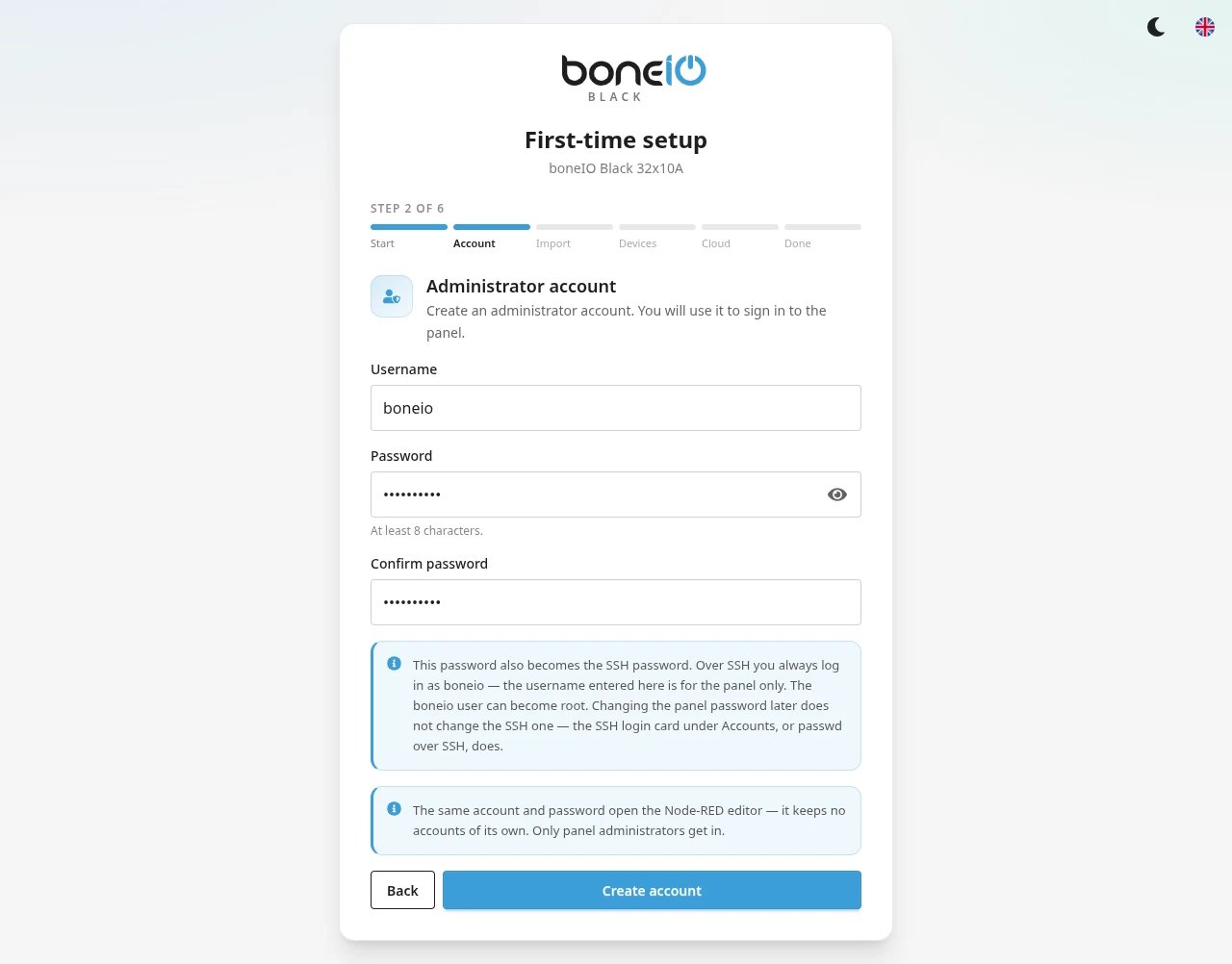
The wizard sets the administrator's password as the SSH password of the
boneio user once, when that account is still locked from the factory, has
the factory password Black or has none. A password somebody already chose is
left alone, and the wizard says which happened. After that the two are
separate: changing the panel password does not change the SSH password. That
is what the SSH login password card is for.
Two roles
| Administrator | Read-only | |
|---|---|---|
| View the device | yes | yes |
| Operate it — outputs, covers, irrigation, thermostats | yes | yes |
| Change the configuration | yes | no |
| Accounts, backups, updates, restart | yes | no |
| Own password | yes | set by an administrator |
A read-only account is meant for someone who should be able to use the installation without being able to reconfigure it. It can press buttons — an account that cannot is just a dashboard.
Anything not explicitly allowed requires an administrator, so a new feature is closed to read-only accounts until someone decides otherwise.
Accounts are managed in Settings → Access → User accounts. The last administrator cannot be deleted or demoted.
SSH login password
Over SSH you always log in as boneio, whatever your panel username is. That
user can become root, so its password matters more than any panel password.
The SSH login password card, at the bottom of User accounts, changes it
without opening a terminal.
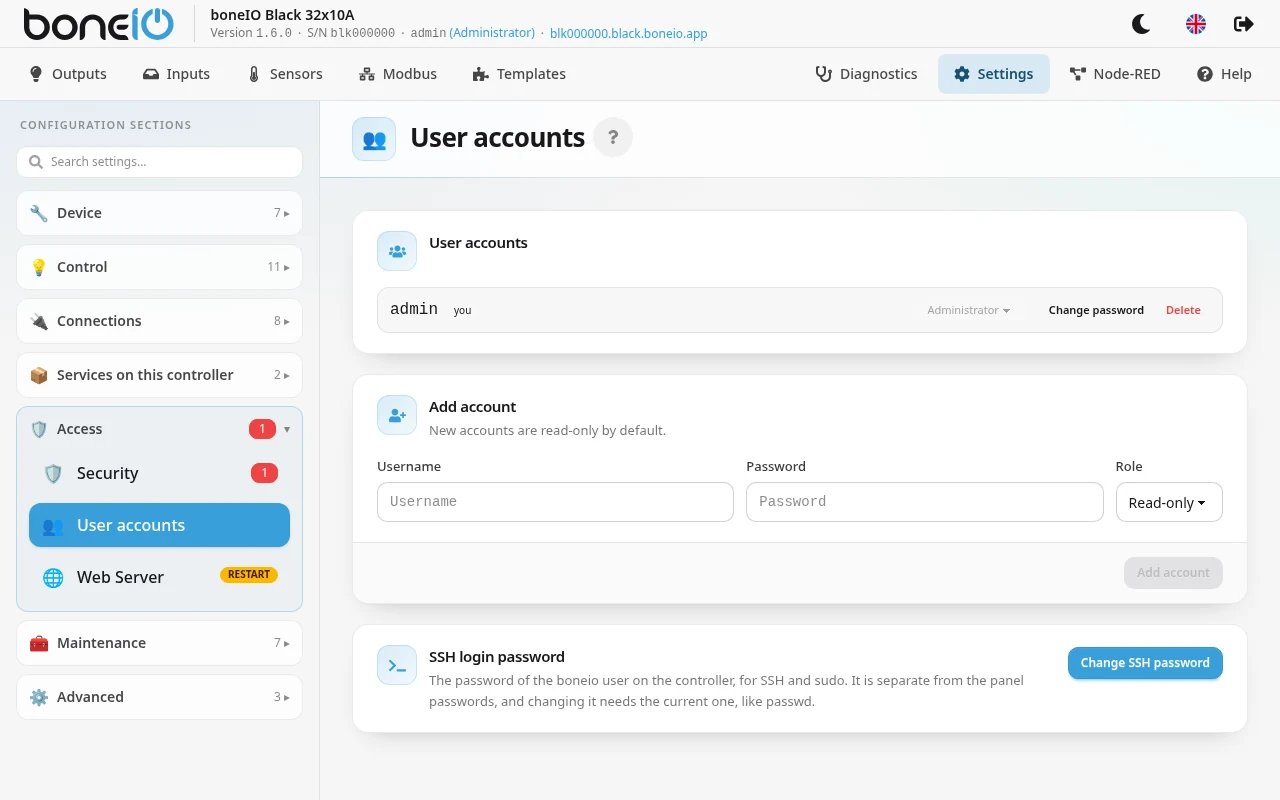
- Click Change SSH password.
- Type the current SSH password, then the new one twice. It needs at least 8
characters and must not contain
boneio. - Confirm. The panel passwords stay as they are.
The new password is used from the next SSH login, and for sudo. It is the
same as running passwd over SSH, and like passwd it wants the current
password — the panel cannot set an SSH password nobody knows. A forgotten one
is recovered with a flasher card prepared with BONEIO_RESET_ACCOUNTS=1: the
configuration stays, and the panel accounts are created again in the wizard.
What the card shows depends on how the login stands:
| The card says | What to do |
|---|---|
| The shipped password is still in use | Change it now — the current password is the factory one, Black |
| A Change SSH password button, nothing else | The password is your own; change it whenever you like |
| The login has no password at all | Anyone who reaches SSH can log in. Log in over SSH as boneio and run passwd |
| The login is locked | No password logs in yet. The first-run wizard sets it once |
| Migration 1.6.29 is missing | Apply the pending system migrations, or use passwd until then |
Only administrators see the card. After five wrong current passwords within fifteen minutes the card refuses every try, the right one included, until the oldest is fifteen minutes old — it tells you how many minutes are left. Each wrong one also counts towards your session being signed out.
Changing the SSH password is one of the actions that ask for your panel password again. If you signed in more than ten minutes ago, Confirm your password appears after you submit the SSH form; type your panel password and the change goes through.
Forgotten password
Password recovery is done over SSH, on the controller:
boneio accounts list
boneio accounts reset <name>
The password is asked for interactively — it is never passed as an argument, so it does not end up in your shell history.
Run these as the boneio user, not with sudo. Under sudo the account file
ends up owned by root and the application can no longer read it; the command
warns you if that happens.
Changes take effect immediately — the running application notices the file changed and does not need restarting.
Sessions
Signing in keeps you signed in for 30 days on that browser. The sign-in is sent with each request rather than kept in a cookie, which is also why a page in another tab cannot act on your behalf.
Deleting an account or changing its role takes effect at once — an account removed today cannot keep working until its sign-in expires.
Changing a password signs out the other sessions
When an account's password changes, every place that account is signed in is signed out — other browsers, phones, a tablet on the wall:
- Your own password (Change password on your own row in User accounts): this browser stays signed in, everything else is signed out.
- Someone else's password, set by an administrator: all of that account's sessions end.
boneio accounts resetover SSH: all of that account's sessions end.
A signed-out browser goes to the login screen and says why — the password was changed, or the account was deleted. A wall tablet signed in with that account needs the new password too.
Actions that ask for the password again
Signing in is enough to look at the controller, operate it and — for an administrator — edit its configuration. A short list of actions that cannot easily be undone also want the password typed in the last 10 minutes:
- accounts — adding or deleting one, changing a role or a password, and the SSH login password
- replacing the configuration — importing a backup archive, restoring a backup, a full or partial factory reset, restoring Node-RED flows
- changing the software — an application update or rollback, the system update, switching automatic security updates, updating Caddy (the web proxy) or changing how it is installed
- certificates — uploading or removing the panel's own HTTPS certificate, and the certificates and mode in Encryption (TLS) and Broker encryption (TLS) on the MQTT pages
If it has been longer, the panel shows Confirm your password and carries on with what you asked once you type it. You will not be asked again for the next 10 minutes; signing in also counts. Restart, reboot, the file editor and saving a configuration section never ask — an everyday prompt is one people learn to type through without reading.
Too many wrong passwords
Signing in is throttled: ten failed attempts in five minutes, counted per address and per account name. It is a delay, not a lockout — the window slides, so nobody can lock you out of your own controller by guessing at it.
Once signed in, a session gets five wrong passwords in total, across the Confirm your password prompt, the change-your-own-password form and the SSH login password card. The fifth signs that session out. It protects a browser left signed in from someone guessing the real password on it. Only that session goes — the account's other devices carry on — and the right password resets the count. The count survives a restart of the controller.
Repeated guessing is also reported to Home Assistant — see Security events.
Running without accounts
There is an escape hatch, deliberately not in the panel:
web:
  auth:
    allow_anonymous: true
A controller configured this way serves everything to anyone on the network. It works only while no account exists — copying the flag onto a device that has users will not open it. The application logs a warning at every start and the panel shows a banner that cannot be dismissed.
It is in config.yaml rather than in the panel on purpose. A warning is a
notice, not a control, and a "skip" button in the first-run wizard would make
the unauthenticated state a normal outcome of the intended setup.