Update Controller
Learn how to update your boneIO Black controller.
The controller checks for a new version by itself every few hours. You install it with one click — from Home Assistant or from the controller's own panel.
Requirements
- The controller must have an internet connection
- You must be signed in to the panel as an administrator
- To update from Home Assistant, the controller must be connected to Home Assistant over MQTT
How to update?
From Home Assistant
- In Home Assistant, open Settings — available updates are listed at the top,
- Click the boneIO Black Firmware update,
- Press Update,
- That's all!
From the web interface
- Open the controller's web interface in your browser
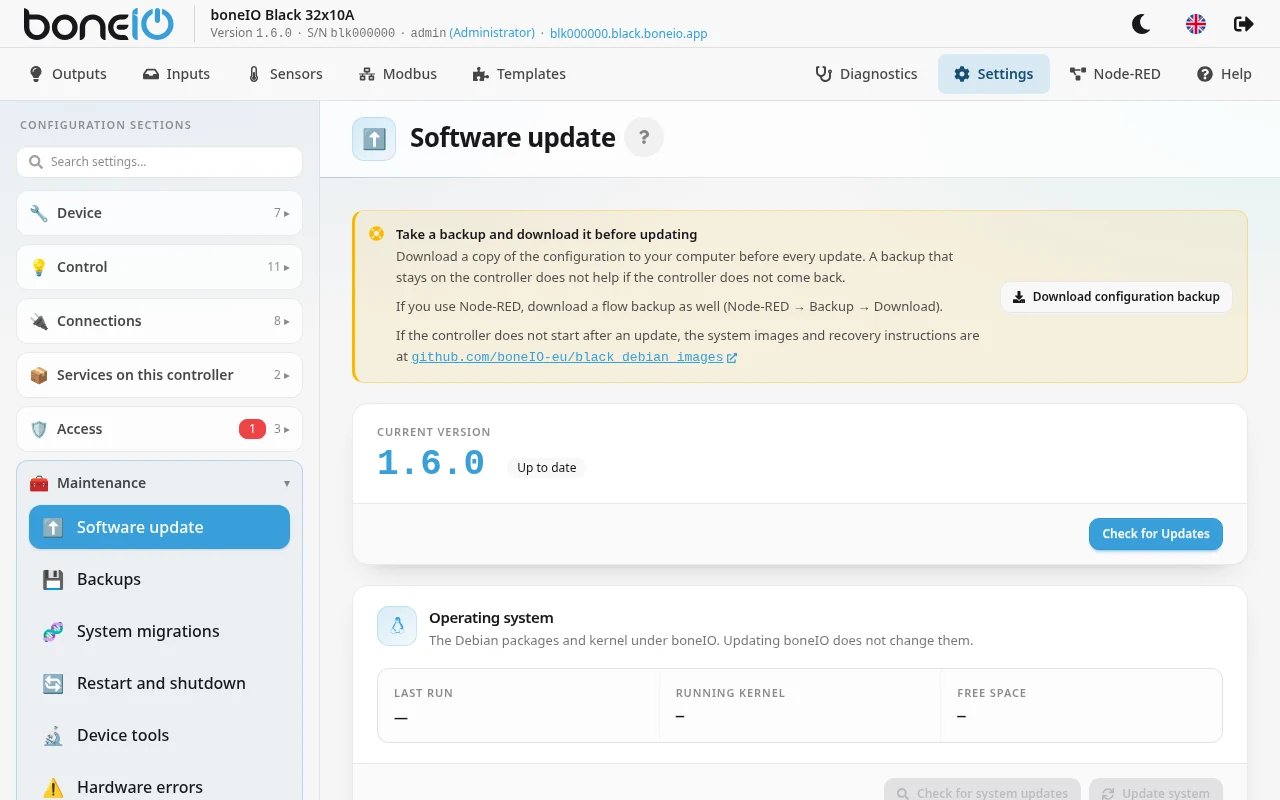
- Go to Settings → Maintenance → Software update
- Click Check for Updates
- If a new version is available, read what it changes (View Release Notes), then click Update to <version> (for example Update to 1.6.0)
The update starts on its own. When it finishes, the application on the controller restarts and the panel reloads.
While the controller is installing and restarting, the panel shows Update in progress with the time since it started, and comes back by itself once the new version is running. If the controller comes back on the old version, the panel says The update failed — the details are in Diagnostics. If your browser shows the old panel after the update, it reloads the new one on its own (Loading the new version of the panel); if it cannot, it asks you to press Ctrl+Shift+R (Cmd+Shift+R on a Mac).
The update does not back up your configuration. Download a backup first in Settings → Maintenance → Backups. If something is wrong after the update, open Available Versions on the same page and install the previous version (the button is Install).
After the update: system migrations
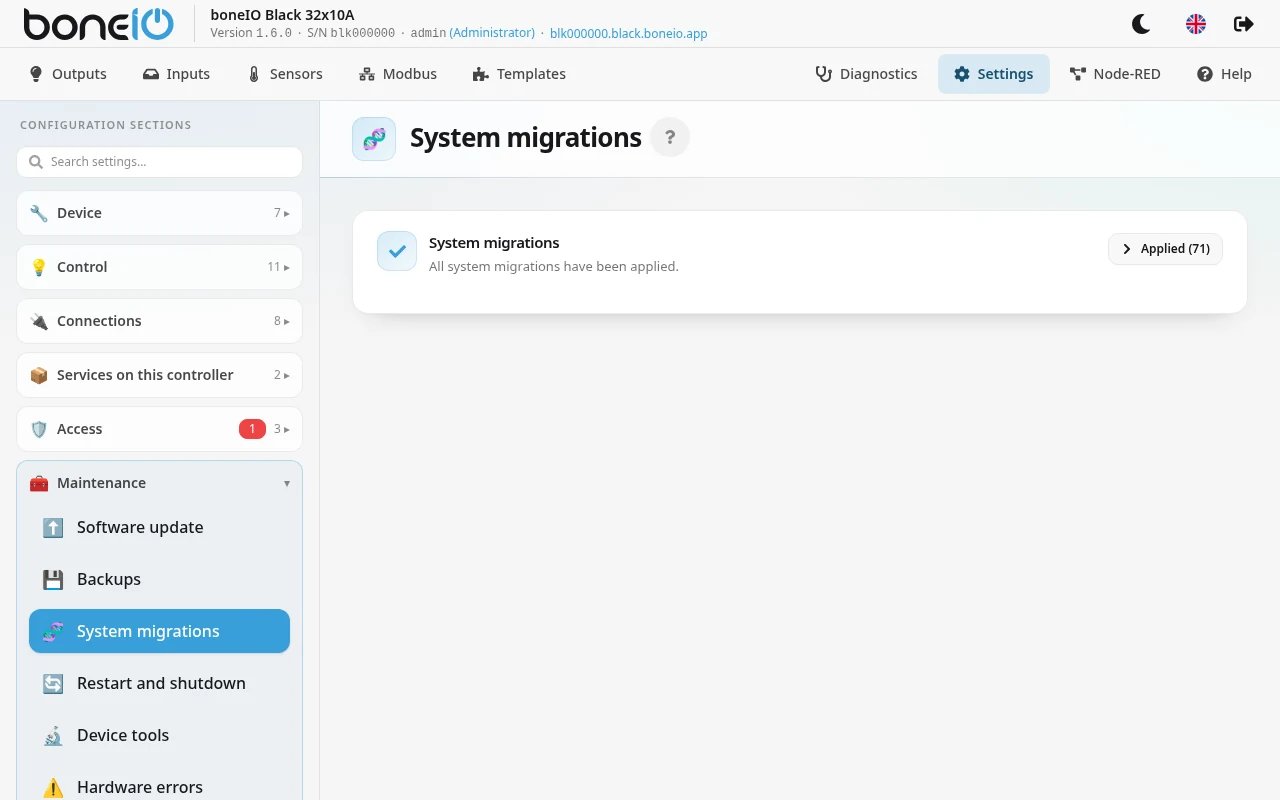
Some versions also change settings of the operating system underneath the app — for example firewall rules or SSH hardening. These changes are called system migrations. They run by themselves on the first start after the update; you do not need to do anything.
You can see them in Settings → Maintenance → System migrations. If a red banner says that a system update was refused, the page shows the reason — send it to us (see Diagnostics for the support bundle).
Updating from version 1.5?
Update to 1.5.6 first, then to 1.6. Only 1.5.6 hands the browser over to the new panel cleanly; from older 1.5 versions the old panel may keep coming back after the update until you press Ctrl+Shift+R.
Version 1.6 adds accounts, so after the update the panel asks you to create an administrator account first (unless the 1.5 panel already had a password — then you simply sign in with it). Follow Upgrading from 1.5 to 1.6.
Important information
- Do not turn off the controller's power during the update. A backup power supply is worth having for exactly this — see Backup power (UPS).
- A small update takes a few minutes. Jumping several versions can take over ten minutes, and coming from 1.5 up to an hour, because the system migrations run on the first start.
- While migrations run, the display shows Updating and Do not power off. with how far it has got (Updating system with a percentage, if the display is not set up in the configuration). The panel does not answer until they finish.
- After the update, the application on the controller restarts by itself.
Updating the operating system
Updating boneIO does not update the Debian system and the kernel underneath it. That is a separate card on the same page, Operating system — see Maintenance → Operating system. Unlike a boneIO update, it does not restart the controller by itself.
Update via SSH
If you need to update the controller manually via SSH (e.g., when the web interface update doesn't work), see the SSH update guide.