First-time setup
Create the administrator account in the wizard a new controller shows.
The first time you open the panel of a new controller, you do not see the panel yet but the First-time setup wizard. It creates the administrator account — the username and password you will sign in with from now on — and helps you get going. The whole wizard takes a few minutes.
There is no way to skip the wizard. Until it is completed, the controller answers nothing except the wizard itself, so nobody can change its configuration without a password.
The bar at the top shows how far you are (Step 2 of 6, for example). Not every controller sees every step:
| Step | When you see it |
|---|---|
| Start | Always. |
| Account | Always. |
| Which controller is this? | Only if the controller does not yet know which model it is. |
| Import | Only on a controller that still has its factory configuration. |
| Devices | Only on a controller that still has its factory configuration, and only if you did not import a backup. |
| Cloud | Only if boneIO Cloud registration is not already on, and only if you did not import a backup. |
| Done | Always. |
Start
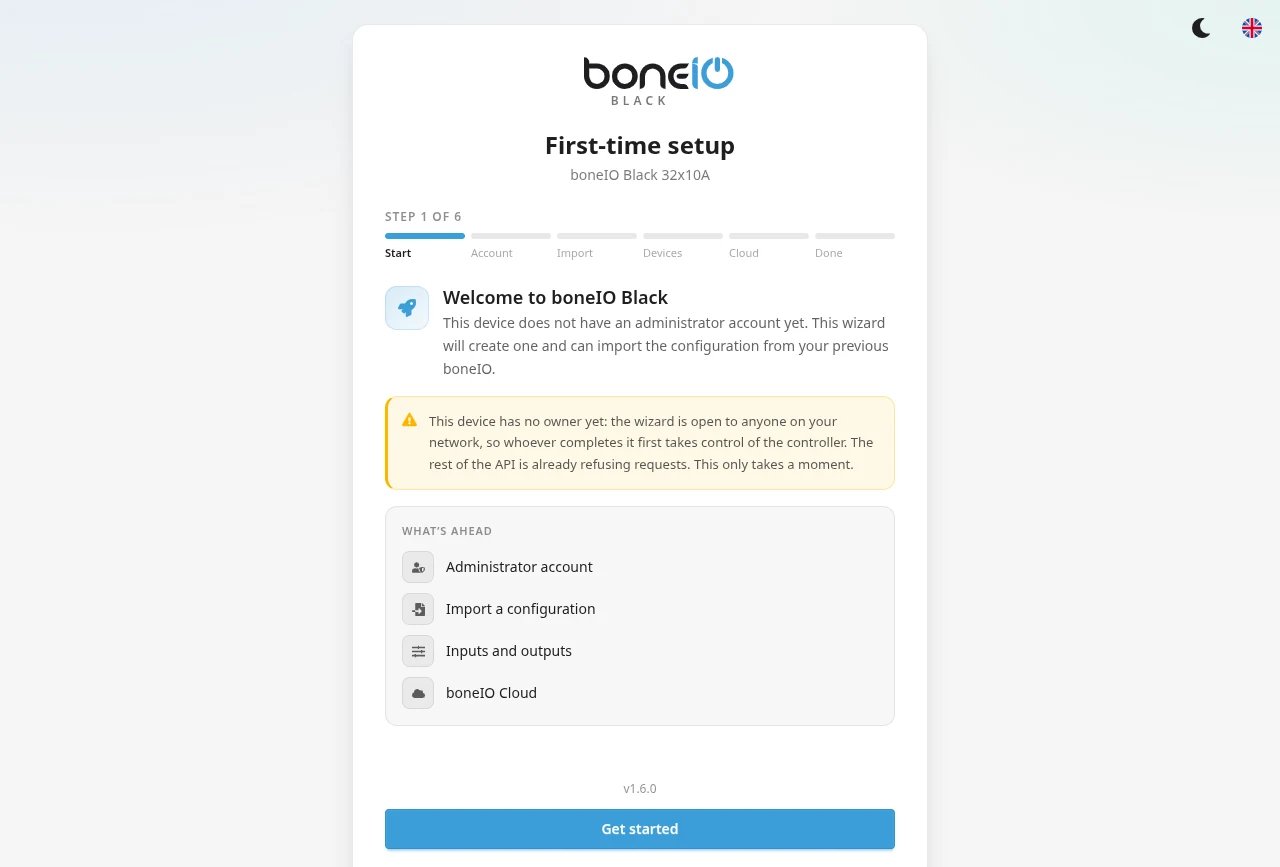
The wizard explains that the device has no administrator account yet, and under What's ahead lists the steps this controller will go through. Click Get started.
Account
Choose the Username and Password for the panel and type the password again under Confirm password.
- the password must be at least 8 characters long,
- it must not contain the username — the username is visible on the sign-in screen, so a password built from it is easy to guess.
Click Create account. From here on there is no way back to this step — the account exists.
The same account also opens the Node-RED editor: Node-RED has no accounts of its own, and only panel administrators get in.
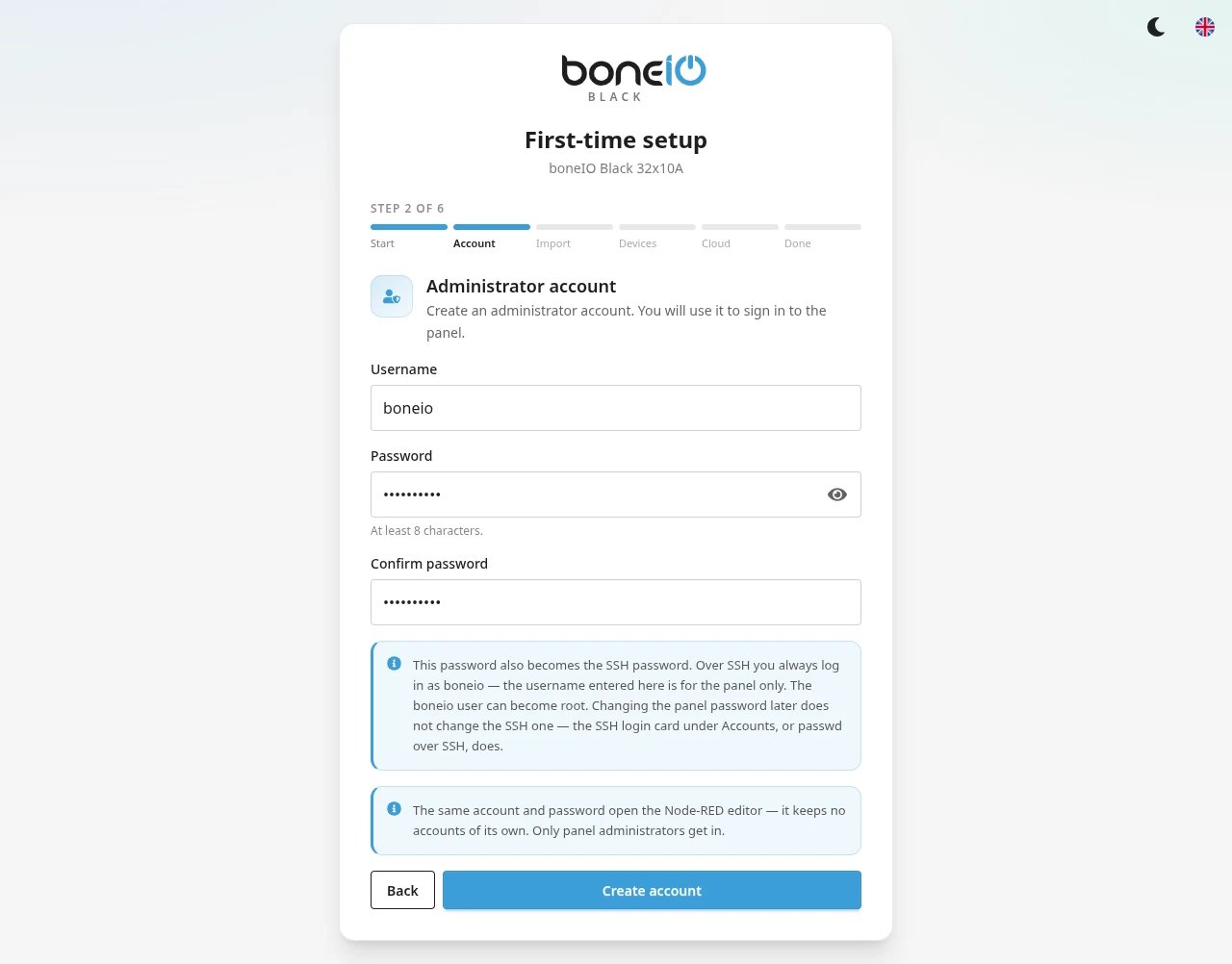
This password is also your SSH password. On a new controller the wizard sets the same password for the boneio user.
Over SSH you always log in as boneio (for example ssh boneio@192.168.1.100) — the username you typed here is for the panel only.
This happens only once: changing the panel password later does not change the SSH password. For that, use the
SSH login password card in Settings → Access → User accounts, or run passwd over SSH.
Write the password down somewhere safe.
Which controller is this?
You only see this step if the controller was not told at the factory which model it is. Until you answer, it has no outputs configured.
Pick your model — 32x10A, 24x16A, Cover or Cover Mix — and click Apply. The controller restarts with that model's configuration, which takes up to a minute; the wizard waits and then carries on by itself. The wizard does not come back to this step, so check the label on the controller first.
Import (optional)
If you are replacing an older boneIO and have a configuration backup from it (a .tar.gz file downloaded from
Settings → Maintenance → Backups on the old device), drop the file on Choose a file or drag it here, or click it to pick the file,
then click Import configuration. The controller will take over that configuration after a restart.
Setting up from scratch? Click Skip.
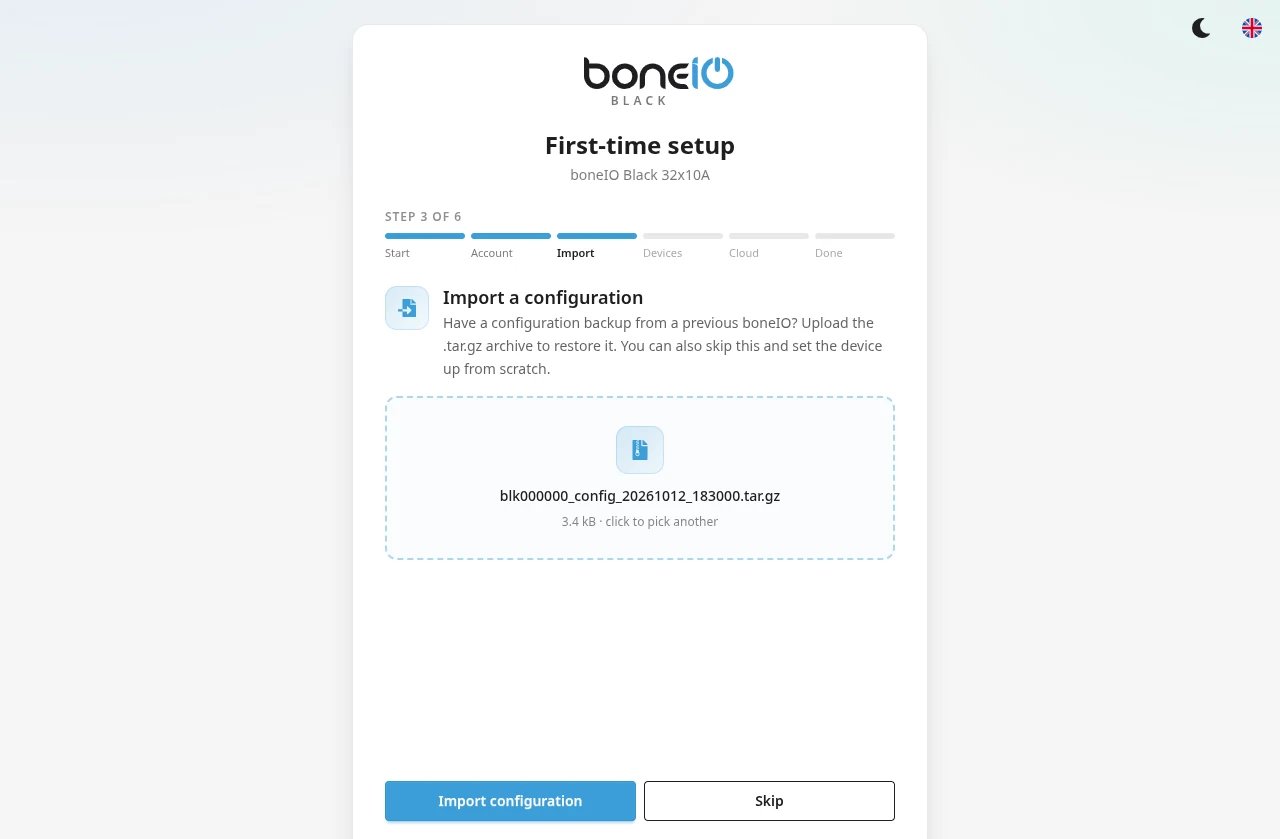
If you imported a backup, the Devices and Cloud steps are skipped — the imported configuration already decides them.
Devices
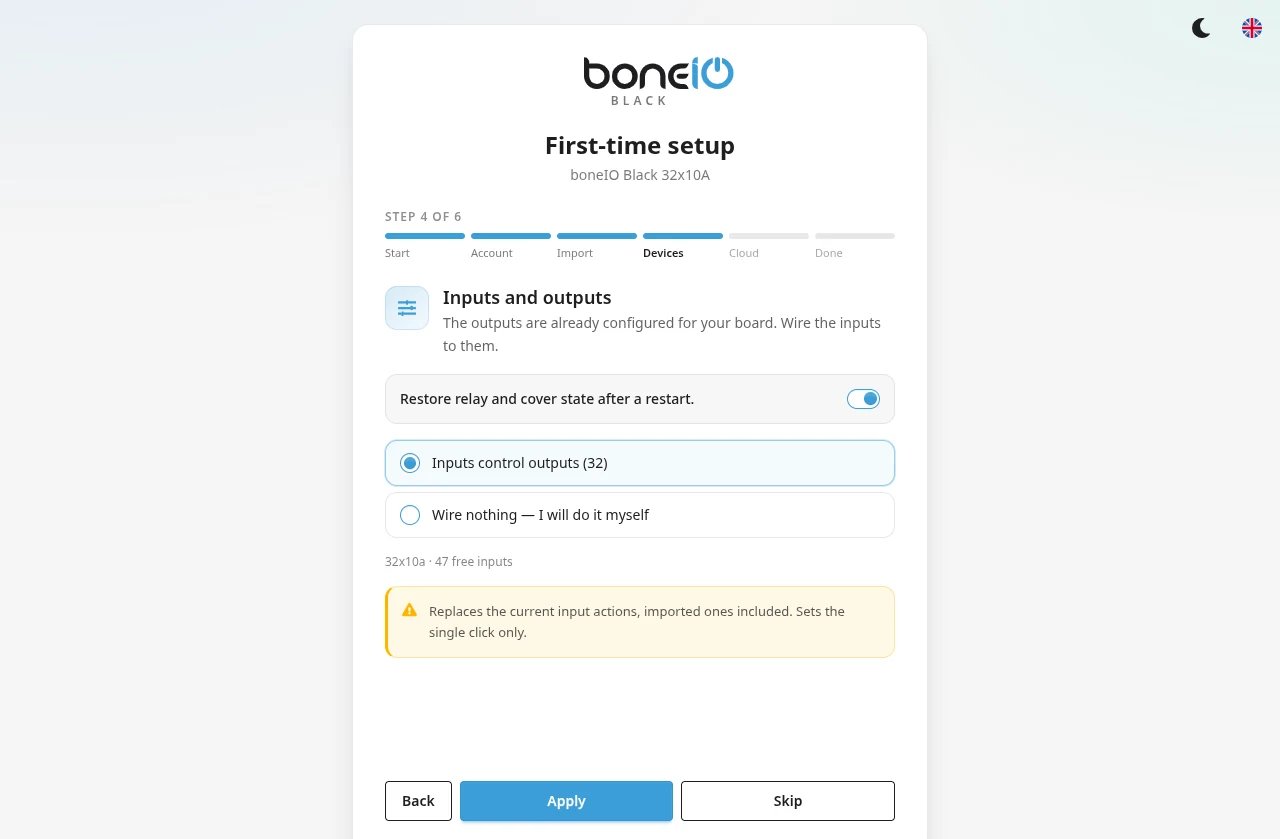
The outputs are already set up for your model. Here you decide what the inputs should do with them:
- Inputs control outputs — each input switches one output (a push button turns on a light),
- Inputs control covers — pairs of inputs open and close covers,
- Inputs control covers and outputs — a mix, on models that have both,
- Wire nothing — I will do it myself — leave the inputs empty and configure them later.
Leave Restore relay and cover state after a restart on (it is by default) if lights and covers should come back to where they were after a power cut. Click Apply, or Skip to leave everything as it is. You can change all of it later in Settings → Control → Local Inputs.
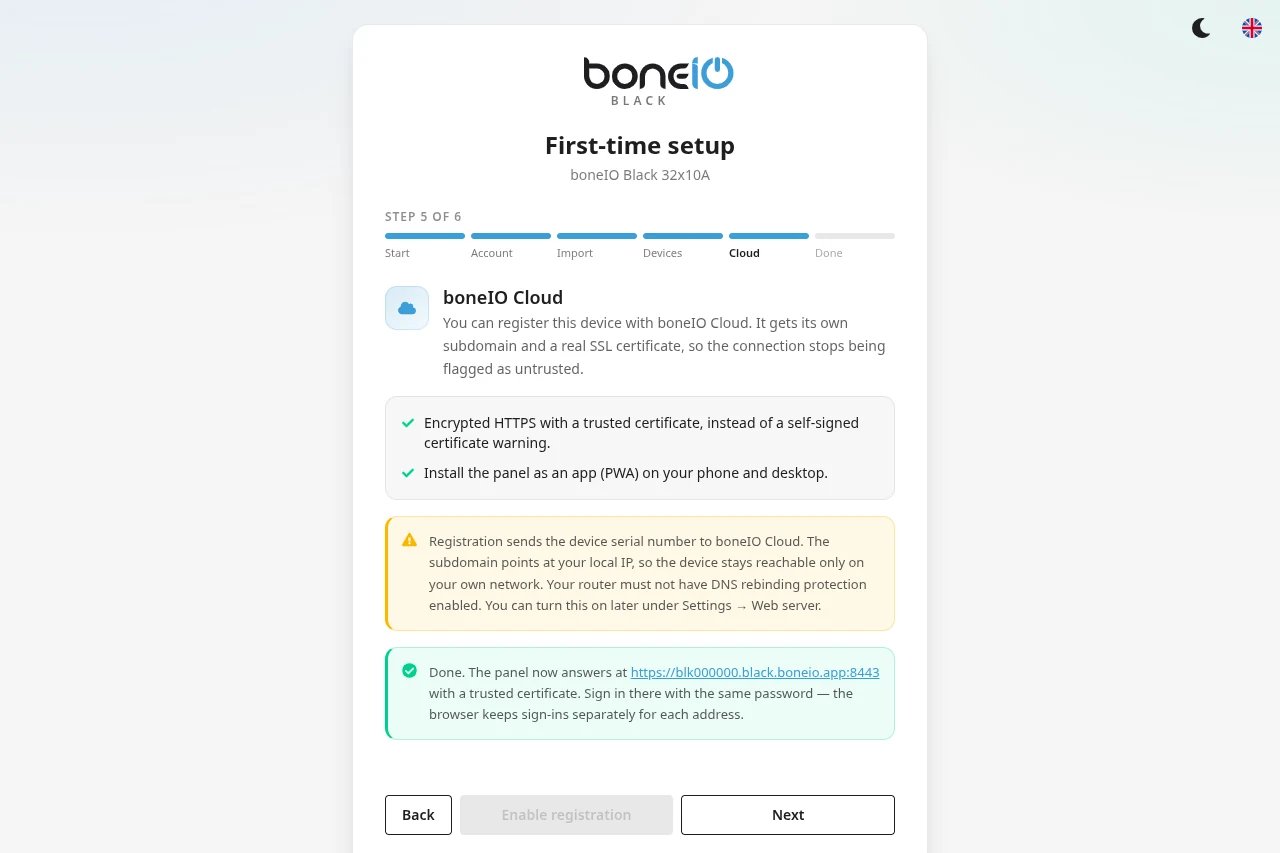
Cloud (optional)
You can register the controller with boneIO Cloud. It then gets its own address with a trusted certificate — the browser stops warning about the connection, and you can install the panel as an app on your phone.
- Registration sends the controller's serial number to boneIO Cloud.
- The controller is still reachable only on your own network — nothing is exposed to the internet.
- Your router must not block so-called DNS rebinding; if the new address does not open, that is usually the reason.
Click Enable registration, or Skip. You can turn it on later in Settings → Access → Web Server.
After Enable registration the controller restarts its HTTPS server with the new certificate. The wizard shows Switching the HTTPS server and holds Next while it waits — usually about half a minute, at most three minutes. There is nothing to do, the controller keeps running. When it is ready, the notice gives you the new address as a link.
If the controller does not know its own network address yet, the wizard says Registration is saved instead: registration starts on the next boot.
Done
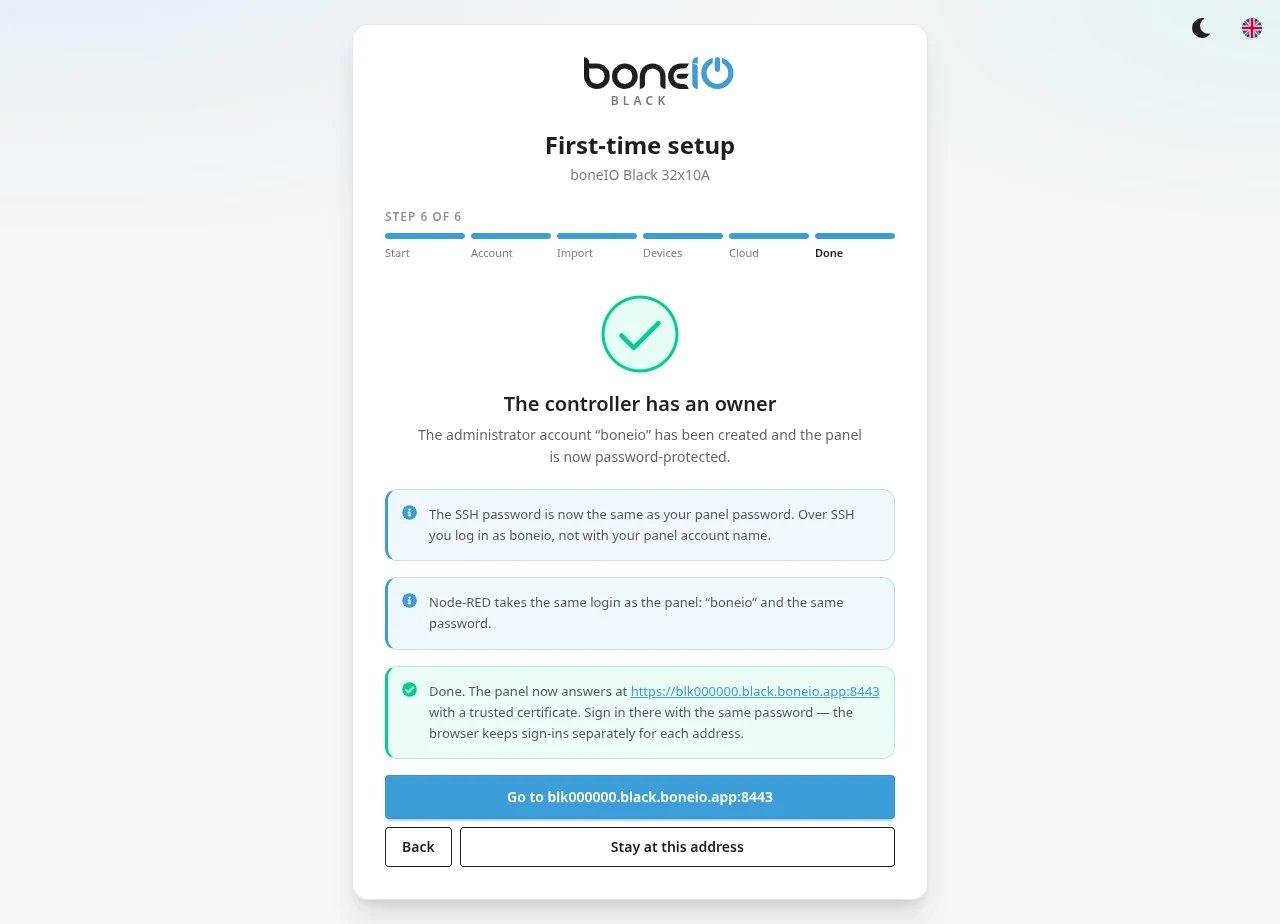
The wizard confirms The controller has an owner, names the account it created, and reminds you that Node-RED takes the same login.
It also says what happened to the SSH password. If it says The SSH password could not be set, SSH login with a password stays closed — contact us on Discord.
How you leave depends on the Cloud step:
- Without cloud registration, click Go to the panel.
- With cloud registration, click Go to blk….black.boneio.app:8443. The panel opens at its new address in a new tab. Sign in there once more with the same password — the browser keeps sign-ins separately for each address. Stay at this address keeps you where you are.
- If the new address did not answer (usually DNS rebinding protection on the router), the wizard says so and offers Open blk….black.boneio.app:8443 anyway. The panel keeps working at the current address.
If you imported a configuration or clicked Apply in Devices, restart the controller once: Settings → Maintenance → Restart and shutdown. Until then the controller still runs the old configuration.
Updating from version 1.5?
A controller that was already configured before sees a shorter wizard: Start → Account → Cloud → Done.
The Cloud step is left out too if cloud registration was already on.
If the 1.5 panel already had a password (web.auth in config.yaml), there is no wizard at all — sign in with that password.
The wizard only creates the account — your outputs, inputs and actions stay exactly as they were.
If the SSH password of the boneio user was still the factory Black, the wizard replaces it with your new password too;
if you had already changed it, it is left alone and the wizard says so.
See Upgrading from 1.5 to 1.6 for the rest of the checklist.
Forgot the password?
Log in over SSH and reset it — see Accounts and access.
What's next?
- Home Assistant connection - connect the controller to Home Assistant
- Interface navigation - learn about the menu and tabs
- Accounts and access - add a read-only account for the rest of the household