Overview and Specification
Discover the boneIO Black Cover, a dedicated controller for up to 16 blinds or shutters.
boneIO Black Cover
You can buy the controller -> HERE
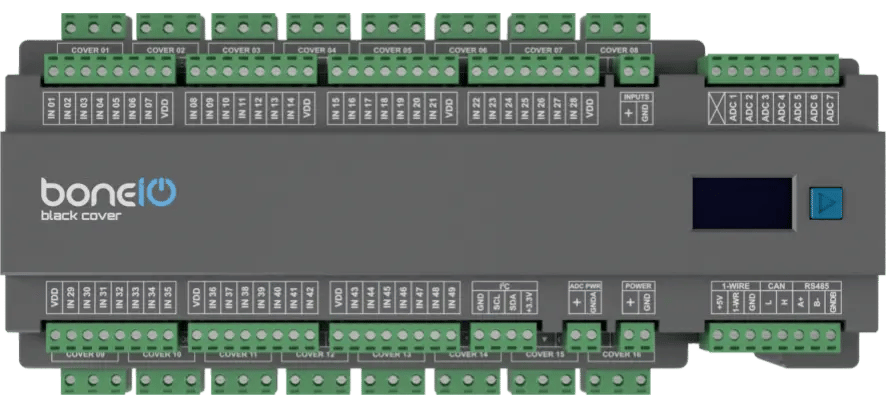
Based on the powerful BeagleBone Black and running our custom software, the boneIO Black controller offers robust and reliable performance for your smart home. With 49 digital inputs and 16 cover outputs, a single unit has enough capacity to manage all the automation in an entire house or apartment. The boneIO Black Cover is a specialized controller designed for automating roller shutters, blinds, or gates. It features 32 relays paired with a hardware interlock, allowing for the safe control of up to 16 bidirectional motors. The hardware interlock prevents simultaneous activation of the 'up' and 'down' relays for a single motor, protecting it from damage. For controlling lights and demanding electrical circuits, we offer other dedicated controllers.
Key Features
- 49 digital inputs for connecting switches, motion sensors, contact sensors and others.
- 32 relay outputs paired for controlling 16 roller shutters.
- Hardware interlock for motor protection.
- 7 analog inputs for integration with analog sensors (e.g., light or wind sensors).
- Reliable network connection via an Ethernet port.
- Wide expansion capabilities thanks to Modbus, I2C, CAN and 1-Wire interfaces.
- Built-in OLED screen for a quick overview of the device's status.
- Standard DIN rail mounting (15 modules).
Use Cases
The boneIO Cover model is the perfect choice for:
- Complete automation of roller shutters in single-family homes and large apartments.
- Centralized control of all blinds from a single point or via an app.
- Creating schedules for automatic opening and closing of shutters based on time or sunlight.
- Integration with an alarm system to automatically close all shutters when the alarm is armed.
Technical Specification
| Feature | Value |
|---|---|
| Module | BeagleBone Black |
| Power Supply | 24V DC |
| Power Consumption | 5W - 18W |
| Digital Inputs | 49 |
| Inputs Voltage | 24V DC |
| Relay Outputs | 16 for blinds |
| Max Output Voltage | 230V AC / 30V DC |
| Max Output Current | 10A |
| Analog Inputs | 7 (0–13.8 V from version 1.0, 1.8 V at most before) |
| External Interfaces | Modbus RS485, I2C bus, 1-Wire, CAN |
| Communication | Ethernet 10/100Mbit, Mini-USB |
| Dimensions (WxHxD) | 270mm x 106mm x 57mm (without plugs) / 270mm x 123mm x 57mm (with plugs) |
| Mounting Width | 15 DIN modules |
| Weight | 900g |
Connectors and Components Description
Which version is mine?
Controllers from version 1.0 have a SERVICE port (TX/RX/GND) between the I²C and POWER connectors, and an X printed before the ADC terminals. The panel shows the version too: Settings → Device → boneIO, the Hardware Version field. The tab you pick is remembered on the other controllers' pages.
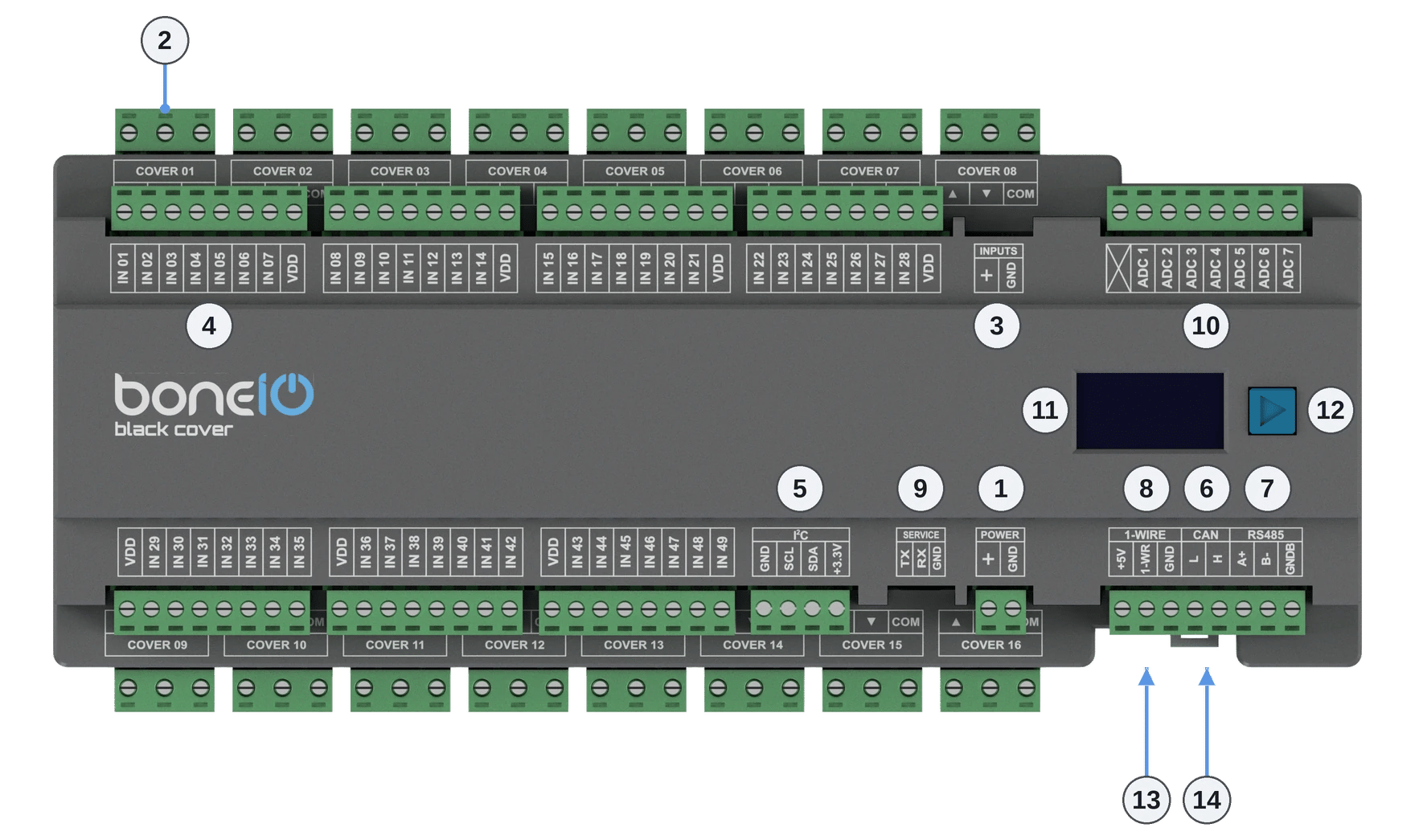
- Power Supply Connector (+/GND): Main power supply for the device (24V DC).
- Cover Up/Down Screw Terminals (1-16): Cover outputs, grouped in pairs for cover control.
- Inputs control switch - inputs can be controlled either by + or GND.
- IN Screw Terminals (1-49): Digital inputs.
- I²C bus connector: I²C bus connector for connecting I²C devices.
- CAN bus connector: connects boneIO Black controllers to each other and to ESPHome devices running esphome-canopen, see CAN bus.
- Modbus RS485 connector: Modbus RS485 connector for connecting Modbus devices.
- 1-Wire bus connector: 1-Wire bus connector for connecting 1-Wire devices.
- SERVICE port (TX/RX/GND): a UART serial console for servicing. Do not connect anything here permanently, see SERVICE port.
- ADC connector (X, ADC 1–7): 7 analog inputs, 0–13.8 V. The X terminal is AGND, the ground of the analog sensors, see Analog inputs.
- OLED Screen: Displays key information about the device's status, such as IP address, connection status, or CPU load.
- Control Button: Located next to the screen, it is used to switch between different views on the OLED display.
- USB-mini connector: USB-mini connector.
- Ethernet Port (RJ45): For connecting to the LAN.
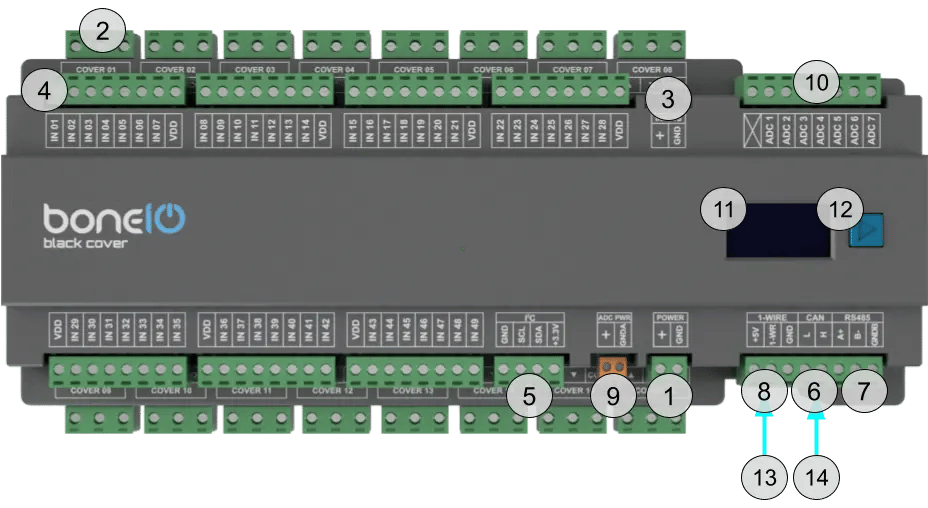
- Power Supply Connector (+/GND): Main power supply for the device (24V DC).
- Cover Up/Down Screw Terminals (1-16): Cover outputs, grouped in pairs for cover control.
- Inputs control switch - inputs can be controlled either by + or GND.
- IN Screw Terminals (1-49): Digital inputs.
- I²C bus connector: I²C bus connector for connecting I²C devices.
- CAN bus connector: connects boneIO Black controllers to each other and to ESPHome devices running esphome-canopen, see CAN bus.
- Modbus RS485 connector: Modbus RS485 connector for connecting Modbus devices.
- 1-Wire bus connector: 1-Wire bus connector for connecting 1-Wire devices.
- ADC PWR connector (+/GND): power for the analog sensors: VDD_ADC 1.8 V and GND_ADC.
- ADC connector (ADC 1–7): 7 analog inputs, 1.8 V at most. The X terminal is not connected.
- OLED Screen: Displays key information about the device's status, such as IP address, connection status, or CPU load.
- Control Button: Located next to the screen, it is used to switch between different views on the OLED display.
- USB-mini connector: USB-mini connector.
- Ethernet Port (RJ45): For connecting to the LAN.
Quick Start Guide
- Device Installation: A qualified person must mount the device on a DIN rail.
- Network Connection: Plug a LAN cable into the RJ45 port.
- Accessing the Web Panel: Find the device's IP address (displayed on the OLED screen or in your router) and enter it into a browser to access the web interface.
- Estimate Shutter Movement Time: Measure the time it takes for the shutter to fully open or close.
- Connect the Shutter: Turn off the shutter's circuit breaker. Connect the shutter motor to the
Cover01 Up/Downoutputs. - Edit cover.yaml file: Set the estimated movement time in the configuration file and save it.
- Test the Shutter: Run the shutter from the web panel to verify the configuration.
Certificates
What's Next?
You can find detailed instructions on the dedicated pages. Go ahead and read it!