How to Connect
Learn how to connect to your boneIO Black device.
After connecting your controller to the local network, you can access the boneIO web interface through a web browser. This is the most convenient way to configure and monitor your controller.
Prerequisites
- boneIO controller connected to local network via Ethernet cable
- Network with DHCP service enabled (enabled by default on most routers)
- Computer or mobile device on the same local network
- Web browser (Chrome, Firefox, Safari, Edge)
Step 1: Connect the controller to the network
- Connect an Ethernet cable to the network port of your boneIO controller
- Connect the other end of the cable to your router or switch
- Make sure the controller is powered on
The controller will automatically receive an IP address from the DHCP server on your network.
Step 2: Find the controller's IP address
There are two ways to find the controller's IP address:
Option A: Display on the controller
Press the button next to the display on the controller to scroll through the screens:
- the network screen shows the controller's IP address (plus the network mask and MAC address),
- the last screen shows a QR code — scan it with your phone and the panel opens straight away, at the right
https://…:8443address (or at the controller's own boneIO Cloud address, if you registered it; on a controller upgraded from 1.5 it ishttp://…:8090until you move the panel behind the proxy).
Which screens are shown is set in Settings → Device → OLED Display. Both are on in the factory configuration.
Option B: Router admin panel
Log in to your router's admin panel and find the list of connected devices. The boneIO controller will be visible under a name corresponding to its serial number, starting with blk, e.g., blk8c7df0.
Step 3: Open the web interface
- Open a web browser
- In the address bar, type the controller's IP address with port 8443, e.g.,
https://192.168.1.100:8443 - Press Enter
Always type https:// at the start — without it the page will not open.
The browser warns about the connection — this is expected
The first time you open the panel, the browser shows a warning such as "Your connection is not private". The connection is encrypted; the browser only warns because the certificate was issued by the controller itself, not by a company the browser knows.
- Chrome / Edge: click Advanced, then Proceed to 192.168.1.100 (unsafe)
- Firefox: click Advanced…, then Accept the Risk and Continue
- Safari: click Show Details, then visit this website
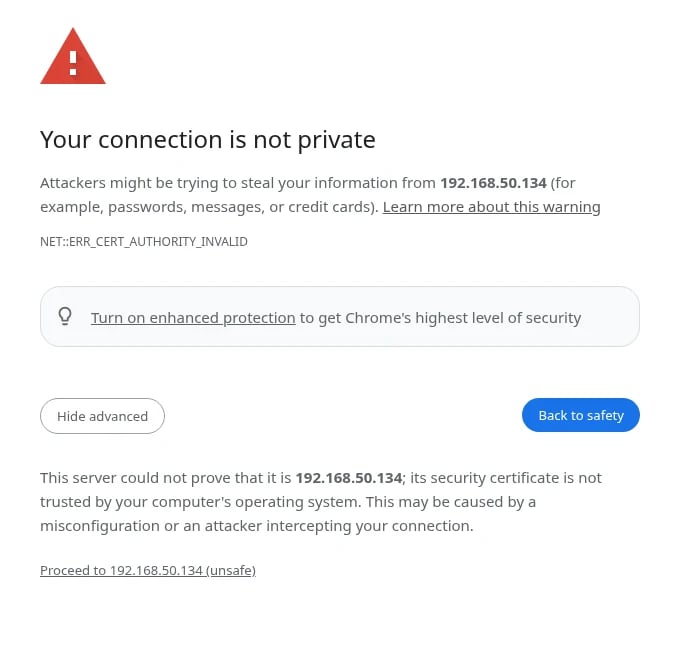
The controller's certificate is valid for six months, so the browser does not ask again every day. To get rid of the warning for good, see HTTPS certificate.
Step 4: Create your administrator account
A new controller has no owner yet. Instead of the panel you will see the First-time setup wizard.
Until the account exists, the controller's display says so: it shows Setup required, Onboarding needed.,
Open in a browser: and the panel's address. The display does not go dark while that notice is up, and the address
appears as soon as the controller gets one from the router (until then the line reads http://<device-ip>:8090, which is only a placeholder). The button still steps through the other screens;
after a minute the notice comes back. Once the account is created, the notice goes away by itself within a few seconds.
For a moment right at power-on, before that notice, the display may show SETUP REQUIRED - open :8090 —
ignore the port there and use the address from the notice, or https://…:8443.
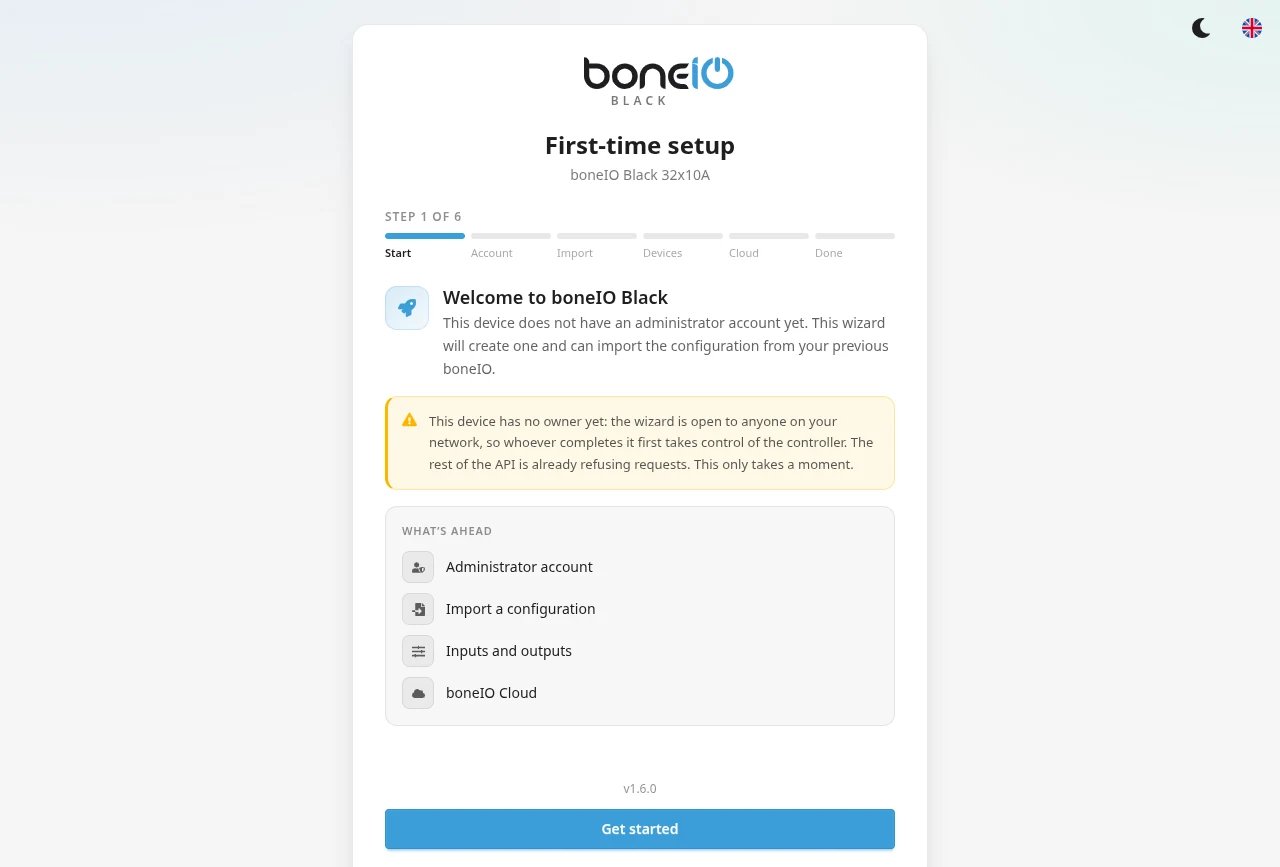
In the wizard you choose a username and password for the panel. It takes about a minute — see First-time setup for every step.
Do this right away. Until an account exists, whoever on your network completes the wizard first becomes the owner of the controller.
After the wizard you land in the main panel showing the controller status.
Troubleshooting
I can't find the IP address
- Make sure the Ethernet cable is properly connected
- Check if the network LED on the controller is lit or blinking
- Restart the controller and wait about 30 seconds to obtain an IP address
The page won't load
- Check if your computer is on the same network as the controller
- Make sure you type
https://before the IP address and:8443after it - Try clearing your browser cache or use incognito mode
- A warning about the certificate is not an error — see Step 3
The controller doesn't receive an IP address
If your network doesn't have a DHCP server, you can connect to the controller via USB cable:
- Connect a USB cable to the USB port of the controller and to your computer
- Your computer will receive an IP address from the
192.168.7.xrange - The controller will be available at
192.168.7.2— the panel opens athttp://192.168.7.2:8090(if it does not open, restart the controller with the cable plugged in) - Connect via SSH and configure a static IP address for the
eth0interface
This guide does not cover the exact network configuration commands.
What's next?
After connecting to the controller, you can proceed to:
- First-time setup - every step of the wizard explained
- Home Assistant connection - connect the controller to Home Assistant
- Interface navigation - learn about the menu and tabs in the web interface
- Update controller - check if you have the latest software version
- Configure controller - configure the controller according to your needs