HTTPS certificate
Why the browser warns about the controller's panel, and three ways to make the warning go away.
The panel is always served over an encrypted connection, at https://<controller IP>:8443.
By default it uses a certificate the controller issued itself. The connection is just as encrypted, but browsers do not know
that issuer, so they warn on every visit. The certificate is valid for six months, so the browser exception you accept lasts that long
(on a controller upgraded from 1.5, from its next restart).
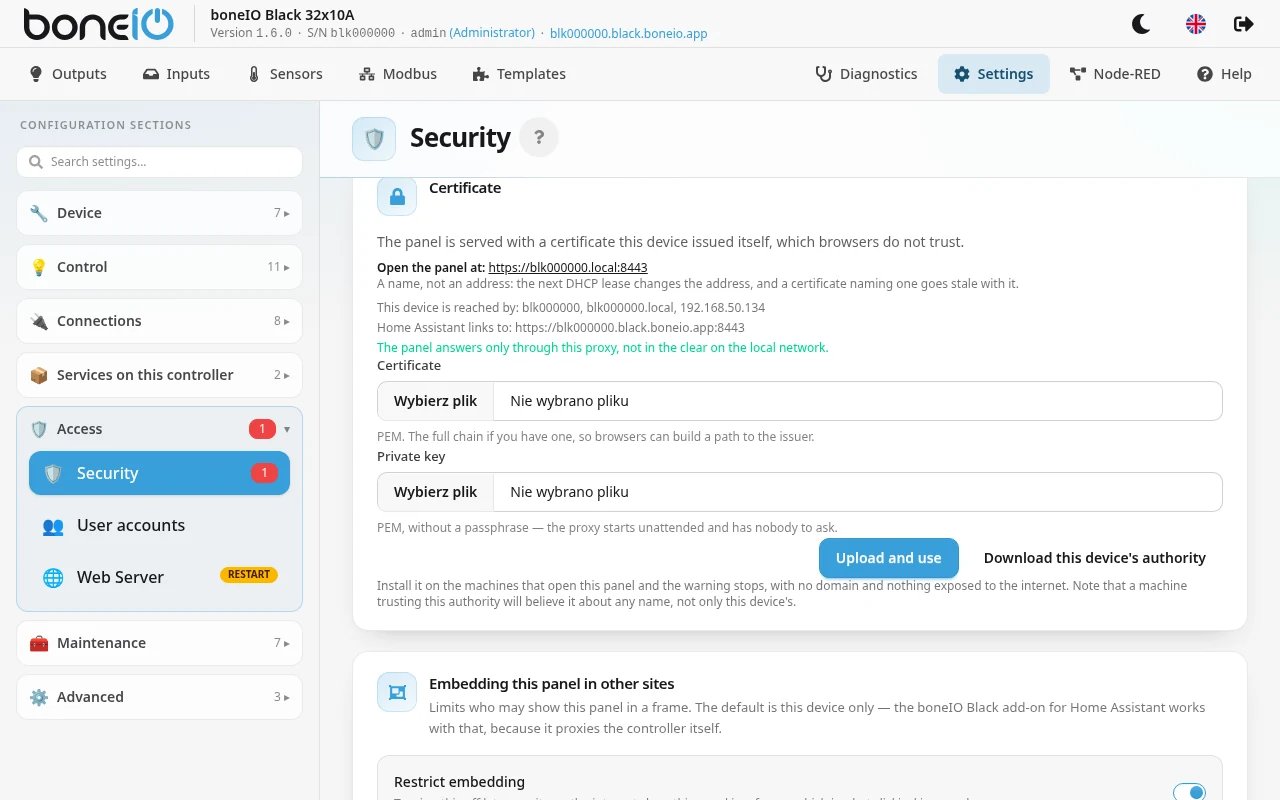
Clicking through the warning is fine on your own network. If you would rather not see it, there are three ways. Options 2 and 3 are on the Certificate card in Settings → Access → Security; option 1 is in Settings → Access → Web Server.
Option 1: boneIO Cloud — the easiest
Register the controller with boneIO Cloud (in the first-time setup or later in Settings → Access → Web Server). The controller gets its own address with a certificate every browser trusts.
- It sends the controller's serial number to boneIO Cloud.
- The address points at the controller's local IP, so it still works only in your own network.
- Your router must not block DNS rebinding, otherwise the new address does not open.
If you do not want this, tick Not interested in cloud registration in Settings → Access → Web Server — the panel then stops recommending it.
Option 2: trust the controller on your computers
Click Download this device's authority and install the downloaded file on each computer and phone you open the panel from, as a trusted root certificate authority:
- Windows — double-click the file → Install Certificate → Local Machine → Place all certificates in the following store → Trusted Root Certification Authorities
- macOS — double-click the file to add it to Keychain Access, open it there and set When using this certificate to Always Trust
- Android / iOS — open the file and install it as a CA certificate (on iOS then enable it in Settings → General → About → Certificate Trust Settings)
- Firefox uses its own list: Settings → Privacy & Security → Certificates → View Certificates → Authorities → Import
Then open the panel at the name shown under Open the panel at — a name, not the IP address, because the address can change with the next DHCP lease.
A computer that trusts this authority will believe it about any name, not only this controller. Install it only on your own devices.
Option 3: your own certificate
If you have a certificate for a domain of your own (for example from your company or from Let's Encrypt), upload it:
- Certificate — PEM file, preferably the full chain
- Private key — PEM file, without a passphrase (the controller starts unattended and has nobody to ask for it)
- Click Upload and use
The page tells you if the certificate does not cover the names the controller is reached by. Remove and go back returns to the controller's own certificate.
Ports
| Port | What |
|---|---|
8443 | The panel over HTTPS — use this one |
8090 | The panel without encryption. On controllers installed with 1.6 it answers only locally and over the USB cable (http://192.168.7.2:8090). On controllers upgraded from 1.5 it may still answer on the network until you follow the Panel served in the clear item in Security. |