Configure outputs
How to configure outputs in boneIO Black Cover Mix.
The boneIO Black Cover Mix controller has:
- 16 cover outputs (8 covers, each with 2 relays: up/down)
- 16 regular relays rated at 10A (OUT_17 to OUT_32)
Cover outputs (cover_01 to cover_08)
You don't need to change cover output names - they are automatically configured as:
cover_01_up/cover_01_downcover_02_up/cover_02_down- ... to
cover_08_up/cover_08_down
These outputs are used internally by the cover configuration and do not require editing, unless you have specific needs.
For cover outputs, you can go directly to cover configuration - outputs are already properly configured.
Regular relays (OUT_17 to OUT_32)
For regular relays you can configure outputs the same way as in 32x10A or 24x16A controllers.
How to add or edit a regular output?
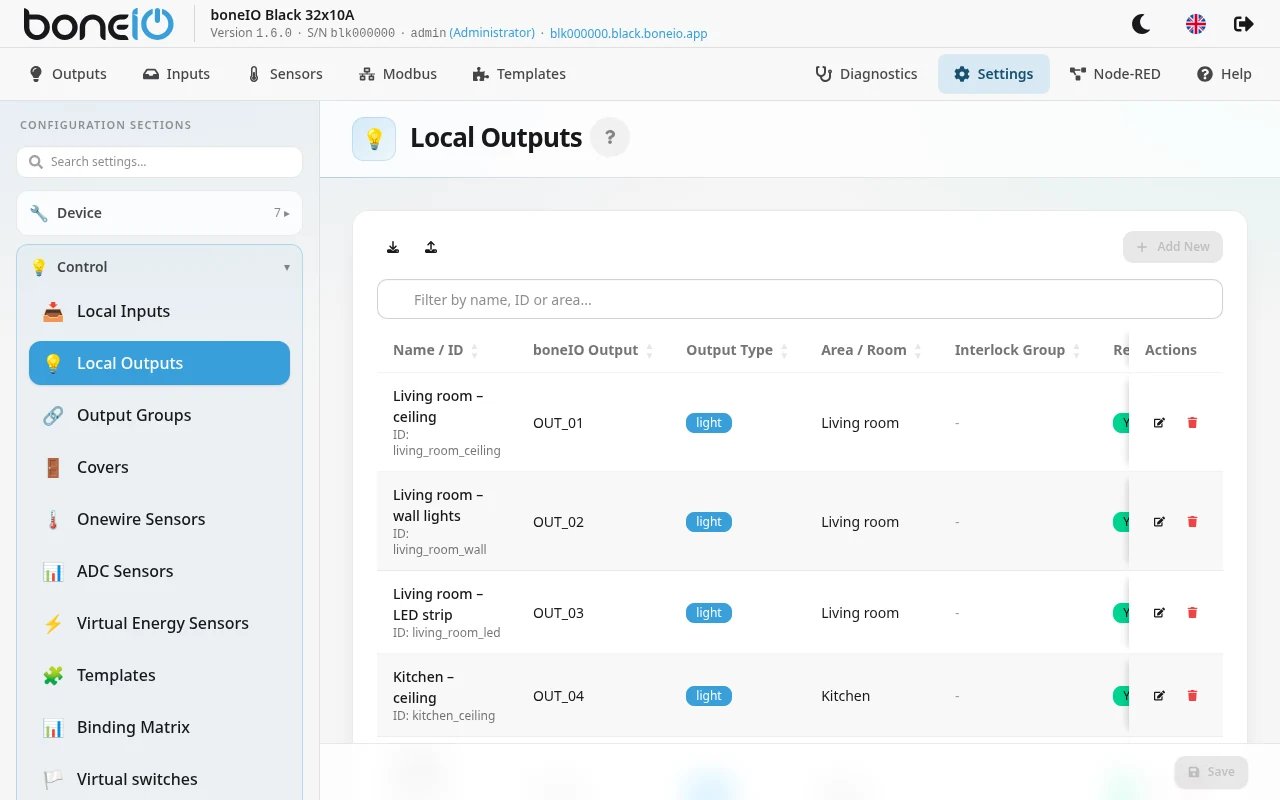
- Go to Settings → Control → Local Outputs
- Click Add New or the edit icon next to an existing output
- Fill in the configuration form
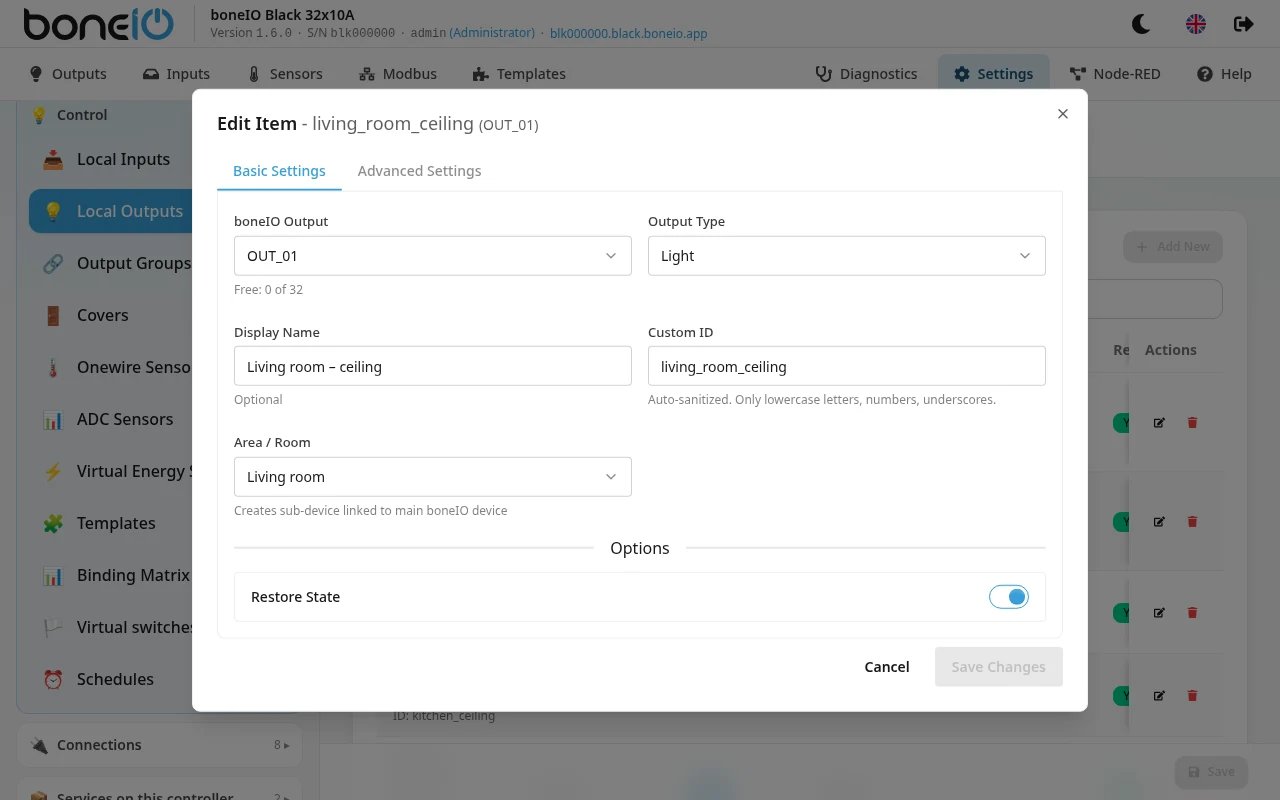
Available relays
Select the physical relay number from the dropdown:
OUT_17,OUT_18,OUT_19, ...OUT_32
Output Type
Select the type of device:
| Type | Use Case | HA Icon |
|---|---|---|
| Light | Lighting | Light bulb |
| Switch | Switch (pumps, heaters, etc.) | Switch |
| Valve | Water valve | Valve |
Display Name and ID
- Display Name: Friendly name, e.g.,
Bathroom Light - Custom ID: Auto-generated from name (only lowercase letters, numbers, underscores)
We do not recommend changing the output ID after it has been created. Changing the ID will cause loss of history in Home Assistant and require reconfiguration of automations.
Area / Room
Select an area from the dropdown - the output will be automatically assigned to this area in Home Assistant.
Options
- Restore State: Enable to have the output remember its state after restart
Configuration example
Scenario: You want to configure bathroom lighting on relay OUT_17.
- BoneIO Output:
OUT_17 - Output Type:
Light - Display Name:
Bathroom Light - Area / Room:
Bathroom - Restore State: ✅ Enabled
After saving, the output will appear in the table and be available in Home Assistant as light.bathroom_light in the "Bathroom" area.