Remote Devices
How to add and control remote boneIO Black and ESPHome devices via MQTT and ESPHome API.
The boneIO Black controller can control other devices on the network - both other boneIO Black controllers (via MQTT) and ESPHome devices (via ESPHome API).
Automatic discovery - boneIO Black devices on the same MQTT network are automatically discovered. ESPHome devices can be found by scanning the network.
Remote Devices List
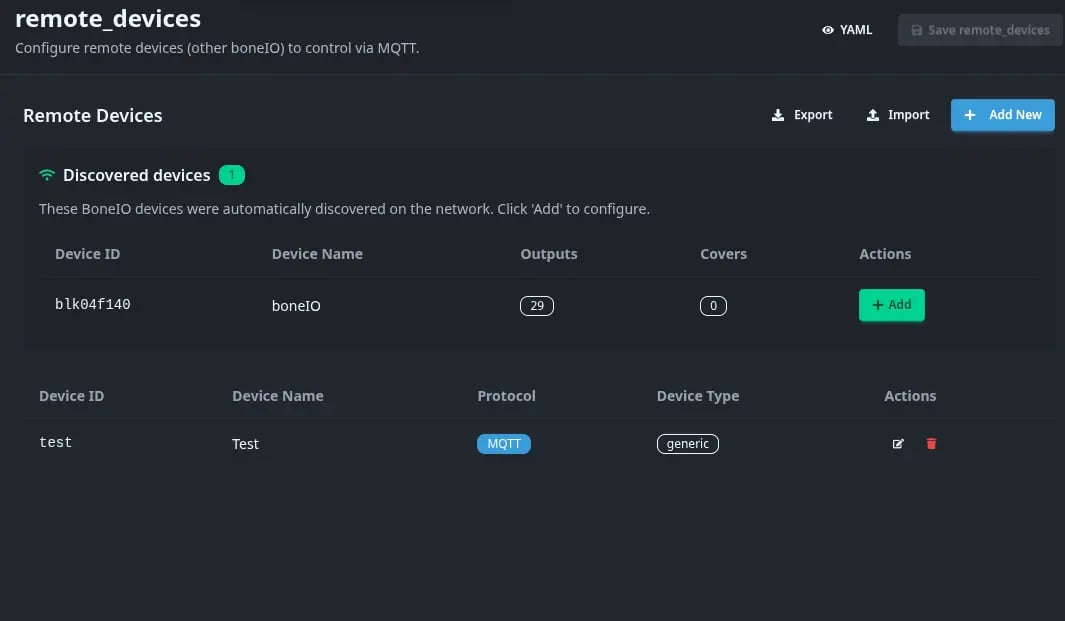
Go to Settings → Remote Devices to see the list of configured remote devices.
Supported Protocols
MQTT - boneIO Black
boneIO Black controllers within the same MQTT broker are automatically discovered and can control each other's outputs and covers.
Requirements:
- All boneIO Black devices must be connected to the same MQTT broker
- Devices automatically publish their availability and list of outputs/covers
Use cases:
- Central control of multiple controllers from one place
- Synchronization between devices
- Creating complex automations between controllers
ESPHome API - ESPHome Devices
ESPHome devices on the same local network can be controlled via ESPHome Native API.
ESPHome support is experimental - this feature is in testing phase and may require additional configuration.
Requirements:
- ESPHome device must have API enabled in configuration
- Devices must be on the same local network
- Optional: API password or encryption key
Supported ESPHome entities:
- Switches - switches
- Lights - lighting (with brightness, color temperature, RGB/RGBW support)
- Covers - covers/blinds (with position and tilt support)
Automatic Device Discovery
boneIO Black Discovery (MQTT)
boneIO Black devices are automatically discovered when:
- They are connected to the same MQTT broker
- They have MQTT Discovery enabled
- They publish their outputs and covers
The list of discovered devices refreshes automatically every 30 seconds.
ESPHome Scanning (mDNS)
To find ESPHome devices on the network:
- Go to Settings → Remote Devices
- Click the Scan ESPHome button
- The system will scan the local network via mDNS (3s timeout)
- Discovered devices will appear in the list
Adding a Remote Device
Adding from Automatic Discovery
- Go to Settings → Remote Devices
- In the Autodiscovered Devices section, find the device
- Click the Add button next to the selected device
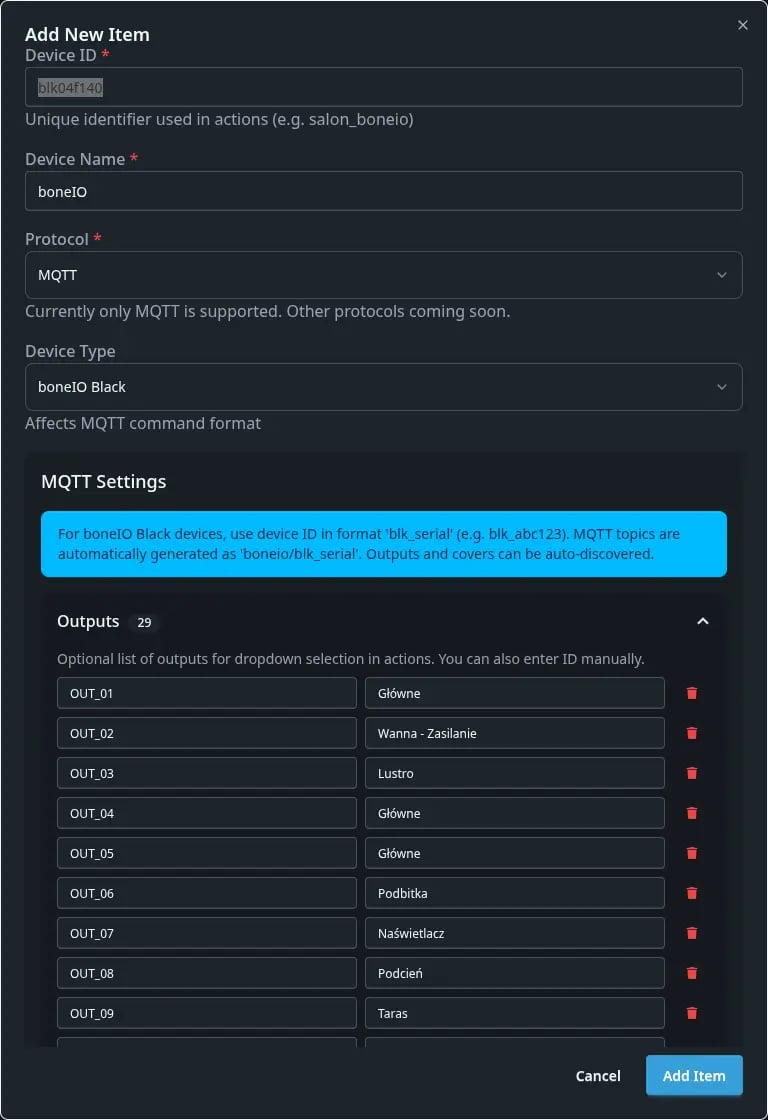
- The device will be automatically added with detected outputs/covers
Manual Device Addition
If the device was not automatically discovered, you can add it manually:
Basic Fields
| Field | Description | Required |
|---|---|---|
| Device ID | Unique device identifier | ✅ Yes |
| Device Name | Display name | ✅ Yes |
| Protocol | Protocol: mqtt or esphome_api | ✅ Yes |
| Device Type | Type: boneio_black, esphome, generic | No |
MQTT Configuration (for boneIO Black)
| Field | Description |
|---|---|
| Outputs | List of outputs (ID and name) |
| Covers | List of covers (ID and name) |
ESPHome API Configuration
| Field | Description | Required |
|---|---|---|
| Host | IP address or hostname of ESPHome device | ✅ Yes |
| Port | API port (default 6053) | No |
| Password | API password (if configured) | No |
| Encryption Key | Encryption key (if configured) | No |
ESPHome Entity Discovery
After adding an ESPHome device:
- Click the Discover button (refresh icon) next to the device
- The system will connect to the device and retrieve the list of available entities
- Discovered switches, lights, and covers will be automatically added
- The number of discovered entities will appear as a badge next to the button
Configuration Examples
Example 1: Adding a Second boneIO Black
- Make sure both devices are connected to the same MQTT broker
- The second device will automatically appear in the Autodiscovered Devices section
- Click Add - the device will be added with all outputs and covers
- You can now control the second device's outputs from the first controller
Example 2: Adding an ESPHome Device
ESPHome configuration (on ESPHome device):
api:
  password: "your_password"
  encryption:
    key: "your_encryption_key"

switch:
  - platform: gpio
    pin: GPIO5
    name: "Garage Light"
    id: garage_light
In boneIO Black:
- Click Scan ESPHome - the device should appear
- Click Add next to the discovered device
- Enter the API password and encryption key (if set)
- Click Discover to retrieve the entity list
- The "Garage Light" switch will be available for control
Devices Managing This Controller
In the Managed By section, you'll see a list of other boneIO Black controllers that have this device configured as remote.
This allows you to see which devices can control this controller - useful for diagnosing configuration in larger installations.
Use in Automations
Remote devices can be used in:
- Event actions - button click on one controller turns on light on another
- Binary sensor actions - motion sensor on one device controls output on another
- Time automations - schedules can control remote devices
All remote outputs and covers are available in action selection dropdowns, marked with a prefix from the device name.
Verification in Home Assistant
Remote devices controlled by boneIO Black:
- Do not appear as separate devices in Home Assistant
- Are controlled by the main boneIO Black controller
- All actions are executed by the main controller
If you want to control remote devices directly from Home Assistant, add them as separate MQTT or ESPHome integrations.
Troubleshooting
boneIO Black Device Not Detected
- Check if both devices are connected to the same MQTT broker
- Check if MQTT Discovery is enabled on both devices
- Check MQTT logs - is the device publishing its data
- Refresh the page - the list refreshes every 30 seconds
ESPHome Device Not Detected
- Make sure the device is on the same local network
- Check if API is enabled in ESPHome configuration
- Check if the device responds to ping
- Try adding the device manually via IP address
Cannot Connect to ESPHome API
- Check if the API password is correct
- Check if the encryption key is correct (if used)
- Check if port 6053 is not blocked by firewall
- Check ESPHome logs - is the API active