Modbus Devices
How to add and configure Modbus devices in boneIO Black.
The boneIO Black controller supports the Modbus RTU protocol, which allows you to connect external measurement devices, energy meters, sensors, and other devices.
Modbus is configured by default - you don't need to change UART settings. Just add the devices you want to monitor.
Modbus Devices List
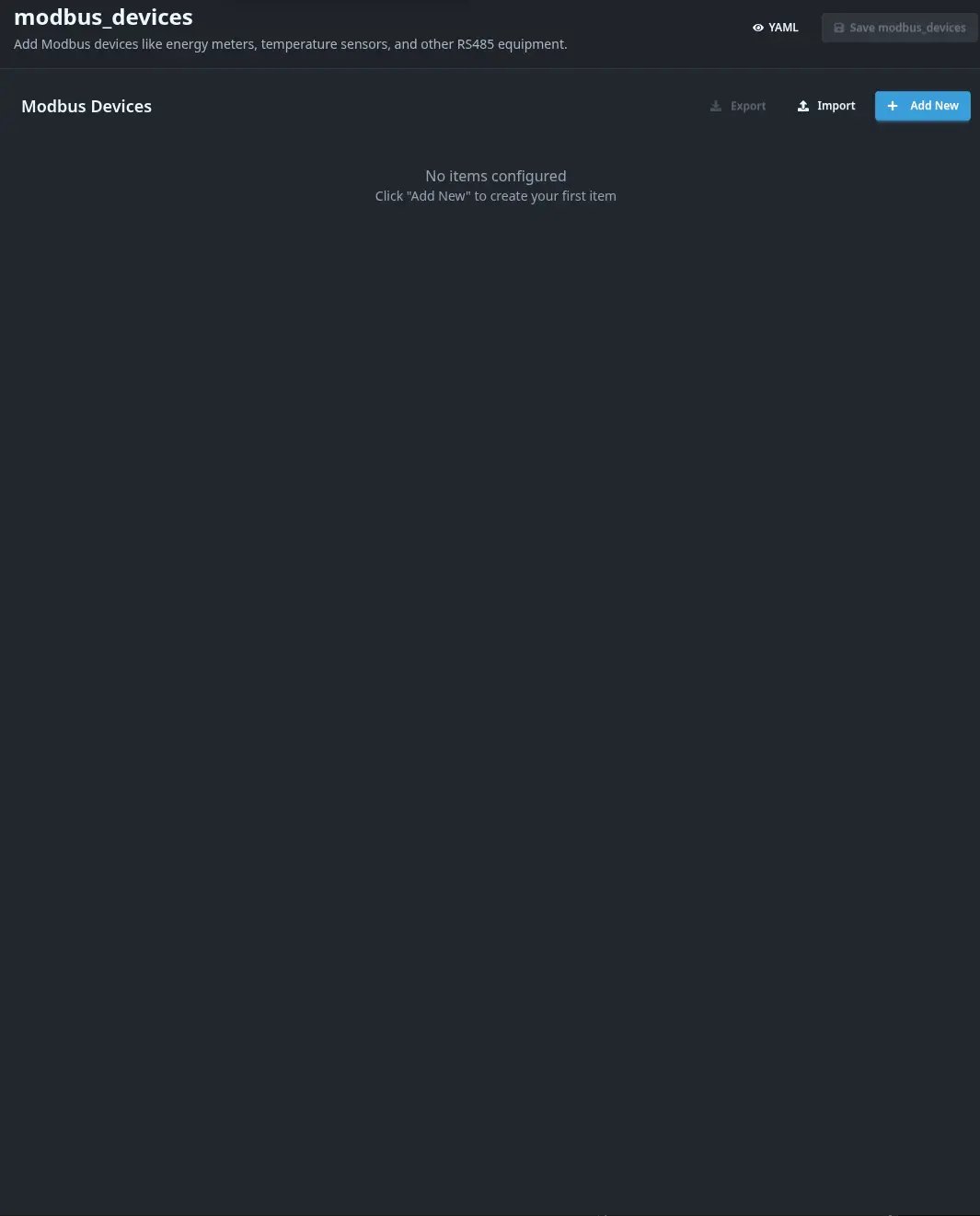
Go to Settings → Modbus Devices to see the list of configured Modbus devices.
Supported Devices
boneIO Black supports the following Modbus device models:
Energy Meters
| Model | Description |
|---|---|
| SDM120 | Eastron SDM120 energy meter (single-phase) |
| SDM630 | Eastron SDM630 energy meter (3-phase) |
| ORNO-OR-WE-517 | ORNO OR-WE-517 energy meter |
| DTS1964_3F | DTS1964 3-phase energy meter |
| SOCOMEC_E03 | Socomec Countis E03 meter |
| SOCOMEC_E23 | Socomec Countis E23 meter |
Temperature and Humidity Sensors
| Model | Description |
|---|---|
| CWT | CWT temperature and humidity sensor (with filters) |
| SHT20 | SHT20 temperature and humidity sensor |
| SHT30 | SHT30 temperature and humidity sensor |
| PT100 | PT100 temperature sensor |
Other Devices
| Model | Description |
|---|---|
| R4DCB08 | 1-Wire thermometer hub module |
| LIQUID-SENSOR | Liquid level sensor (with tank dimensions) |
| FUJITSU-AC | Fujitsu air conditioning |
| VENTCLEAR | VentClear ventilation |
| SOFAR | Sofar photovoltaic inverter |
Adding a Modbus Device
- Go to Settings → Modbus Devices
- Click Add (+ button)
- Fill in the form:
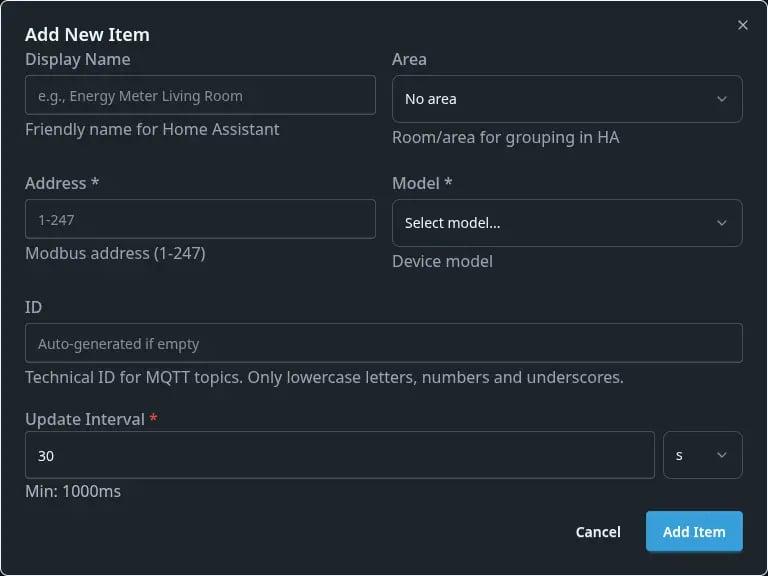
Basic Settings
| Field | Description | Required |
|---|---|---|
| Display Name | Name displayed in Home Assistant | No |
| Area | Area/room | No |
| Address | Modbus address of the device (1-247) | ✅ Yes |
| Model | Device model from the supported list | ✅ Yes |
| ID | Custom identifier (optional) | No |
| Update Interval | Data reading interval (default 30s) | No |
Modbus Address must be unique for each device on the bus. Check the device documentation to find or set its address.
Example SDM120 Meter Configuration
- Display Name:
Kitchen power meter - Area:
Kitchen - Address:
1(default SDM120 address) - Model:
SDM120 - Update Interval:
10s(read every 10 seconds)
Additional Options for Selected Models
CWT - Sensor Filters
The CWT model allows adding filters for temperature and humidity readings:
| Filter | Description |
|---|---|
| round | Round to N decimal places |
| offset | Add a constant value (calibration) |
| multiply | Multiply by value |
| filter_out | Filter out a specific value |
| filter_out_greater | Filter out values greater than N |
| filter_out_lower | Filter out values less than N |
LIQUID-SENSOR - Tank Dimensions
The LIQUID-SENSOR model requires tank dimensions:
| Field | Description |
|---|---|
| Width | Tank width (in meters) |
| Length | Tank length (in meters) |
Modbus Settings (Advanced)
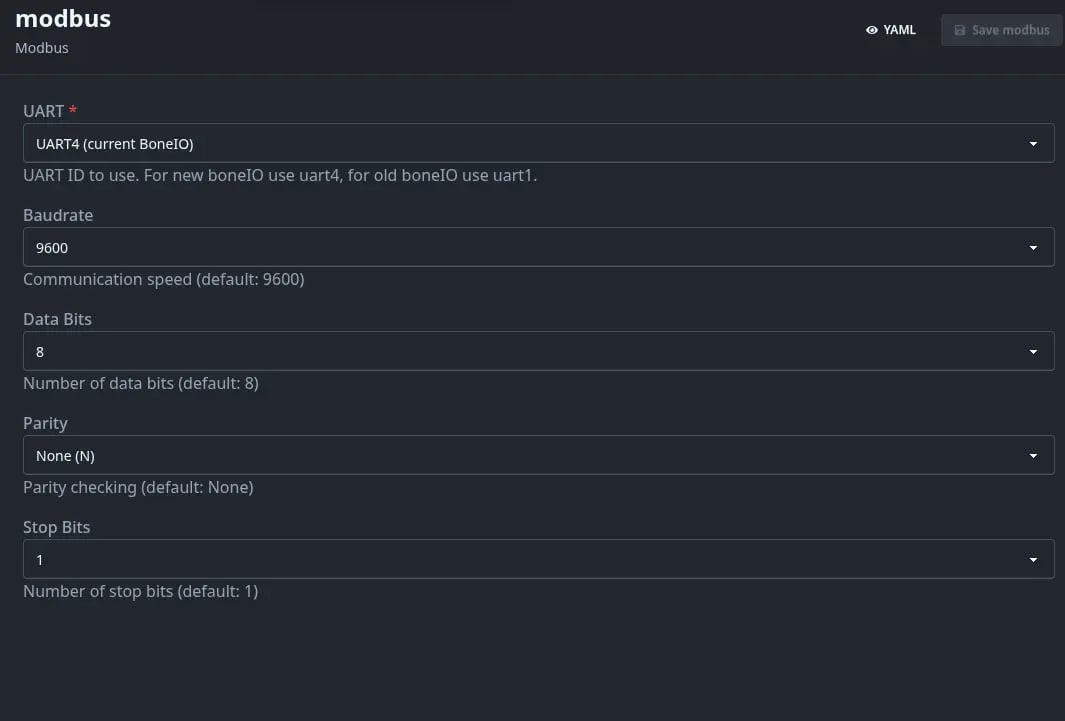
If your device requires custom communication parameters, you can change them in Settings → Modbus:
| Parameter | Default | Description |
|---|---|---|
| UART | uart4 | Serial port (uart4 for new boneIO, uart1 for old) |
| Baudrate | 9600 | Transmission speed |
| Data bits | 8 | Number of data bits |
| Parity | N (None) | Parity: N (none), E (even), O (odd) |
| Stop bits | 1 | Number of stop bits |
Changing UART parameters is only needed when the Modbus device requires different settings than default. Most devices work with default parameters (9600 8N1).
Verification in Home Assistant
After adding a Modbus device:
- The device will automatically appear in Home Assistant via MQTT Discovery
- Go to Settings → Devices & Services → MQTT
- Find the boneIO Black device - Modbus sensors will be visible as entities
Data from Modbus devices is automatically published to MQTT and available in Home Assistant for creating automations, charts, and dashboards.