ProductsEdge Temperature & HumiditySoftware Setup
Connecting the sensor in the Black ecosystem
Step-by-step guide on how to find, change the address, and configure the sensor.
Configuration of boneIO Edge Temperature & Humidity
1. Changing the address.
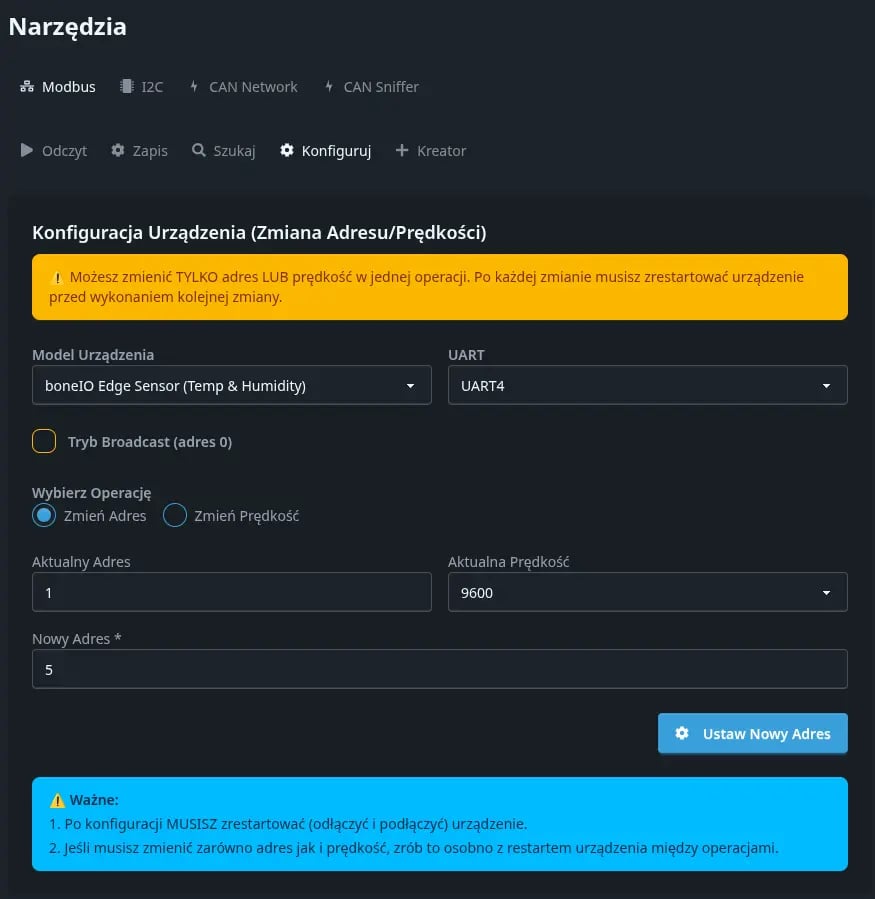
We begin the process by changing the address. To do this, we will use the tool built into the boneIO Black application.
- From the top menu, select Tools,
- Next, select Modbus,
- Then select Configure,
- Select the device model - boneIO Edge Sensor (Temp & Humidity),
- In the "current address" field, enter 1, in the "new address" field - your chosen address from the 1-247 range,
- Use the "Set New Address" button.
- Disconnect the supply voltage from the sensor - after reconnecting it, the sensor will have the new address.
Done! The device address has been changed. Now we can proceed to the actual sensor configuration.
2. Adding the sensor
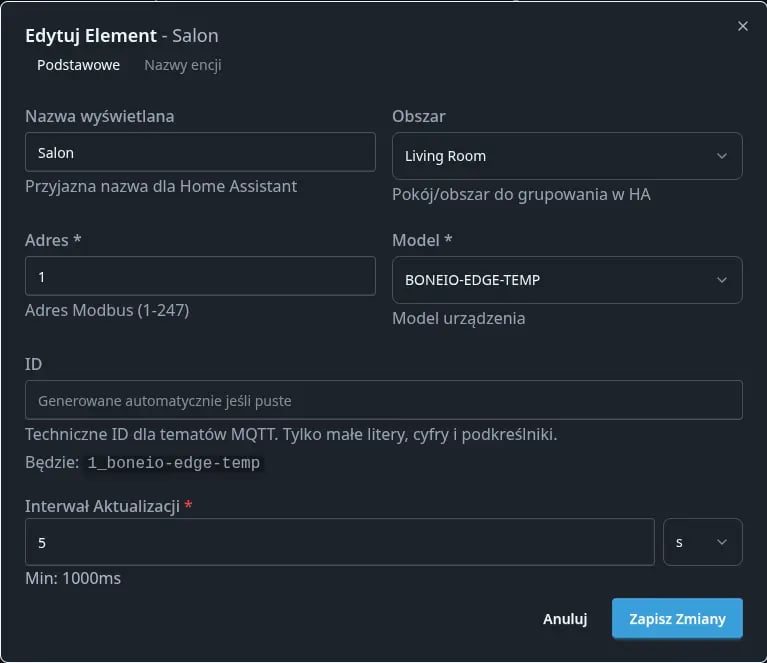
- Go to the Settings menu,
- From the menu on the left, select "Modbus Devices,"
- Next, open the new device wizard with the "Add New" button,
- Fill in the Name, area, and address (the one you defined earlier) - Select "BONEIO-EDGE-TEMP" as the model,
- Confirm the operation with the "Add Element" button.
Done!
Sensor added! The device will appear among the Modbus devices as well as in Home Assistant.