Installation
How to install Home Assistant OS on a Home Assistant Green or on an x86-64 mini-PC.
Home Assistant works best as Home Assistant OS (HAOS): a small system of its own that does only this and updates itself. Below are the two ways we recommend. Choosing the hardware is covered in Which device to choose?.
Home Assistant Green comes with the system already installed. There is nothing to write.
- Connect the Green to your router with a network cable.
- Plug in the power supply from the box.
- Wait a few minutes. The first time, the Green downloads the latest Home Assistant, which can take up to 20 minutes.
- On a computer or phone on the same network, open
http://homeassistant.local:8123and go on to the first run.
On a mini-PC (for example a Dell Wyse or HP T630 thin client, or a computer with an Intel N100), HAOS is written to the whole disk: everything on it is gone. There are two ways; pick one.
Way 1: the SSD through a USB adapter (simpler)
If the mini-PC's disk can be taken out, write the image onto it from another computer.
- Download the Generic x86-64 image from the Home Assistant installation page (
home-assistant.io→ Getting started → Installation → Generic x86-64). It is the filehaos_generic-x86-64-<version>.img.xz. - Take the disk out of the mini-PC and connect it to your computer through a USB adapter (SATA or NVMe, as the disk needs).
- Install and run balenaEtcher (
etcher.balena.io). Select the downloaded image, then the disk on the adapter, and click Flash!. Check twice that the disk on the adapter is selected, not your computer's own disk. - Put the disk back into the mini-PC and go on to the BIOS settings.
Way 2: an Ubuntu USB stick (the disk stays in the mini-PC)
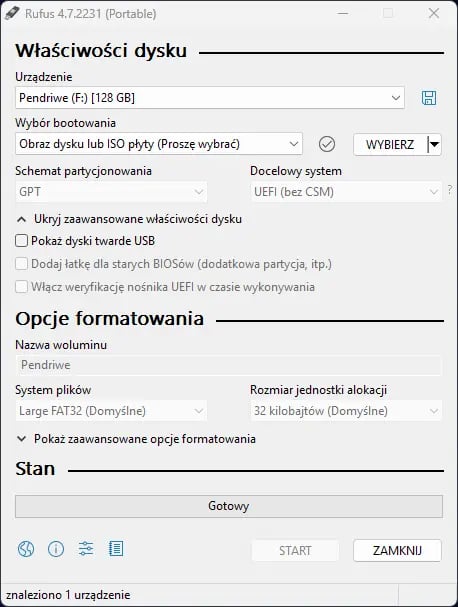
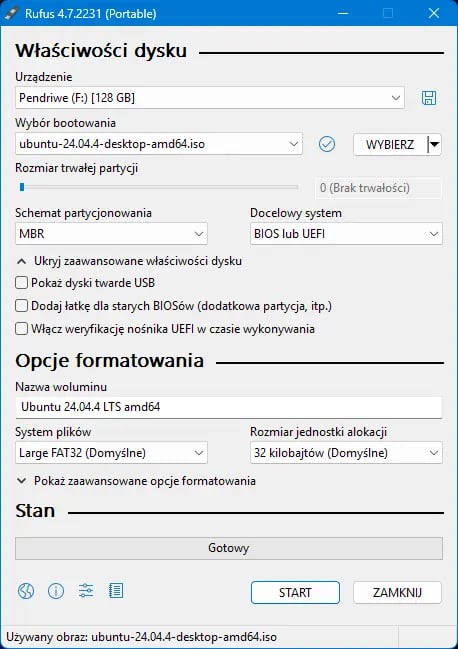
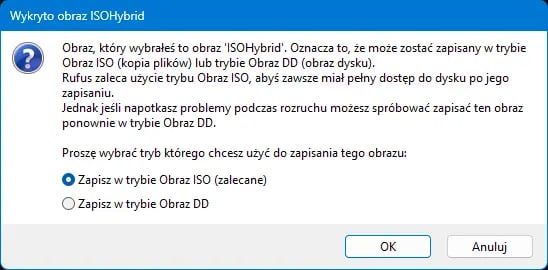
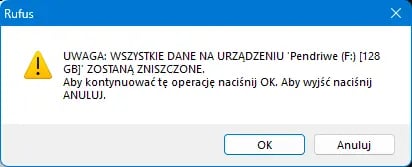
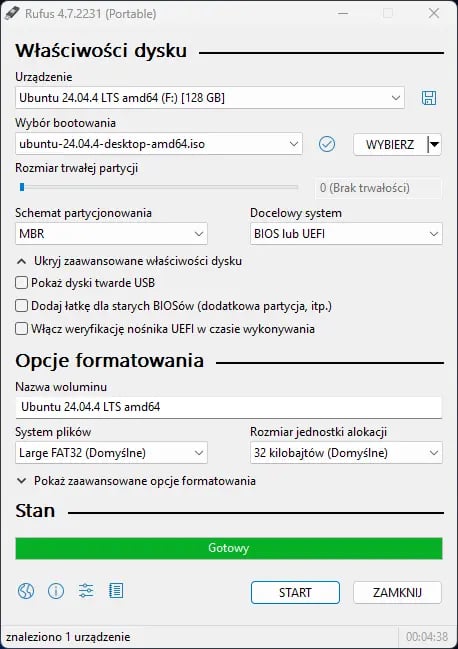
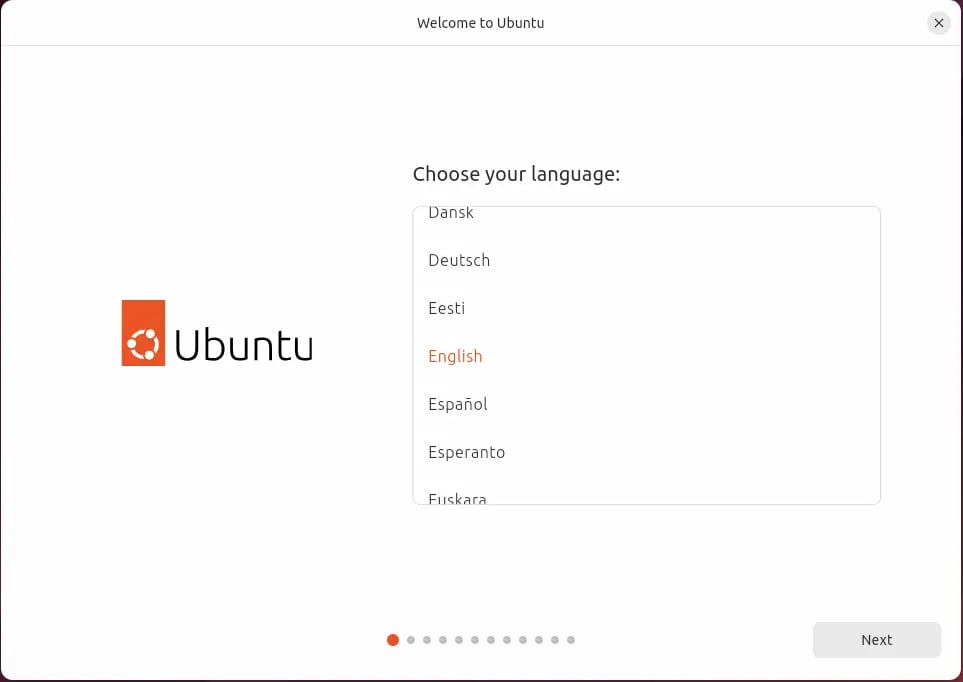
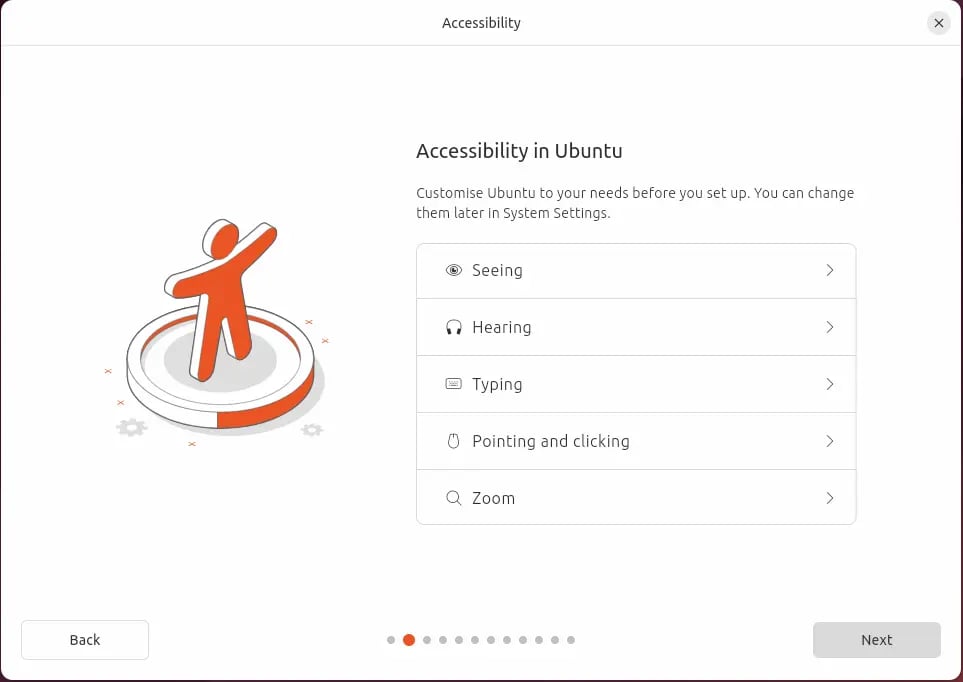
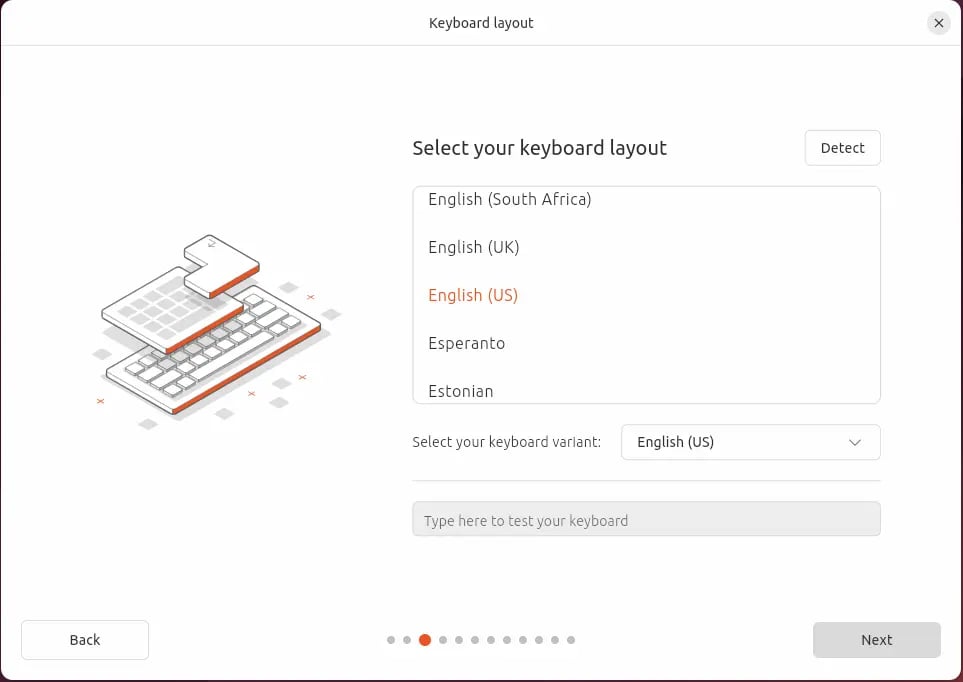
If the disk cannot be taken out, start the mini-PC from an Ubuntu USB stick and write the image to the internal disk from there. You need a USB stick (8 GB or more) and another computer with Windows. The pictures below are of the Polish versions of Rufus and Ubuntu; the buttons are in the same places in English.
The Ubuntu USB stick
-
Download Ubuntu Desktop from
ubuntu.com/download/desktopand Rufus fromrufus.ie. -
Run Rufus. Under Device, select the USB stick. Everything on it is erased, so make sure it is the right one.
-
Under Boot selection, click SELECT and choose the downloaded Ubuntu ISO. Click START.
-
When asked about an "ISOHybrid image", keep the recommended option and click OK, then confirm the data-loss warning.
-
When the bar is full and READY shows, close Rufus with CLOSE.
Writing HAOS to the mini-PC's disk
-
Plug the USB stick into the mini-PC and set the BIOS to start from it.
-
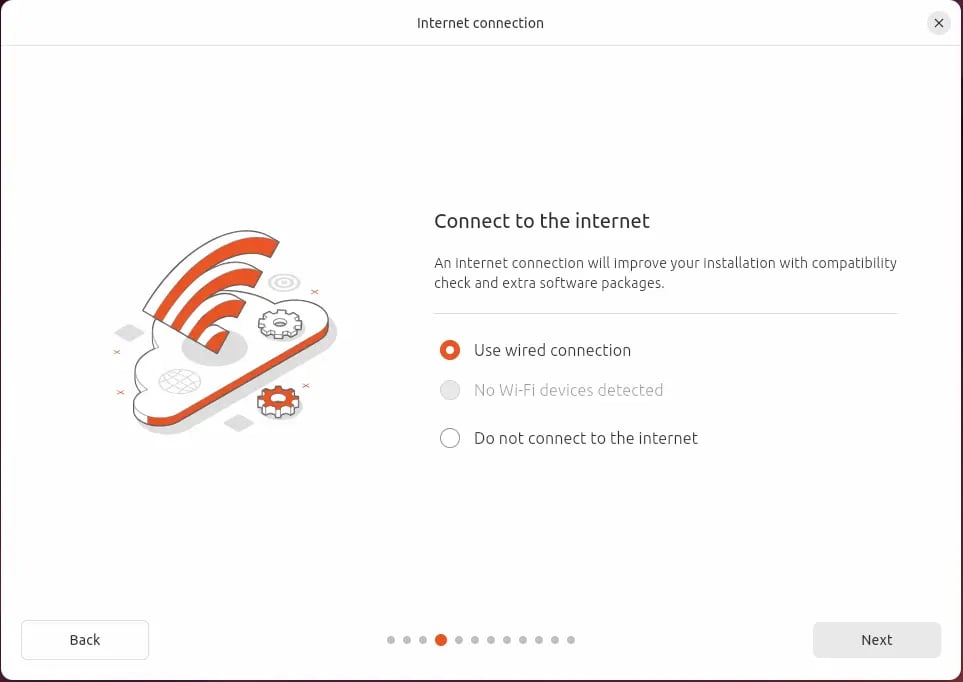
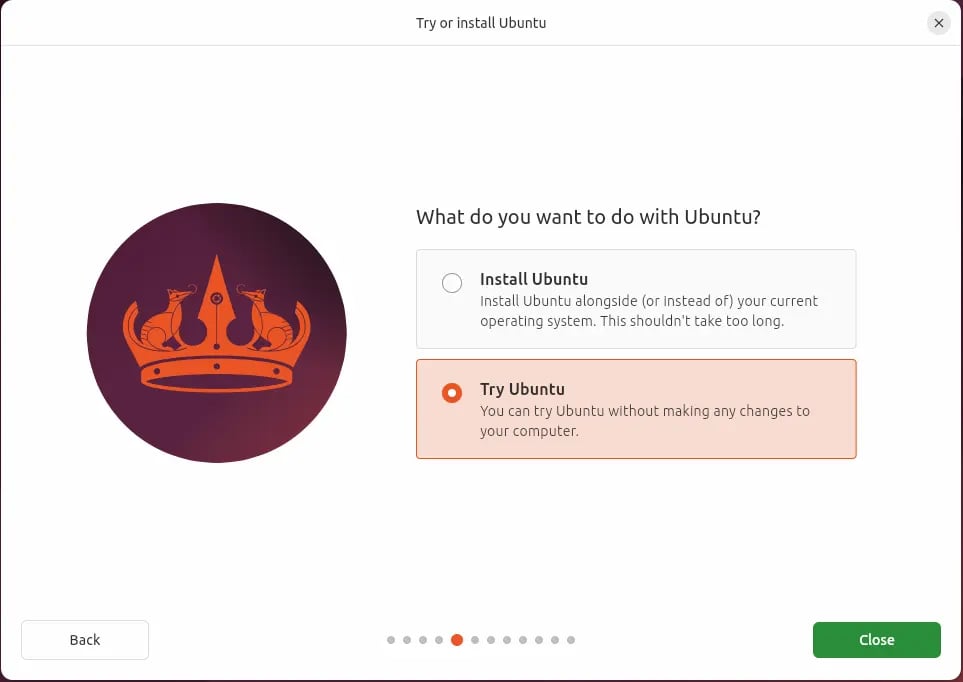
In the Ubuntu menu choose Try Ubuntu. Ubuntu then runs from memory only and installs nothing.
-
Connect to the internet (icon in the top right corner), open Firefox and download the Generic x86-64 image as in way 1.
-
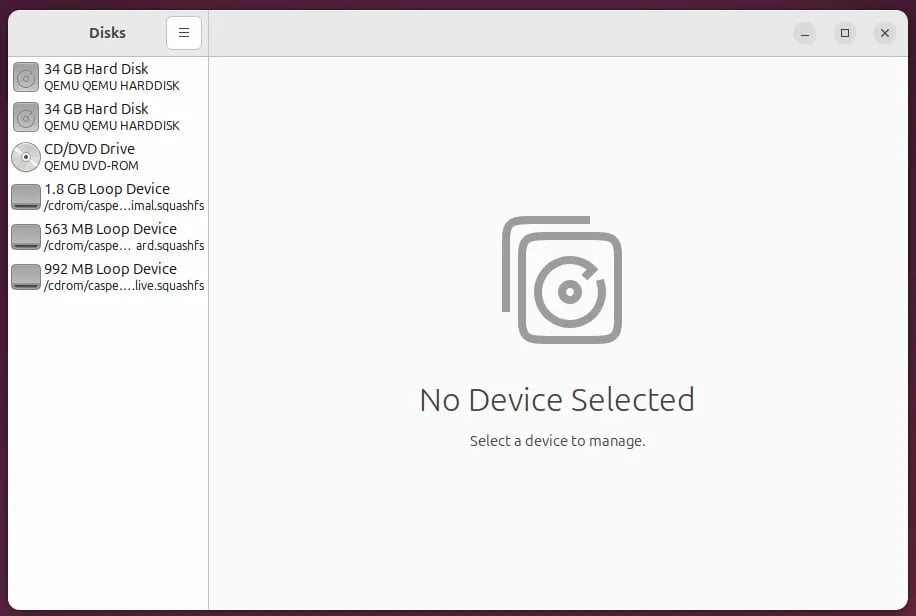
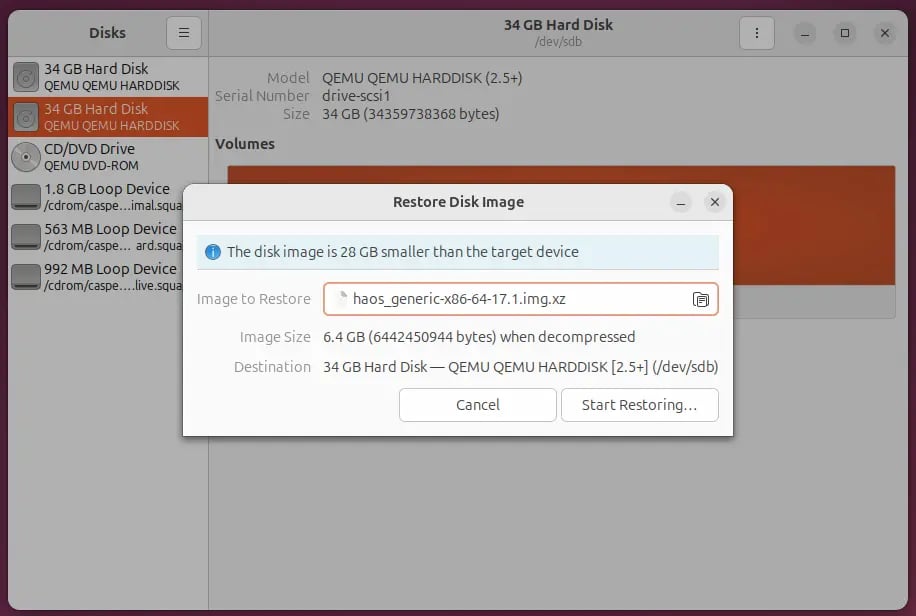
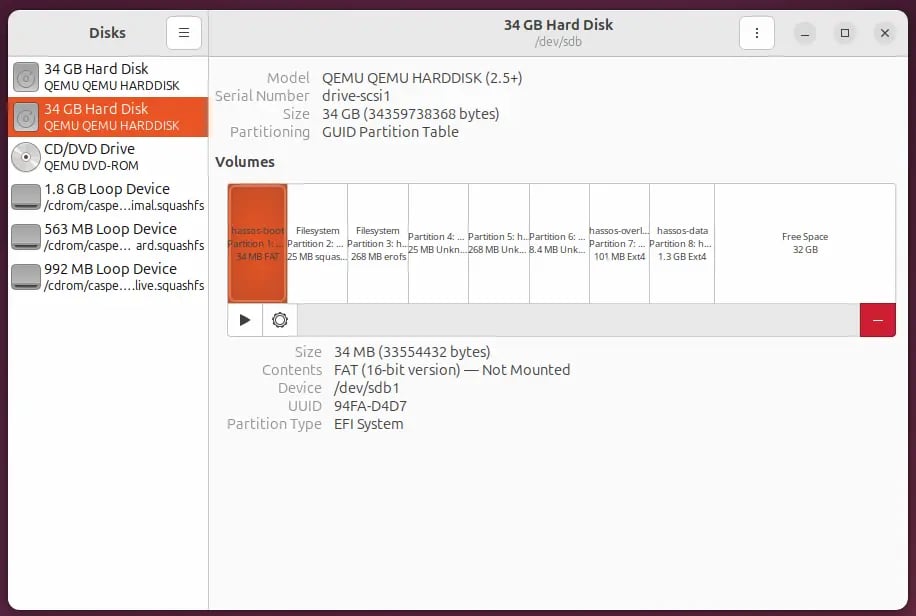
Start the Disks app. On the left, select the mini-PC's internal disk, not the USB stick.
-
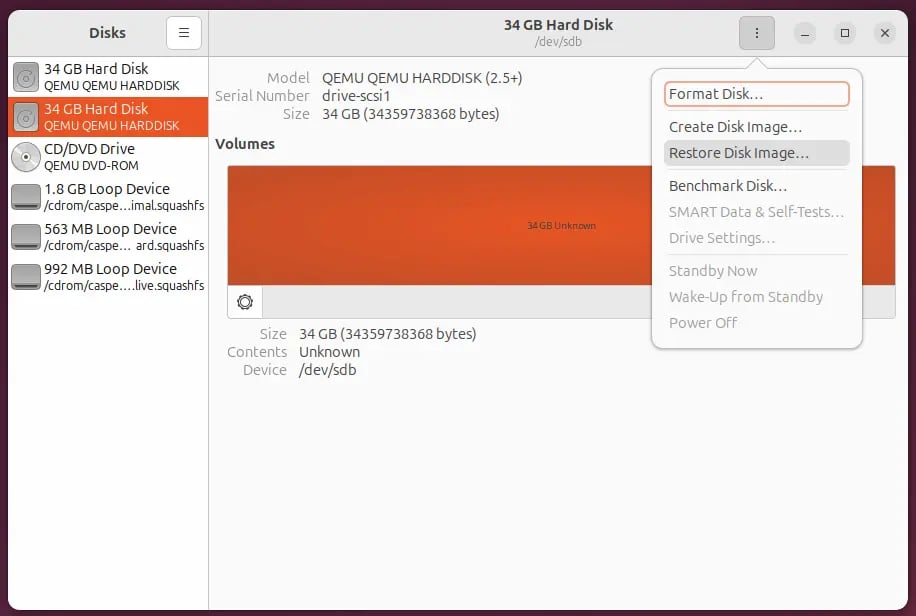
Click the menu (three dots) in the top right corner and choose Restore Disk Image.
-
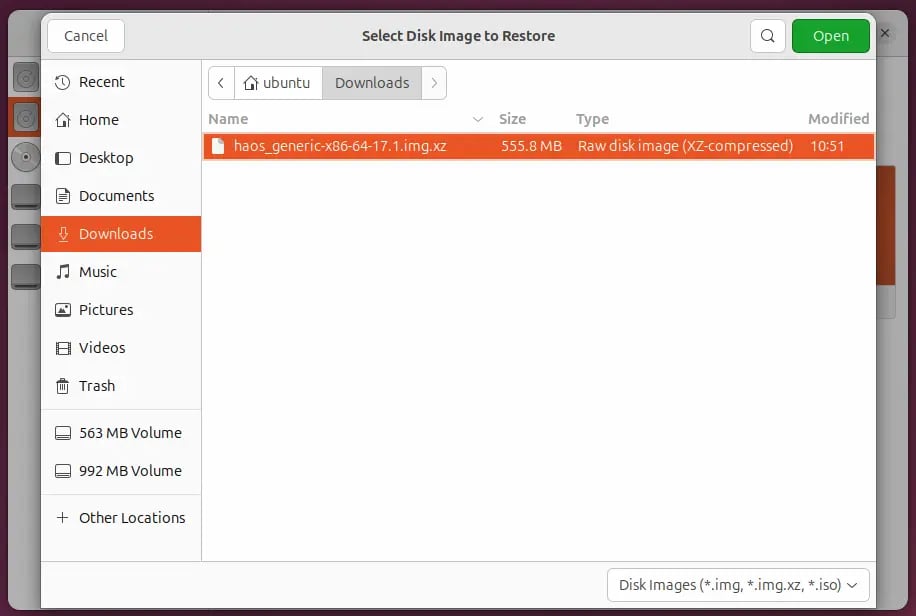
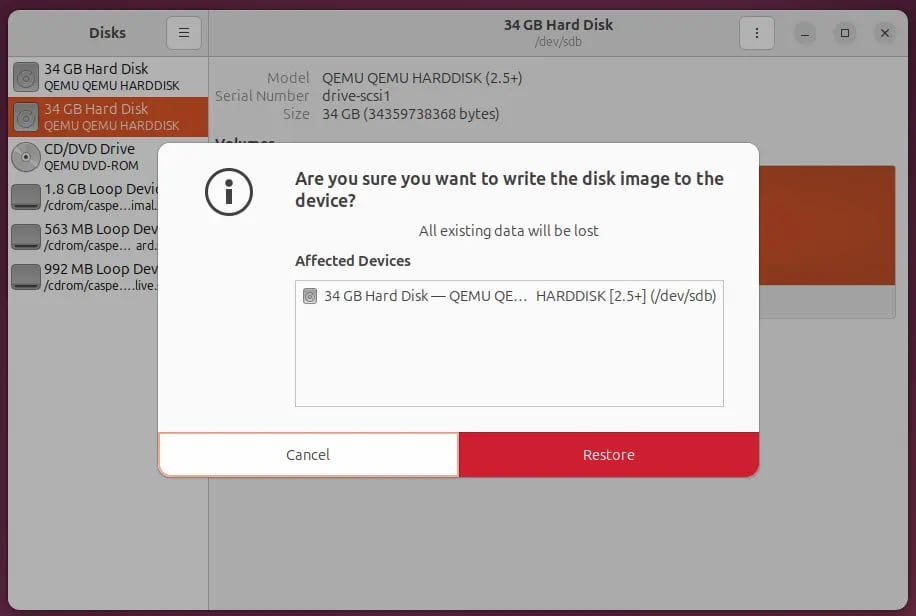
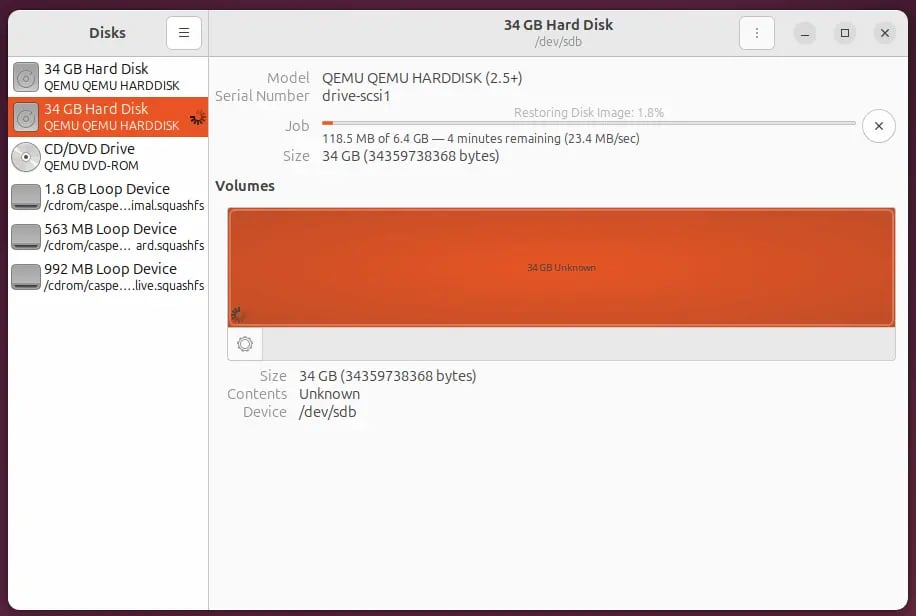
Choose the downloaded HAOS image, click Start Restoring and confirm.
-
When it is done, shut Ubuntu down, take the USB stick out and start the mini-PC again.
BIOS settings
- Switch the mini-PC on and keep pressing the BIOS/UEFI key straight away (usually
F2,Del,F1orF10). - Set:
- UEFI Boot: on,
- Secure Boot: off (HAOS does not support it),
- Boot Order: the disk with HAOS first, or the USB stick if you use way 2 and are only now writing the image.
- Save (usually
F10) and restart.
Once HAOS starts from the disk, connect the mini-PC to your router with a network cable. The first time, the system downloads the latest Home Assistant, which takes a few to a dozen or so minutes.
Opening it for the first time
On a computer or phone on the same network, open one of:
http://homeassistant.local:8123http://homeassistant:8123http://<server IP address>:8123, e.g.http://192.168.1.15:8123(your router lists the address among the connected devices).
While Home Assistant is getting ready, the page shows a waiting screen. When you see Welcome!, go on to the first run.
Set up the basic actions (button → light, button → cover) in boneIO, not in Home Assistant. Then they keep working while Home Assistant restarts or is switched off.