Hardware Installation
A detailed guide to wiring the boneIO ESP Dimmer gen2 controller.
Key Safety Principals
IMPORTANT: PROFESSIONAL INSTALLATION REQUIRED
We emphasize in the strongest possible terms: safety is the absolute priority. All activities related to connecting the device to an electrical installation must be performed exclusively by a qualified electrician who holds the appropriate certifications. Installation by unqualified individuals poses a risk of electric shock, equipment damage, or fire. The manufacturer assumes no liability for damages resulting from an improper installation.
This applies in particular to:
- Connecting the power supply to the controller.
- Connecting high-voltage circuits (110V/230V) to the controller's outputs.
- All installation work inside the electrical cabinet (distribution board).
Attempting to modify an electrical installation without the proper qualifications is illegal, extremely dangerous, and creates a real hazard that can lead to:
- Electric shock, severe personal injury, or death.
- Permanent damage to the boneIO controller and all connected equipment.
- A significant fire hazard resulting in property damage.
- Voiding the product warranty and potential issues with property insurance claims.
The manufacturer of boneIO assumes no liability whatsoever for material damages, personal injury, or loss of life resulting from an installation performed contrary to these guidelines and applicable safety standards.
Please treat this warning with the utmost seriousness.
DIN Rail Mounting
The boneIO ESP controller is designed for mounting on a standard DIN rail (TS35).
- Hook the upper clips of the enclosure onto the top edge of the DIN rail.
- Press the lower part of the enclosure firmly until the latches lock onto the rail with a distinct click.
- Ensure the module is securely mounted.
Power Supply Connection
The device requires a stabilized 12-24V DC power supply. All power terminals should be powered from single power supply.
- Ensure the power supply is disconnected from the 230V/110V mains.
- Connect the
+output of the power supply to the+screw terminal on the boneIO ESP. - Connect the
GND(ground) output of the power supply to theGNDscrew terminal on the boneIO ESP. - Double-check the connections and polarity before turning on the power supply.
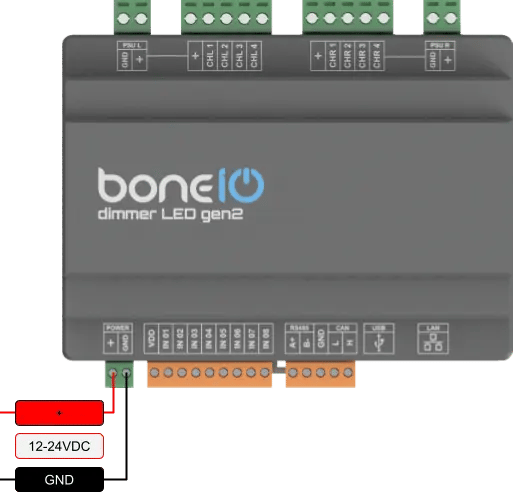
NEVER CONNECT THE USB-C PORT WITH THE POWER SUPPLY CONNECTED!!!
The USB-C port is dedicated to flashing firmware. This should be done ONLY with the controller's power supply disconnected. Using the USB-C port with the power connector plugged in risks DAMAGING the controller!
Connect Ethernet
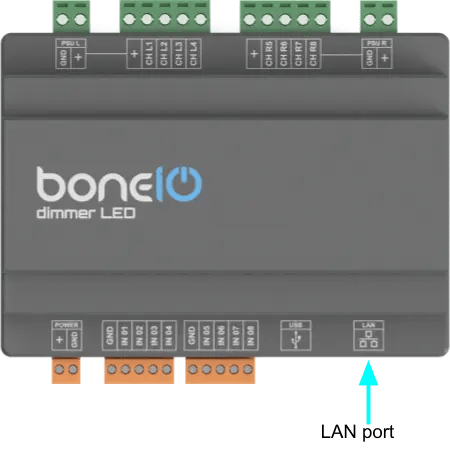
The device communicates with the network using a built-in Ethernet port, which guarantees a stable and reliable connection. To establish connectivity, connect the module to your network switch using a standard Ethernet (RJ45) cable.
- Connect ethernet cable to LAN port on your controller.
- Connect other side of ethernet cable to your network switch.
Connecting Digital Inputs
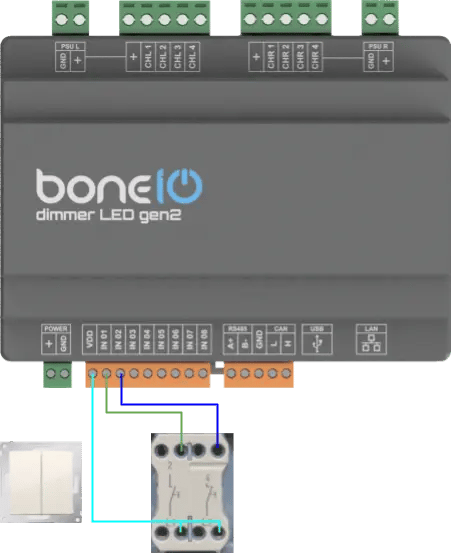
Digital inputs are used for connecting switches and sensors. By default, they are ground-controlled.
- Connect one of the wires from a momentary switch to the common
GND(ground) terminal. - Connect the other wire to the desired input terminal (e.g.,
IN01). - Pressing the switch will short the input to ground, which will be interpreted as an "on" signal.
Logical diagram of connecting digital input
GND or +
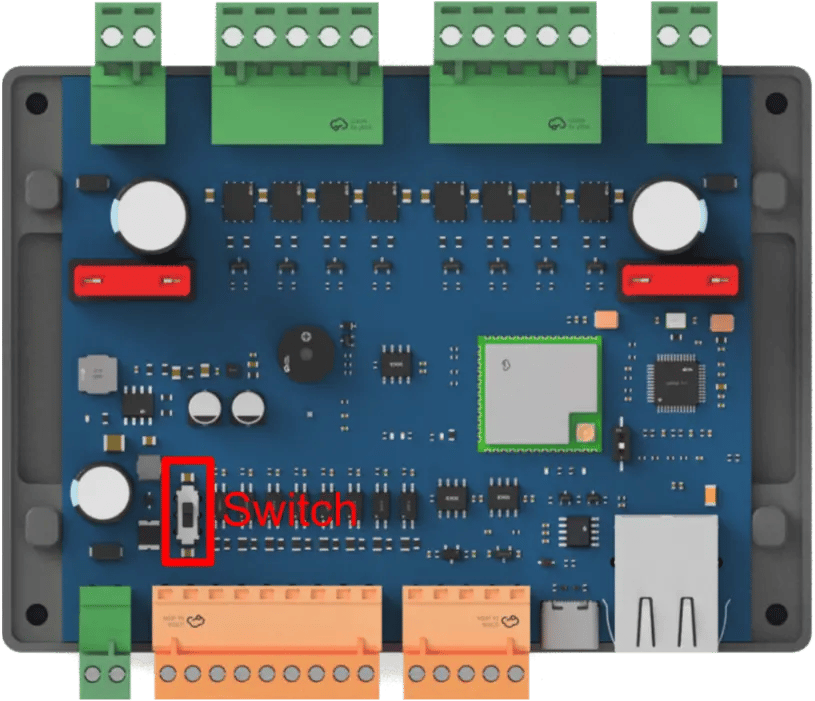
Input behavior can be changed via the internal switch. Please see the switch location below.
- Down: GND control.
- Up: High-potential control.
Example 1 - Push button:
Example 2:
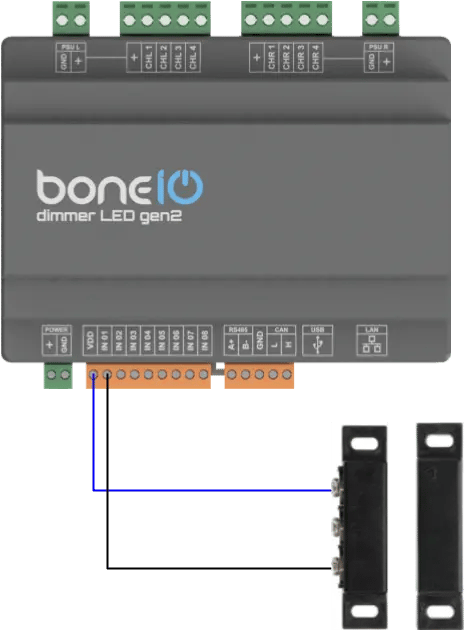
Example 3:
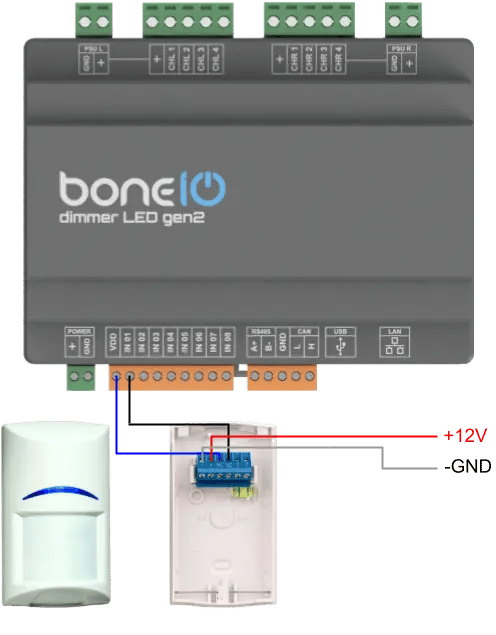
Connecting LED Strips
The dimmer is divided into two independent sections, Left and Right, each with 4 PWM channels. Both L and R sections are separated from each other and protected by a separate 10-amp fuse.
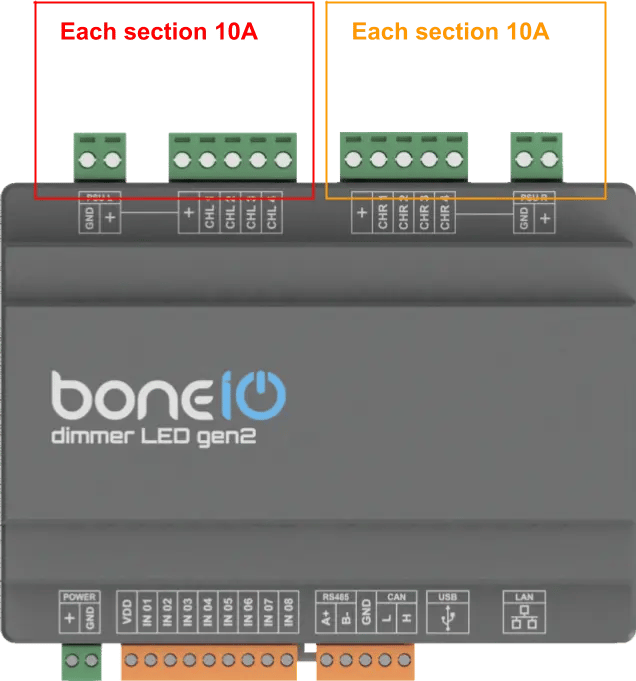
IMPORTANT: Mixing channels or power supplies from the left and right sections is prohibited and may damage the device.
Each section has its own set of connectors:
- VCC/+: The common positive terminal for the LED strips in that section.
- CH1-CH4: Negative PWM output channels.
Current Limits:
- Maximum total current per section (4 channels): 10A
How to interpret this? We'll discuss this using the Left Section as an example. The 10-amp protection means that the total combined current passing through all channels (CHL1, CHL2, CHL3, CHL4) can be 10A. Below, we will present a few potential configurations to definitively explain the technical parameters of the outputs.
| CHL1 | CHL2 | CHL3 | CHL4 | SUMA |
|---|---|---|---|---|
| 2A | 2A | 3A | 3A | 10A |
| 5A | 5A | 0A | 0A | 10A |
| 7A | 1A | 1A | 1A | 10A |
Single Color (White) LED Strips
Each channel can control a separate single-color LED strip.
- Connect the positive (
+) wire of the LED strip to theVCC(common positive) terminal of a section. - Connect the negative (
-) wire of the LED strip to the desired PWM channel (e.g.,CH1).
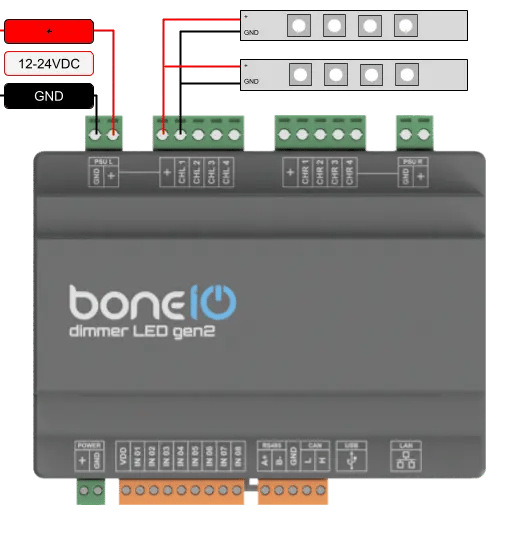
RGB/RGBW LED Strips
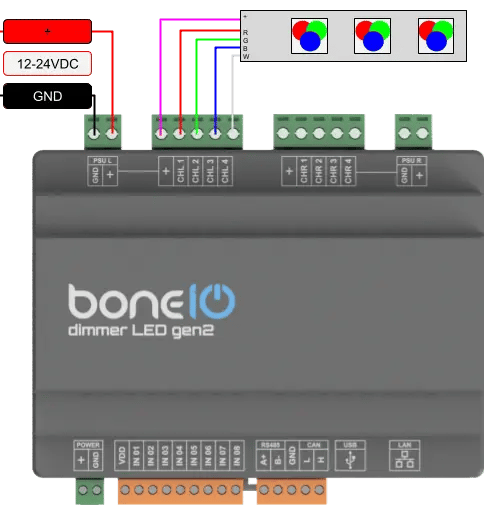
One section (4 channels) can control one RGBW strip or one RGB strip (using 3 channels).
- Connect the common anode (
+) of the strip to theVCCterminal. - Connect the R, G, B, and W wires to the
CH1,CH2,CH3, andCH4terminals respectively.
CCT (Tunable White) LED Strips
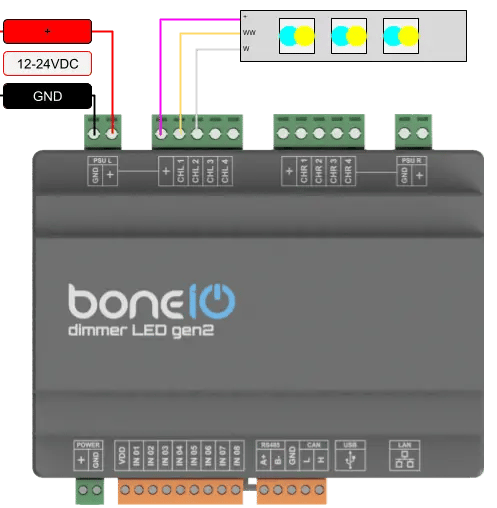
A CCT strip has two channels (warm white and cool white).
- Connect the common anode (
+) of the strip to theVCCterminal. - Connect the warm white wire to one channel (e.g.,
CH1). - Connect the cool white wire to another channel (e.g.,
CH2).
Fuse Replacement
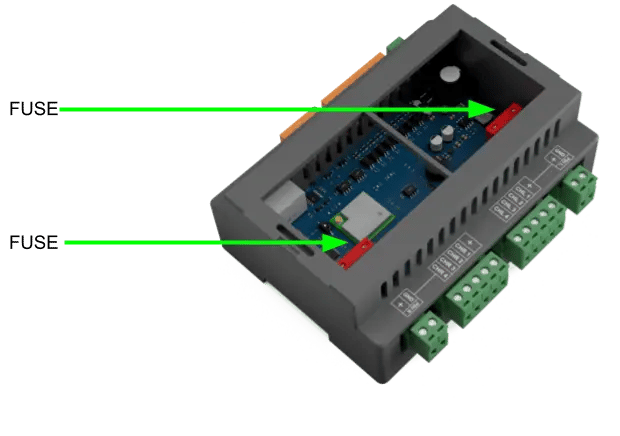
The device is protected by two 10A fuses, one for each 4-channel section. If the outputs in one section stop working, check the corresponding fuse.
- Turn off the power to the device.
- Carefully open the enclosure.
- Locate the blown fuse and replace it with a new 10A mini-blade fuse.
Connecting Communication Buses
Modbus RS485
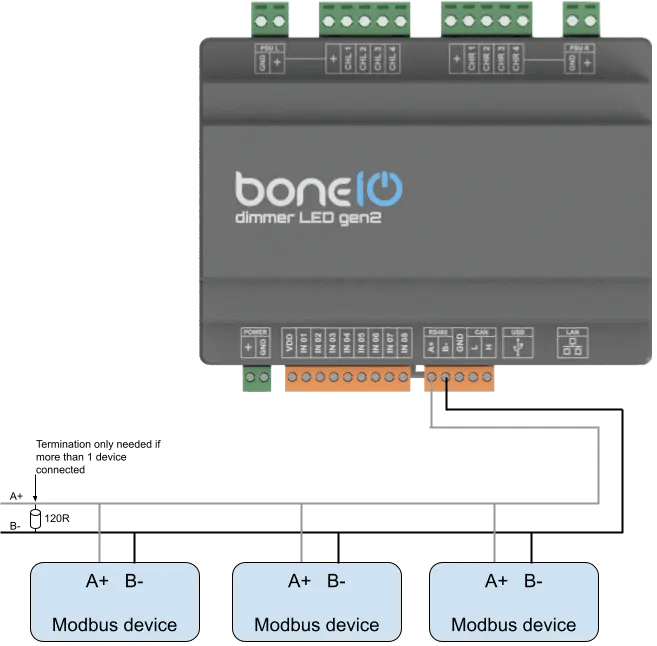
Used for communication with industrial and HVAC devices.
- Connect the
Aline of the bus to theAterminal on the boneIO. - Connect the
Bline of the bus to theBterminal on the boneIO.
ESP series devices have undergone Modbus RTU bus testing with 5 connected devices. Using a larger number of Modbus devices connected to an ESP series controller may cause delays in the controller's response (both inputs and outputs). This is due to the specifics of the processor used. In the case of extensive Modbus buses, we recommend splitting them across several devices.
CAN
Used for communication with industrial HVAC devices and sensors.
- Connect the
Lline of the bus to theLterminal on the boneIO. - Connect the
Hline of the bus to theHterminal on the boneIO.

Final Checks
After completing the installation:
- Double-check all connections.
- Ensure there are no short circuits.
- Turn on the main power (24V DC power supply).