Configure events
How to configure events and actions in boneIO Black.
Events allow you to assign different actions to a single button depending on the click type.
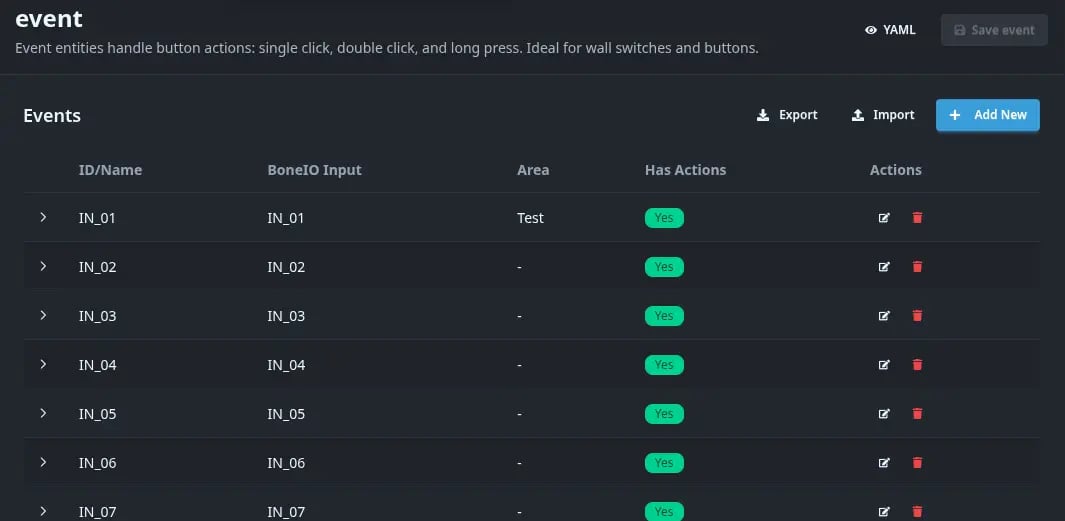
How to add or edit an event?
- Go to Settings → Events
- Click Add New or the edit icon next to an existing event
- Fill in the configuration form
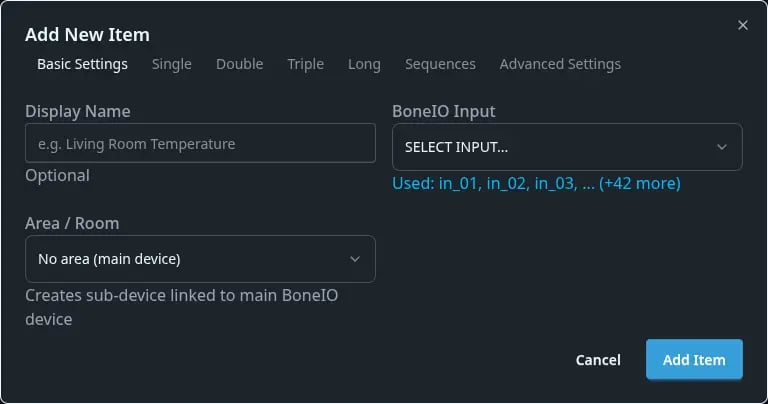
Basic settings
Display Name
Friendly name for the event, e.g.:
Living Room ButtonBedroom SwitchDoorbell
This name will be visible in the interface and Home Assistant.
BoneIO Input
Select the physical input from the dropdown:
IN_01,IN_02,IN_03, ...IN_56(depending on model)
Inputs already used by other events or binary sensors are automatically hidden from the list.
Area / Room
Select an area from the dropdown - the event will be automatically assigned to this area in Home Assistant.
Actions - click tabs
The form has separate tabs for each click type:
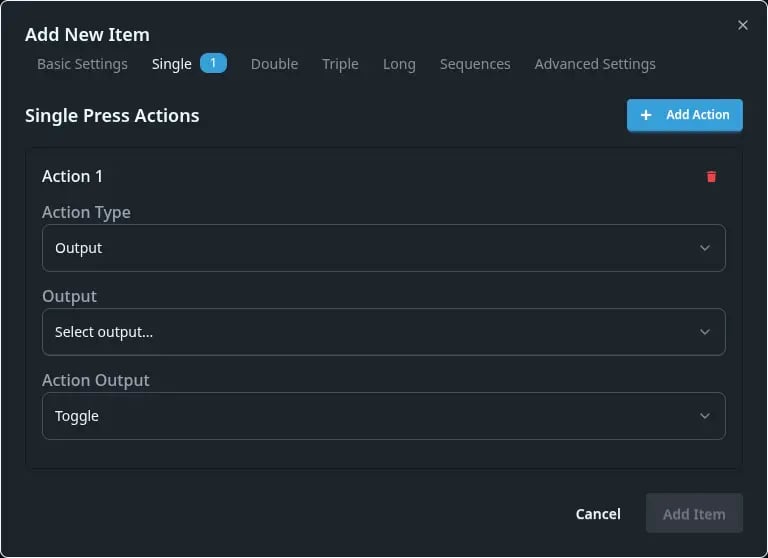
Single (Single click)
Actions executed after a single button click.
Double (Double click)
Actions executed after a quick double click.
Triple (Triple click)
Actions executed after a triple click.
Triple click must be enabled in advanced settings (disabled by default).
Long (Long press)
Actions executed after holding the button for a specified time.
How to add an action?
- Go to the appropriate tab (Single, Double, Triple, Long)
- Click Add Action
- Select the action type and configure parameters
Action types
| Action Type | Description |
|---|---|
| output | Control an output (light, switch) |
| cover | Control a cover |
| mqtt | Send an MQTT message |
| output_over_mqtt | Control an output via MQTT |
| cover_over_mqtt | Control a cover via MQTT |
| remote_output | Control an output on a remote device |
| remote_cover | Control a cover on a remote device |
Output action
The most commonly used action - control an output:
| Parameter | Description |
|---|---|
| Output | Select output from the list |
| Action | TOGGLE (toggle), ON (turn on), OFF (turn off) |
Cover action
Control a cover:
| Parameter | Description |
|---|---|
| Cover | Select cover from the list |
| Action | TOGGLE, OPEN, CLOSE, STOP, TOGGLE_OPEN, TOGGLE_CLOSE |
Sequences
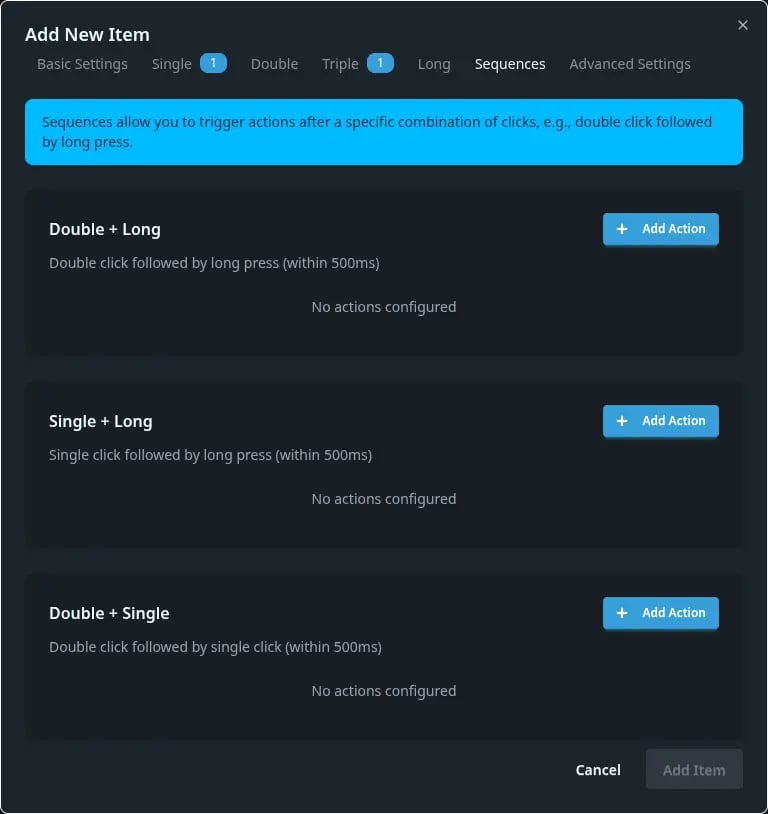
Sequences are advanced click combinations:
| Sequence | Description |
|---|---|
| Double → Long | Double click, then hold |
| Single → Long | Single click, then hold |
| Double → Single | Double click, then single |
Each sequence can have its own actions and optionally send an MQTT event.
Advanced settings
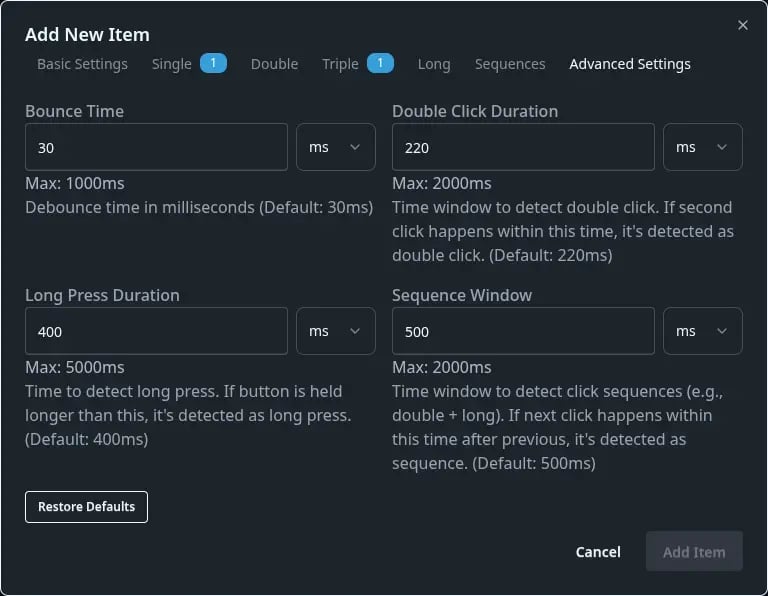
Click the Advanced Settings tab to access additional options:
Bounce Time
Contact debounce time (default: 30ms). Increase if the button generates false clicks.
Double Click Duration
Maximum time between clicks for a double click (default: 220ms).
This parameter affects single click delay - the controller waits this time to check if a second click will follow.
Long Press Duration
Hold time for a long click (default: 400ms).
Sequence Window Duration
Time window for sequences (default: 500ms).
Sequence Mode
| Mode | Description |
|---|---|
| Immediate | Actions executed immediately upon detection |
| Exclusive | Waits for sequence completion before executing |
Enable Triple Click
Enable triple click support (disabled by default).
Configuration example
Scenario: A button in the living room controlling lighting.
- Display Name:
Living Room Button - BoneIO Input:
IN_04 - Area / Room:
Living Room
Actions:
- Single: Toggle
Living Room Main Light - Double: Toggle
Living Room Lamp - Long: OFF
Living Room Main Light, OFFLiving Room Lamp(turn off everything)
After saving, the event will appear in the table and be available in Home Assistant.