Home Assistant Connection
How to connect boneIO Black controller to Home Assistant via MQTT.
The boneIO Black controller communicates with Home Assistant via the MQTT protocol. There are two configuration methods: using a local broker or a remote one (located on HA itself).
Additionally, to make managing the controller from Home Assistant easier, we have prepared a special Add-on for you, which gives you instant access to your boneIO.
Option 1: MQTT Broker on boneIO Black (default)
This is the easiest way - the controller has a built-in Mosquitto MQTT broker that is already configured and running.
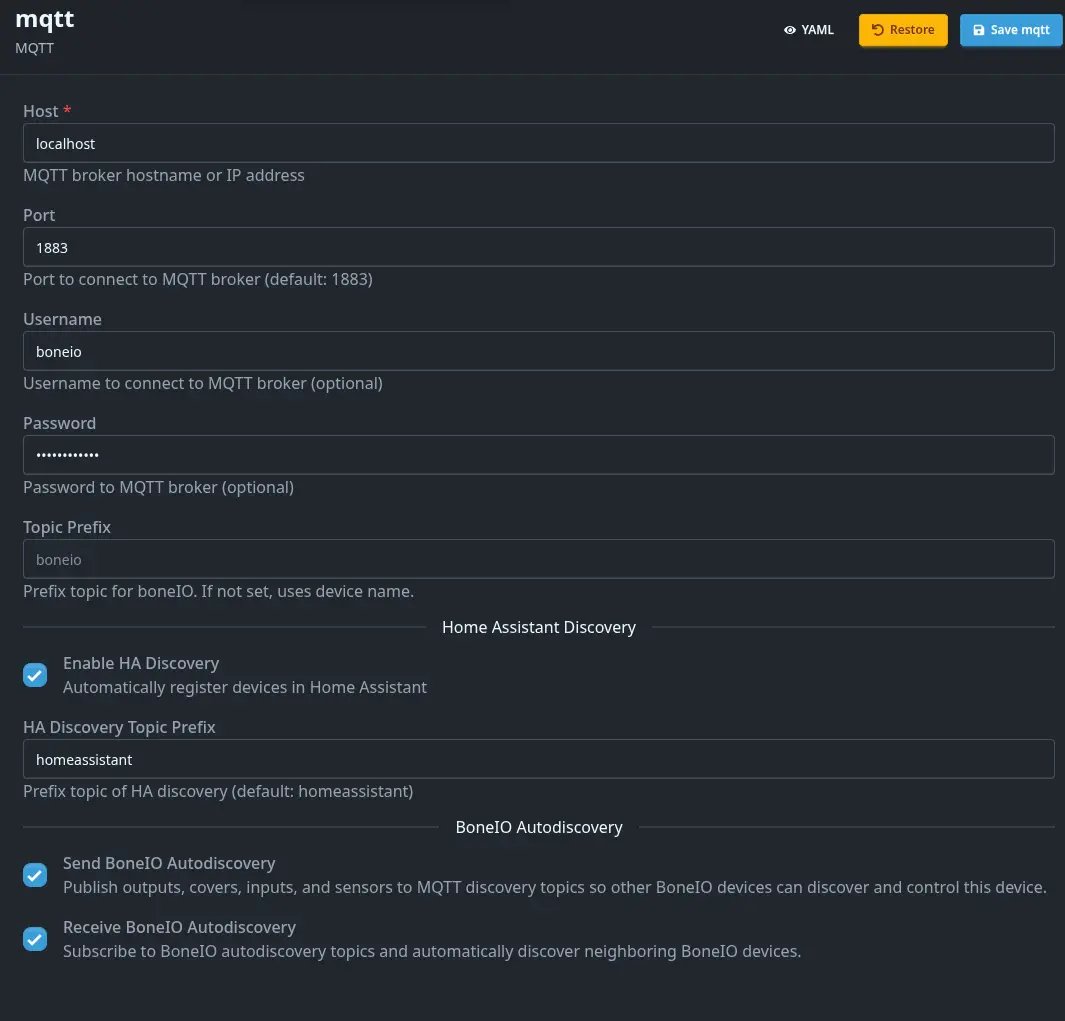
Default configuration
By default, the controller is connected to the local MQTT broker:
- Host:
127.0.0.1(localhost) - Port:
1883 - Username:
boneio - Password:
boneio - Topic Prefix:
boneio
Change the MQTT password! Go to Settings → System and change the default MQTT broker password to a secure one.
Connecting Home Assistant to the broker on boneIO
-
Install Mosquitto Broker in Home Assistant (if you don't have it yet):
- Go to Settings → Add-ons → Add-on Store
- Search for Mosquitto broker
- Click Install and Start
-
Add MQTT integration in Home Assistant:
- Go to Settings → Devices & Services
- Click Add Integration → search for MQTT
- Enter the details:
- Broker: boneIO controller IP (e.g.,
192.168.1.100) - Port:
1883 - Username:
homeassistant(orboneio) - Password: password changed in the System tab
- Broker: boneIO controller IP (e.g.,
- Click Submit
-
Automatic discovery:
- The boneIO controller will automatically register all devices with Home Assistant
- Devices will appear in Settings → Devices & Services → MQTT
Option 2: MQTT Broker on Home Assistant
You can connect the controller to an MQTT broker located on Home Assistant or another device.
Configuring the broker in Home Assistant
-
Install Mosquitto Broker (if you don't have it yet):
- Go to Settings → Add-ons → Add-on Store
- Search for Mosquitto broker
- Click Install and Start
-
Create an MQTT user:
- Go to Settings → People → Users
- Click Add User
- Fill in the details:
- Name:
boneio - Username:
boneio - Password: choose a secure password
- Name:
- Click Create
-
Add MQTT integration (if you don't have it yet):
- Go to Settings → Devices & Services
- MQTT should be automatically detected
- If not, click Add Integration → MQTT
Configuring MQTT in boneIO controller
- Go to Settings → MQTT
- Enter the broker details:
- Host: Home Assistant IP (e.g.,
192.168.1.50) - Port:
1883 - Username:
boneio - Password: password of the created user
- Topic Prefix:
boneio(or any)
- Host: Home Assistant IP (e.g.,
- Click Save
- Devices will automatically appear in Home Assistant
Installation of the boneIO Home Assistant Add-on
- Go to Settings → Add-ons → Add-on Store
- Click the three dots in the top right corner
- Select Repositories
- Add this URL: https://github.com/boneio-eu/home-assistant-addons
- Click Add
- Find the desired add-on and click Install
Communication between boneIO controllers
If you have multiple boneIO Black controllers and want them to execute commands on each other (e.g., a button on one controller turns on a light on another), all controllers must be connected to the same MQTT broker.
Example configuration for multiple controllers:
- Choose one MQTT broker (e.g., on Home Assistant or on one of the controllers)
- Connect all controllers to the same broker
- Each controller should have a unique Topic Prefix (e.g.,
boneio1,boneio2,boneio3) - In actions, you can use Remote Output and Remote Cover to control devices on other controllers
Connection verification
After proper configuration:
- In Home Assistant, go to Settings → Devices & Services → MQTT
- You should see the boneIO Black device with all configured outputs, covers, inputs, and sensors
- All entities will be automatically available in Home Assistant
The controller uses MQTT Discovery - all devices are automatically detected by Home Assistant without the need for manual configuration.